Worklog and timesheets
Worklog is the work. It is counted from the moment a fieldworker starts a job in the mobile app to the moment they finish it, one stretch per job, and the Worklog tab adds those stretches up.
Work handed from one person to another is split the same honest way: the hours each of them was in progress stay on their own worklog, so a job that changed hands mid-morning pays both for what they actually did. Being taken off a job as its assignee does not take the time with it.
Two jobs scheduled for the same moment do not both count. A fieldworker can only have one job in progress at a time — starting the second puts the first on hold — so their worklog is the sum of the stretches they actually worked, never the sum of what the calendar said.
It is not the same as attendance, and it is not meant to be. Somebody in at 10 and out at 8 has ten hours of attendance; if their day was a three-hour job and a two-hour job, their worklog is five. Attendance says they were at work, worklog says what the work was.
Users → a user → Worklog
The Payroll Timesheet
Section titled “The Payroll Timesheet”
Users → a user → Worklog
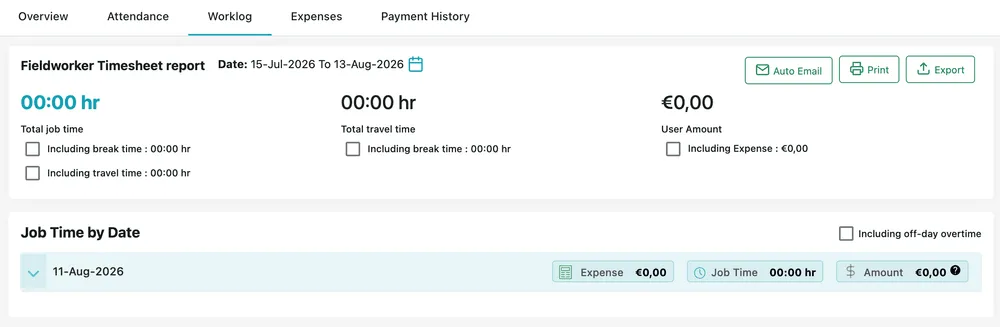
The report at the top of the tab is the Payroll Timesheet: the hours for a period with what they come to in money, which is the one report of the time reports that carries an amount at all.
Date beside its name sets the range it covers, and opens a calendar to change it.
Three totals follow, each with tick boxes that fold more time into the figure above them:
- Total job time — the time on jobs. Including break time adds the breaks taken during them, and Including travel time adds the driving as well, which turns the figure into the whole working span rather than the time on site.
- Total travel time — the driving on its own, with Including break time to add breaks taken on the road.
- User Amount — what the time comes to at this person’s rate, with Including Expense to add their claims for the period.
The tick boxes are the report, not settings: tick one and the total above it changes, so the same range can be read as time on site, or as everything the day cost.
Three buttons sit in the corner:
- Auto Email sends the report on a schedule rather than someone remembering to.
- Print produces it as a printed sheet.
- Export takes it out as a file, which is the route to a payroll system or a spreadsheet.
Paying from the worklog instead
Section titled “Paying from the worklog instead”User Amount is a payable figure, not just a total. The month’s job time is multiplied by that person’s rate, so the whole month’s work comes out as an amount the same way attendance produces a salary from the shift.
That leaves two figures for the same month, and which one somebody is paid on is your decision. Attendance pays for being at work — the usual basis for a permanent employee on a monthly wage. Worklog pays for the work done, which is the one that fits somebody paid by the hours they actually put in.
Job Time by Date
Section titled “Job Time by Date”
Users → a user → Worklog
Below the totals the same period is broken down a day at a time. Each row shows the day’s Expense, Job Time and Amount, and the chevron opens it to the individual jobs behind those figures — which job, how long it took, what it came to.
Including off-day overtime, top right, adds work done outside the person’s normal working days, for the weekend call-out that would otherwise be missing from the week.
This is where a timesheet gets checked. A day that looks wrong opens to the jobs that made it, and the job that ran long is visible rather than inferred.