Job actions
Jobs lead to other things. The visit turns up a second fault, the client asks for a price on replacing the unit, the parts have to be bought in, the work needs billing. The + at the end of the job’s timeline is where all of that is raised, with the job’s details already carried across.
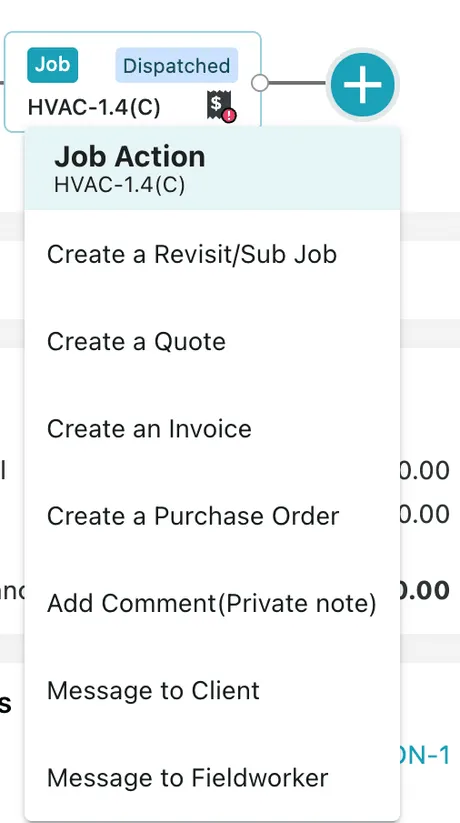
Job page → Overview → the + on the timeline
Create a Revisit / Sub Job
Section titled “Create a Revisit / Sub Job”A revisit is a second visit that belongs to the first. The part was not on the van; the client was not in; the repair needs a follow-up check.
It opens the ordinary Create New job form, already filled in from the job you came from — so all that is left is the new date, who is going, and what they are going for. What makes it a revisit rather than a new job is that it hangs off its parent: it takes the code with a suffix (HVAC-20 becomes HVAC-20-1), and both jobs link to each other, with Create a Revisit/Sub Job and Go To Parent Job on the Overview card moving between them.
Keeping them joined is what lets you see the whole story of a fault later, and stops a three-visit repair looking like three unrelated call-outs.
Sub jobs are also one of the two ways to run work that takes more than a day — see work that runs over several days.
Create a Quote
Section titled “Create a Quote”For work found on site that has not been agreed to. The fieldworker reports a failing compressor; a quote for replacing it is raised from here, already tied to this job, this client and this site. See creating a quote.
The job keeps the two kinds of quote apart, on the Quotation Details card of the Overview.
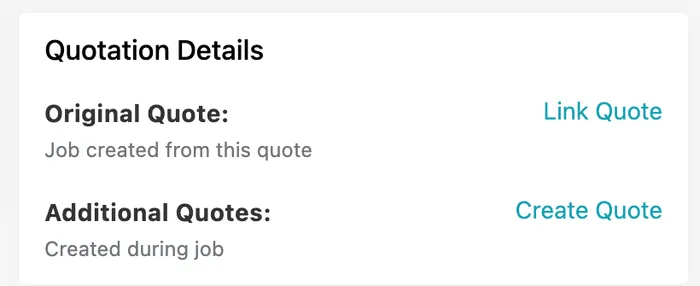
Job page → Overview → Quotation Details
Original Quote is the quote the job was created from — where a client approved a quotation and it became this job. Link Quote attaches one after the fact, for a job that was raised by hand but does trace back to a quotation.
Additional Quotes are the ones created during the job — the extra work found once someone was on site. Create Quote raises one.
The quote starts empty
Section titled “The quote starts empty”A quote raised from a job does not arrive with the job’s items on it, and that is deliberate: the additional quote is for work that has not been done — the compressor that turns out to be dead and has to be priced before anyone replaces it. The parts already in the job’s cart are the ones you are doing anyway, and they belong on the invoice, not on a quote for something else.
When you do want them, they are one click away. The fetch icon above the line table — a small database icon beside the gear — pulls them in:
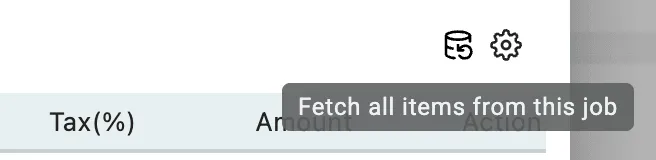
Create Quote from a job → Fetch all items from this job
Use it when the quote really is for the work in front of you — a client who wants the visit priced before it goes ahead — rather than retyping lines that are already on the job.
Quotes raised from the field
Section titled “Quotes raised from the field”This is not only an office action. Fieldworkers raise additional quotes from the app all the time, and it is one of the more valuable things they do: on an HVAC call-out a part turns out to be dead, and rather than driving back to report it, they raise a quick quote for replacing it there and then, while the client is standing next to them.
Those quotes land in Additional Quotes on this job, so the trail is intact — the visit that found the problem, and the price that came out of it.
Create an Invoice
Section titled “Create an Invoice”Bills the job. Everything billable on the Item / Invoice tab comes across, so the invoice starts complete. See invoicing from a job.
Create a Purchase Order
Section titled “Create a Purchase Order”For material you have to buy in for this job — which is the usual next step after a quote is accepted for parts you do not hold. The quote says yes, the parts are not in stock, so the order goes out from here. It opens the ordinary purchase order form; see creating a purchase order for the form itself.
Raising it from here rather than from the Inventory side ties the purchase to the work it was bought for, which is what makes the cost land against the right job in estimated profit.
Fetch Data — filling the order from the job
Section titled “Fetch Data — filling the order from the job”Fetch Data on the purchase order saves listing the parts again. It asks where to take them from:
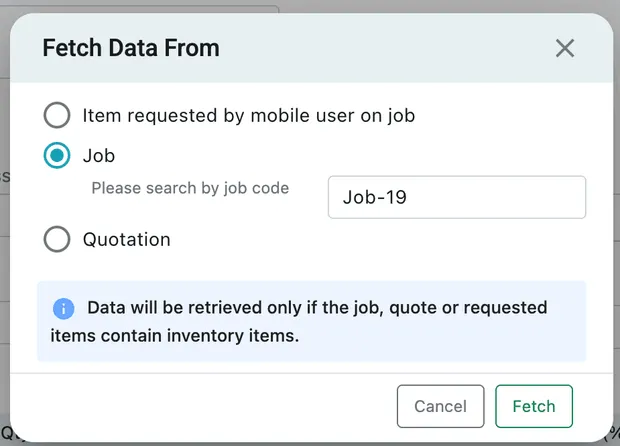
Purchase Order → Fetch Data
| Source | What it pulls in |
|---|---|
| Item requested by mobile user on job | What the fieldworker asked for from the app — the parts they said they needed while on site |
| Job | The items on a job, found by job code |
| Quotation | The items on a quote — the natural one after the client has approved extra work |
As the note says, only inventory items come across. Anything on the job or quote that is not a stock item is not something you can order, so it is left out.
Once fetched, the form shows what it was built from — “Data fetched from the job (Job-19)” — so it is clear later why the order exists.
After it is delivered
Section titled “After it is delivered”When the order arrives, the job can go ahead. Mark the delivery on the purchase order and tell the assigned fieldworker the parts are in — Message to Fieldworker in this same menu is the place for it — and they carry on with the job that was waiting.
This is the loop that keeps a stalled job moving: fieldworker finds the fault → quotes for it → client accepts → purchase order goes out → parts arrive → fieldworker is told → work finishes. All of it hangs off the one job.
Add Comment, Message to Client, Message to Fieldworker
Section titled “Add Comment, Message to Client, Message to Fieldworker”These three open the same Messages window. What differs is the Message Visibility setting they arrive with — one window, three audiences:
| Visibility | Who sees it |
|---|---|
| Private Message (Comment) | All admins. Your own record — “third call-out this quarter, check the warranty position before we charge”. Never reaches the client |
| Message to Client | The client, in their portal. Running late, on our way, the part arrives Tuesday |
| Message to Fieldworker | All admins and the fieldworker. The thread about doing the work |
Because the visibility is a field rather than three separate tools, you can change your mind before sending — and you can check, before pressing Send, exactly who is about to read it.
Correspondence Reference at the top says which record the message is attached to. Opened from a job it is that job, so the conversation stays with the work it is about; the dropdown moves it onto another record in the chain when the question really belongs to the request or the quote instead.
For a message to the client, Delivery Options decides how it reaches them — waiting in the client portal, sent by email, or both.
The full window, field by field, is covered in messages and comments.
The other ways to reuse a job
Section titled “The other ways to reuse a job”Two more sit in the job’s header rather than in this menu:
Copy Job creates a fresh job from this one’s details — for the same work coming round again with no connection to the original.
A recurrence is copied with it. Where the job you copied repeats, the new job comes with the same pattern — the same interval, the same days, the same range — and starts raising its own occurrences. That is usually the point: a monthly service for a second client is the first one copied, not built again from nothing. Where it is not what you want, open the copy’s pattern and change it, or delete the recurrence, before the first occurrence is raised. See recurring jobs.
Edit Recurring puts a repeat pattern on the job so the system raises the occurrences itself. See recurring jobs.