How equipment works
An item in your inventory is a quantity — six bullet cameras on the shelf. A piece of equipment is one individual unit with a name of its own: this camera, with this serial number, fitted at this address, under warranty until this date, serviced twice last year.
That is the whole difference. Once a unit matters as an individual — because somebody will call you back about it — it stops being stock and becomes equipment.
Everything else follows from that. A tracked unit carries a location, a status, the parts inside it, the jobs it has been on, the contracts it belongs to, and a history of every change.
Equipment and asset management is a Premium plan feature. See plans and pricing.
Where equipment comes from
Section titled “Where equipment comes from”Most equipment starts life as an item you bought and held in stock. When you sell it, fit it or hand it over, you convert it — the stock line becomes a tracked unit on the client’s record. You can also add a unit from scratch, which is what you do for equipment you already own.
See turning items into equipment for every place a conversion can happen, and adding equipment for the form itself.
The two kinds of equipment
Section titled “The two kinds of equipment”EyeOnTask keeps your assets and your clients’ assets apart, because you do opposite things with them.
| Whose asset | What you do with it | |
|---|---|---|
| My Equipment | Yours | Use it yourself, or put it out on hire and bill for the time it is deployed |
| Client’s Equipment | The client’s | Install it, service it, repair it — you act as their service provider |
A third entry, My Tools, is for the kit your fieldworkers carry rather than anything you install or lease.
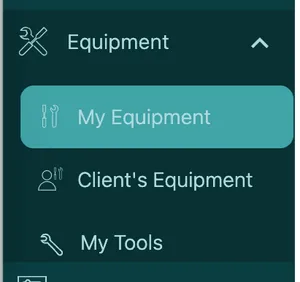
Main menu → Equipment
What a unit carries
Section titled “What a unit carries”Open any piece of equipment and the same page appears — the client’s units simply name their owner across the top.
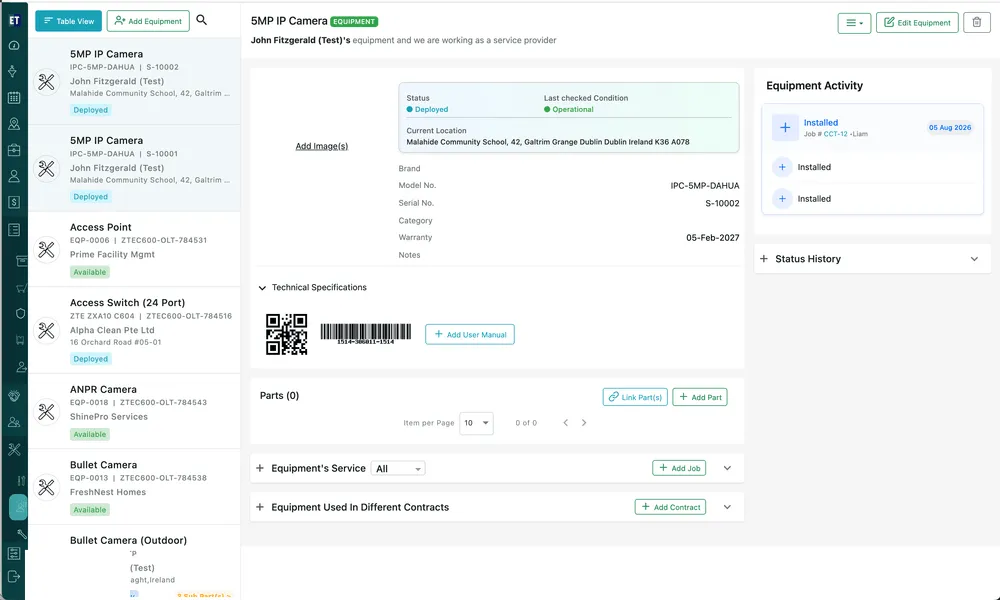
Equipment → Client’s Equipment
- Status and Current Location — what state the unit is in and where it physically is.
- Brand, Model No., Serial No., Category, Warranty, Notes — what identifies this individual unit.
- Technical Specifications — its QR code, barcode and user manual.
- Parts — the components inside it, each tracked in its own right.
- Equipment’s Service — every job done on it, past and upcoming.
- Equipment Used In Different Contracts — the agreements it sits under.
- Equipment Activity and Status History — what has happened to it and when.
Where equipment turns up elsewhere
Section titled “Where equipment turns up elsewhere”| Where | What happens there |
|---|---|
| Equipment on a job | Name the units a visit covers, so each one comes back with its own report; deploy, service or uninstall your own units on site |
| Equipment on a contract | Link the client’s units to a servicing agreement so every generated job arrives with them attached |
| Equipment leasing contracts | Rent your own units out, at a flat rate per period or by how long they were deployed |
| Invoice actions | Convert Into Equipment turns non-consumable invoice lines into the client’s tracked units |
| Equipment in the app | What the fieldworker does to a unit on site — service, replace, repair, relocate or discard it |
The rest of this module
Section titled “The rest of this module”| Page | What it covers |
|---|---|
| My equipment | Your own fleet — availability, tariff rate, deployment |
| Client’s equipment | Units your clients own and you look after |
| Adding equipment | The Add New Equipment form, field by field |
| The equipment page | Every section of the detail screen |
| Parts on a piece of equipment | Components, sub parts, and equipment used as a part |
| Finding equipment | Simple view, table view, search, filters and columns |
| Equipment actions | Set location, copy, archive, print, transfer ownership, edit and delete |
| Service and history | Jobs on a unit, activity, status history and fieldworker history |
| Equipment on contracts | Linking units to agreements, and billing leased time |
| Turning items into equipment | Every route from stock to a tracked unit |
| My tools | The kit your fieldworkers carry |
| Equipment settings | Categories, groups, conditions, brands and statuses |
| Equipment FAQ | Short answers to the common questions |
Settings behind this module
Section titled “Settings behind this module”- Equipment remark forms — Question sets answered against a single unit
- QR code and barcode template — The label you stick on a unit