Warranty claims
A warranty claim is a faulty item going back to the supplier who sold it. It records what failed, which client it was installed for, where the replacement should be delivered and where the claim has got to.
Inventory → Warranty Claim on the main menu opens the list. Claims are referenced WC-1, WC-2 and so on, each showing its supplier, its date and its status. Table View, the Warranty Claim button and the search icon sit above the list, in the same places as everywhere else.
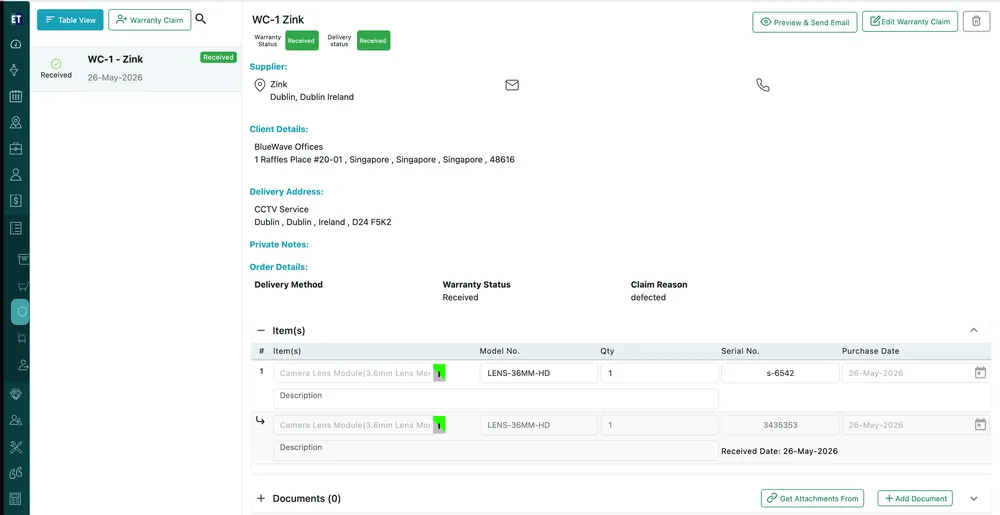
Inventory → Warranty Claim, with a claim open
The two statuses
Section titled “The two statuses”
Warranty claim → statuses
- Warranty Status — where the claim itself stands with the supplier.
- Delivery status — whether the replacement has come back to you.
What is on the page
Section titled “What is on the page”Supplier is who the claim is against, with their email and phone. Client Details is who the item was installed for, so a claim always knows which client is waiting. Delivery Address is where the replacement should be sent, and Private Notes is your own internal remark.
Order Details carries the terms of the claim: the Delivery Method, the Warranty Status, and the Claim Reason — what was actually wrong.
The items
Section titled “The items”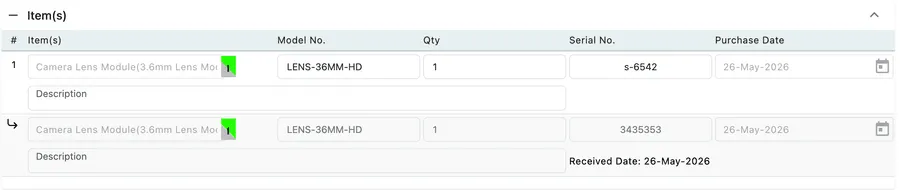
Warranty claim → Item(s)
Each claimed item carries its Model No., Qty, Serial No. and Purchase Date — the serial number and purchase date being what the supplier will ask for to prove the item is still in warranty. A description sits under each line, and a Received Date is stamped on once the replacement arrives.
A line can have a part indented beneath it, for a claim against a component inside an assembly rather than the whole unit — see sub items and parts.
Documents
Section titled “Documents”Add Document attaches files to the claim — photographs of the fault, the original invoice, the supplier’s RMA. Get Attachments From pulls in a document already held elsewhere in the system.
Sending and editing
Section titled “Sending and editing”
Warranty claim → action bar
Preview & Send Email sends the claim to the supplier, Edit Warranty Claim reopens its form, and the bin deletes it.
Claims also appear on the supplier’s own Purchase Order tab, alongside the orders you have placed with them — see suppliers.
See raising a warranty claim for the form itself.