A client's work history
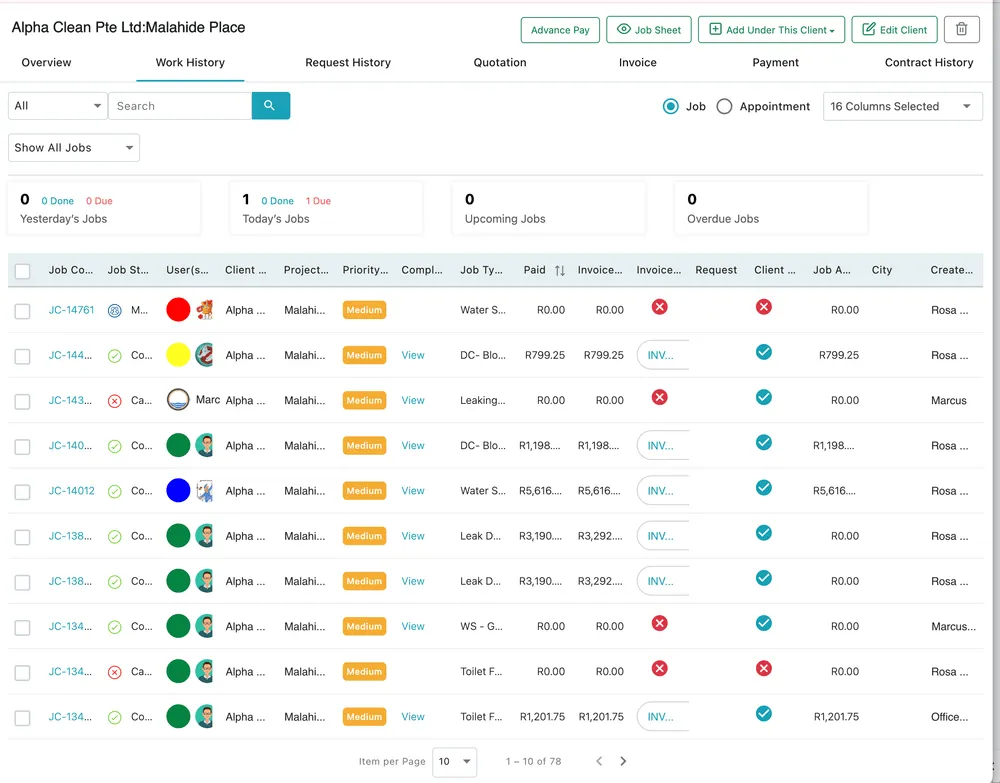
Work History is every job and appointment you have ever done for this client, with four counters across the top telling you where the work stands right now.
Clients → the selected client → Work History
The toolbar
Section titled “The toolbar”
Work History → toolbar
- Job and Appointment are the switch that matters. The tab shows one or the other, not both — jobs are the work, appointments are the visits booked around it, and each has its own table.
- All and Show All Jobs narrow the list by type and by status.
- Search finds a row without scrolling.
- 16 Columns Selected chooses which columns are drawn. The table is wide by default, and this is how you cut it back to the handful you actually read.
The counters
Section titled “The counters”
Work History → counters
Four boxes sit above the table, each with a total and a Done / Due split underneath it:
| Counter | What it counts |
|---|---|
| Yesterday’s Jobs | Work scheduled for yesterday, and how much of it got finished |
| Today’s Jobs | Work scheduled for today, and how much is still outstanding |
| Upcoming Jobs | Work booked for a future date |
| Overdue Jobs | Work whose date has passed and which is still not done |
Overdue is the one to read first. It is the count of promises to this client that have already slipped, which is exactly what they will ring you about.
The table
Section titled “The table”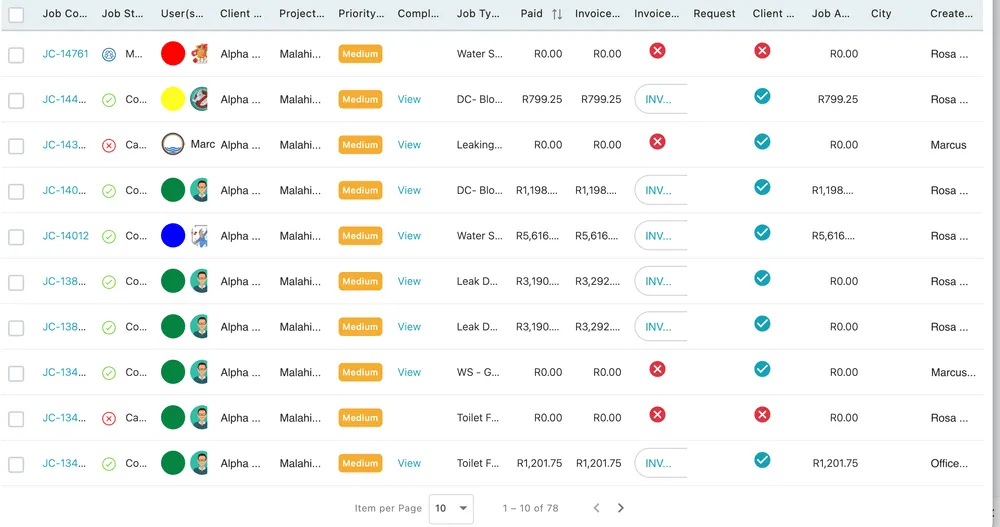
Work History → the job table
One row per job. The sixteen default columns cover:
- The job itself — its code, its status, the fieldworkers assigned to it, its priority and its job type or service.
- Where — the client, the project or site, and the city.
- The money — what was paid, the invoice amount and the job amount.
- The links — the invoice raised from the job, shown as a chip you can click through to, and the request it came from, if it started as one.
- The record — the completion detail, whether the client approved it, and who created the job.
A tick or a cross in a column is a yes or no answer — approved or not, invoiced or not. Rows with no invoice chip are work that has not been billed yet, which makes this table a quick way to spot the jobs that finished and never turned into money.
Item per Page and the arrows at the foot move through the list, with the running count beside them.
Clicking a job code opens the job itself. Everything about reading and working a job is in the job card.