How do I generate an invoice report?
Invoice Report, in the invoice section of the catalogue, is what you have billed over a period and what has come back against it.
Open it from Add Report — see generating a report for the sequence.
What it asks for
Section titled “What it asks for”
Reports → Invoice Report
Only Date Range is required — it carries the red asterisk, and the report will not generate without it. Everything else narrows what comes back, and each has its own Clear:
- Invoice Type — how the invoice was raised, such as against a single Job or as Multi Jobs.
- Payment Mode — how it was paid: cash, card, transfer.
- Client — one client, or every client if left empty.
- Payment Status — paid, unpaid, and the rest. This is the filter that turns the report into a collection list.
- Show Column — which of the twelve columns to carry.
What comes back
Section titled “What comes back”
Reports → Invoice Report
Four totals sit above the table, and together they are the whole month in one line:
- Invoice Total — everything raised in the period.
- Paid Amount — what has come in against it.
- Due Amount — what has not.
- Advance Amount — money taken before the work, held against invoices not yet raised.
Print and Export sit beside them, and act on the report as generated.
Reports → Invoice Report
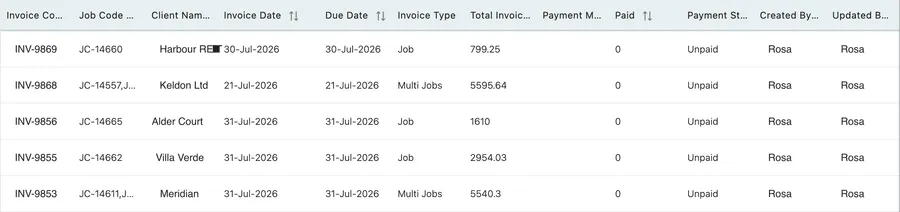
Each row is one invoice: its code, the job or jobs behind it, the client, the invoice and due dates, the type, the total, the payment mode and how much has been paid, its payment status, and who created and last updated it.
Using it
Section titled “Using it”The report answers two different questions depending on how it is filtered.
What did we bill this period wants the date range and nothing else. Invoice Total is the answer; the table is the detail behind it.
What is still owed wants the range plus a payment status of unpaid, and Due Amount becomes the figure that matters. That version is worth saving under a name of its own — an account usually ends up with a Debtors Report sitting in the saved list precisely so that chasing money is opening something by name rather than building a report first. See saved reports and auto email.
Narrowed to one Client, it is their statement: everything raised against them over the period, ready to export and send.
For chasing rather than reporting, the Client Receivable Report is the better tool: it drops the period entirely and lists what is outstanding by client, with the age of each debt.
Where the figures come from
Section titled “Where the figures come from”Everything here is the invoices themselves, so it moves when they do. An invoice edited, or a payment recorded, after the report was generated is not reflected until you press Generate Report again.
For what an individual invoice holds and how payment is recorded against it, see how invoices work and invoice payments.