How users work
A user is a person who signs in to EyeOnTask. Everyone who works for the company has one: the people in the office who plan the work, and the people in the field who do it.
The user record is two things at once. It is a login — a username, a password and the set of things that person is allowed to see and do. And it is the time-and-money record for that person — their shift, their wage, the hours they put in, the expenses they claimed and what they have been paid.
The two types you create
Section titled “The two types you create”The type is chosen when the user is created, and there are two of them. It is not fixed: Edit User on somebody’s record changes it, so an admin who moves out to the field becomes a fieldworker on the same login, keeping their history, their attendance and their pay record. There is no need to create a second user for them.
| Type | Where they work |
|---|---|
| Admin | Both ends. The desktop application, where they plan, dispatch, quote and invoice, and the mobile app as well — but not both signed in at once, because a login holds one session at a time. |
| Fieldworker | The mobile app only, with the jobs assigned to them. |
An admin is the manager who runs the day from a desk but is also out on site half the week, and can work from either. A fieldworker is on the road, and everything they need is on the phone.
A third type, Super Admin, is the account owner — the login the account was opened with. It is not one of the choices on the new-user form.
A fieldworker’s access is narrowed further, permission by permission, on their own record — see fieldworker mobile app permissions.
Finding your people
Section titled “Finding your people”Users on the main menu opens everyone in the account.
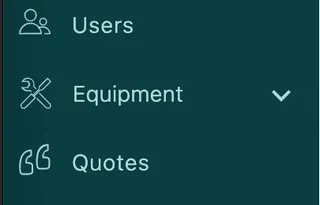
Main menu → Users
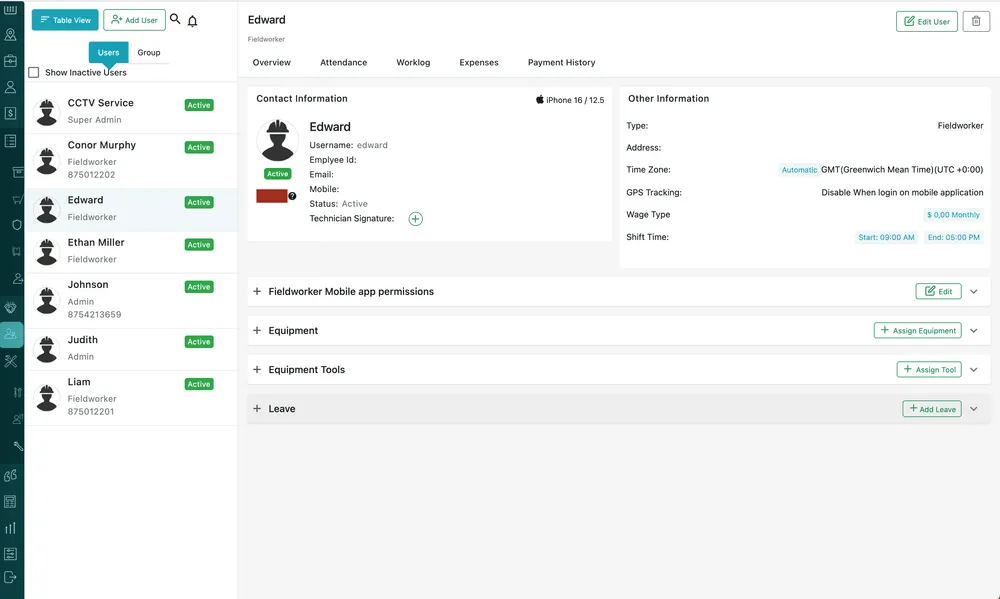
Main menu → Users
People run down the left, and clicking one opens their record alongside the list.
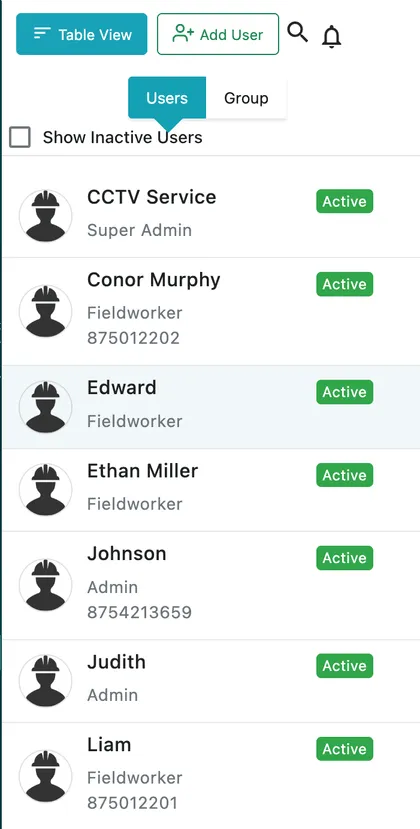
Users, Simple View
Each row carries the person’s photo, their name, their type and their mobile number, with an Active or Inactive badge on the right.
The bar above the list
Section titled “The bar above the list”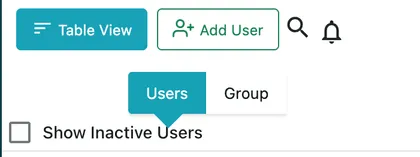
Users, Simple View
- Users and Group switch between the individual people and the groups they have been gathered into — see groups.
- Show Inactive Users brings the people who have left back into the list. Left unticked, the list is only the people working today.
- Table View redraws everyone as a table with a column per field, which is where searching and filtering live — see finding and managing users.
- Add User opens the new-person form — see adding a user.
- The search icon opens a search box over the list.
Groups
Section titled “Groups”A group is a saved set of people. It is built out of users who already exist, and it is there to save picking the same handful of names one at a time, over and over — put them in a group once and choose the group instead.
Where it pays off is on a job. Assign Fieldworker(s) on the new job form takes a group as readily as a person, and choosing one drops everybody in it into the field as individual names — the four people who always go out together are picked once rather than four times.
Nothing else about the person changes. Users come first and stand on their own: everybody has a user record whether or not they are in a group, a user does not need to belong to one, and there is no group to fill in when somebody is created. A group is a convenience laid over the people you already have.
What is on a person’s record
Section titled “What is on a person’s record”Opening someone gives five tabs.

Users → a user
| Tab | What it holds |
|---|---|
| Overview | Who they are, how they are set up, their permissions, their kit and their leave — see the user page. |
| Attendance | Their check in and check out times, and the salary worked out from them — see attendance and check in. |
| Worklog | The time they actually spent on jobs — see worklog and timesheets. |
| Expenses | What they spent and claimed back — see a user’s expenses and leave. |
| Payment History | What they have been paid, and what is still owed — see paying a user. |
Attendance and worklog are not the same hours
Section titled “Attendance and worklog are not the same hours”These two tabs both count hours and they will rarely agree. They are measuring different things.
Attendance is the shift. It comes from the fieldworker checking in and checking out in the mobile app, the same way a clock card works — in at 10, out at 8, ten hours of attendance for that day. It is a record of being at work, which is what a permanent employee on a monthly wage is paid for. Attendance is what the salary calculation runs on.
Worklog is the work. It is counted from start job to finish job, once per job. On the same ten-hour day the person might do two jobs — one of three hours, one of two — and the worklog is five hours. It is a record of time on site, which is what tells you what the day actually produced and what to bill for it.
So the same day reads as ten hours of attendance and five hours of worklog, and both are correct.
Both tabs end in money, and either can be the one somebody is paid on. Attendance turns the shift into a salary; worklog multiplies the month’s job time by the person’s rate. Which of the two figures you pay is your decision — a salaried employee is normally paid from attendance, somebody paid for the hours they worked from worklog. What is paid out is recorded under Payment History either way, so there is a settled record of every period rather than a figure someone worked out once.
The pages in this section
Section titled “The pages in this section”- Adding a user — the new-person form, field by field.
- The user page — everything on the Overview tab.
- Fieldworker mobile app permissions — what a fieldworker can do in the app.
- Attendance and check in — the shift, and the salary worked out from it.
- Attendance policies — rounding, grace periods, overtime and half days.
- Worklog and timesheets — time on jobs, and the Payroll Timesheet.
- A user’s expenses and leave — claims and time off.
- Paying a user — payment history and marking a period paid.
- Finding and managing users — Table View, searching, editing, deactivating and deleting.
- Users FAQ.
Settings behind this module
Section titled “Settings behind this module”- Expense and user settings — The leave types your staff can book against
- Mobile app settings — What every fieldworker can see and do in the app