Sub items and parts
Some of what you stock is a finished product, and some of it is the parts that product is built from. EyeOnTask lets you say which is which, and link the parts to the product they belong to.
Marking an item as a part
Section titled “Marking an item as a part”Treat as Part/Component at the top of the item’s form says the item is a component used in assemblies or builds — a lens module, a battery, a circuit board, a wheel, a motor — rather than something you sell whole.

Add New Item → Treat as Part/Component
The tickbox is on the same form whether you are adding an item or editing one, so an item already in your list can be reclassified.
Linking parts to a product
Section titled “Linking parts to a product”The Sub Items card on the item page is the product’s parts list. Link Item(s) adds to it — you pick from your existing items, so a part only ever exists once no matter how many products use it.
To add a part under a parent item:
- Open Inventory → Product(s) and click the parent item — the product the part belongs to.
- Scroll to the Sub Items card on its item page.
- Click Link Item(s), top right of the card.
- Pick the part from your existing items and link it.
The part has to exist as an item first. If it does not, add it — ticking This is a part is optional, but it keeps parts easy to tell apart in the list — then come back and link it.
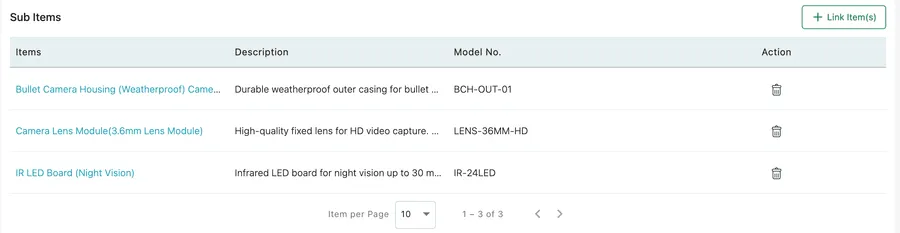
Item page → Sub Items
Each linked part shows its name, its description and its model number. The name is a link — clicking it opens that part’s own item page, with its own stock and history. The bin in the Action column unlinks the part from this product; it does not delete the part itself.
An item with nothing linked to it reads Not Found under Sub Items.
Seeing it from the list
Section titled “Seeing it from the list”An item that has parts linked to it is marked in the item list, with a badge reading how many — 3 Sub Item(s) >.
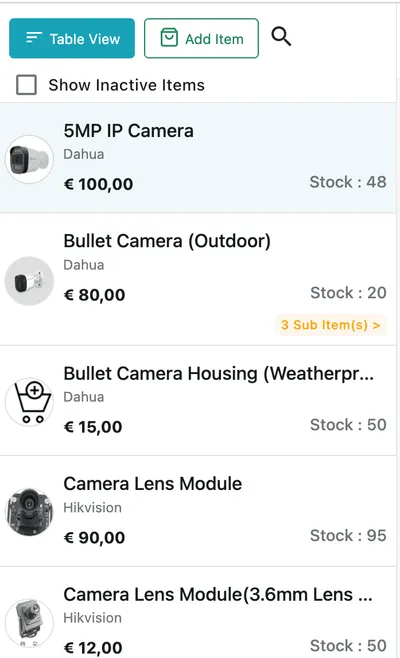
Inventory → Product(s)
Each part keeps its own stock, its own cost and its own history. Linking them says what belongs with what, so that when a camera comes back for repair you can see the housing, the lens and the LED board it is made of, and check you hold them.