Equipment in the app
A visit that names equipment is not reported on as one lump. Each unit gets its own account — what state it was in, what was done to it, what went into it and what it looked like afterwards — and the fieldworker records that against the unit itself, on site.
That is what makes a report saying “the compressor was found faulty and replaced, then tested” possible instead of “serviced the ACs”.
Adding a unit from the app
Section titled “Adding a unit from the app”A unit does not have to be on the job before the fieldworker arrives. A client’s equipment can be added from the app, which is the answer to finding a machine on site that the office has never recorded.
Open the job for that client and go to its Equipment screen. The floating action button in the corner opens Add Equipment, which takes two steps.
Step 1 — the item it comes from. A single required field, Item’s name: the inventory item the unit is. If the client supplied the unit and it is not coming out of your inventory, press Skip — the screen says as much — and go straight to the details. Otherwise pick the item and press Next.
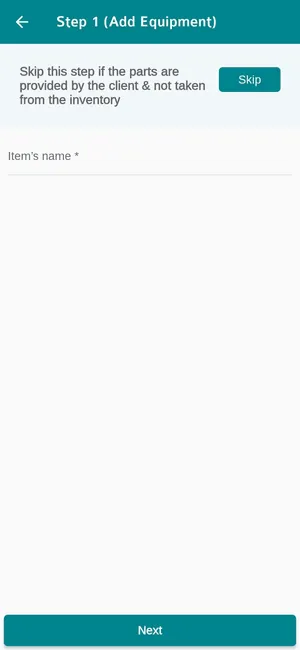
The app → a job → Equipment → Add Equipment, step 1
Step 2 — the unit’s details.
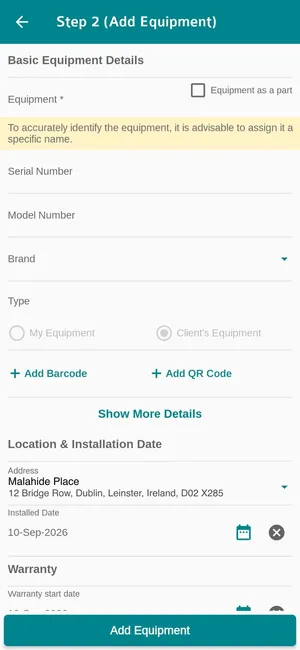
The app → a job → Equipment → Add Equipment, step 2
- Equipment — the unit’s name, and required. Give it a specific one: Rooftop AC unit 2 finds the right machine next visit where Air conditioner does not, which is what the note on the screen is asking for.
- Equipment as a part — tick it when the unit is a component of another machine rather than a machine of its own. See parts.
- Serial Number, Model Number and Brand — what tells this unit apart from every other one like it.
- Type — My Equipment or Client’s Equipment; a unit added from a client’s job shows as Client’s Equipment.
- Add Barcode and Add QR Code — attach a code so the unit can be scanned next time.
- Show More Details — opens the rest of the unit’s fields.
- Address and Installed Date — where the unit is and when it went in. The address comes already filled in, with a dropdown to choose another.
- Warranty — when the unit’s cover starts.
Add Equipment saves it. It is recorded against that client from then on, the same as a unit added in the office — see adding a client’s unit.
Getting to a unit
Section titled “Getting to a unit”Equipment on the job appears as a card, one per unit.
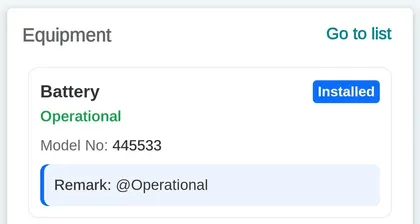
The app → a job → Equipment
Each card carries the unit’s status, its last checked condition, its model number and the most recent remark — so the person walking up to the machine already knows what the last person found. Tapping it opens the Action screen.
The Action screen
Section titled “The Action screen”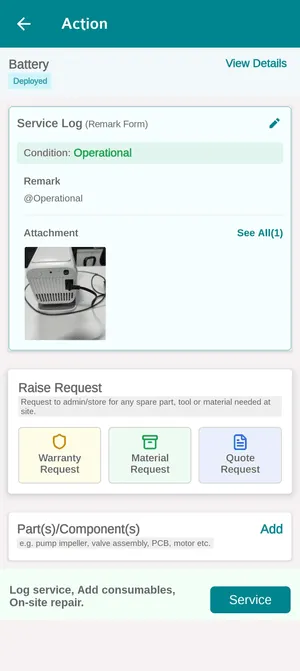
The app → a job → an equipment unit
The head of the screen names the unit and its status, and View Details opens everything on record for it — the same detail as the equipment page in the office, including its history, so a fault that has recurred three times is visible on site.
Service Log (Remark Form) underneath is this visit’s report on the unit: the condition it was left in, the remark written about it, and the photographs. The pencil opens it for editing.
Part(s)/Component(s) is what the unit is made of — a pump impeller, a valve assembly, a PCB, a motor. Add records a component fitted or found, and those parts stay attached to the unit afterwards. Detach takes one off: the part stops belonging to this machine and goes back to standing on its own, keeping its own serial number and history. See parts on a piece of equipment.
Raise Request is here as well as on the job, because a part failing is usually discovered in front of the machine. See a job in the app.
Logging the service
Section titled “Logging the service”The pencil on the Service Log, or Service at the foot of the screen, opens the form.
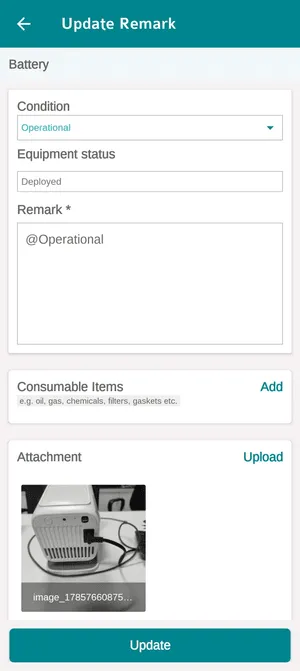
The app → an equipment unit → Service
- Condition is what state the unit is in — Operational and the rest of your list. This is what becomes Last checked Condition on the unit in the office.
- Equipment status shows where the unit stands — deployed, in repair — as context for the condition being recorded.
- Remark is the account of what was done, and it is required. It is the sentence that ends up in front of the client on the job card.
- Consumable Items are the things used up rather than fitted — oil, gas, chemicals, filters, gaskets. Adding them here is what makes a service cost what it really cost.
- Attachment → Upload adds the photos of this unit.
Update saves it against the unit, and it comes back to the office on the job’s completion detail, unit by unit.
The five things you can do to a unit
Section titled “The five things you can do to a unit”Scrolling the Action screen past the service log gives the rest of the routes, each with the question it answers.
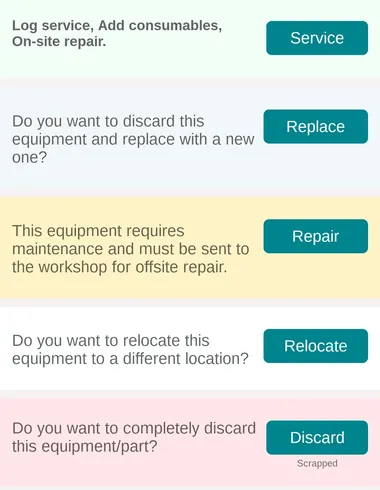
The app → an equipment unit → actions
| Action | When it is used |
|---|---|
| Service | Log the service, add consumables, repair it where it stands |
| Replace | The unit is finished — discard it and put a new one in its place |
| Repair | It cannot be fixed on site and must go back to the workshop |
| Relocate | It is moving to a different location |
| Discard | It is being scrapped altogether, with nothing replacing it |
The distinction that matters is Repair against Service: one leaves the unit where it is and one takes it away, and choosing correctly is what keeps the answer to “where is that machine?” true. Relocate is the same idea for a unit that is simply moving — it updates the unit’s location rather than leaving the office to find out later. See set equipment location.
Replace and Discard both end the unit’s life, and the difference is whether something takes over from it. Either way the unit’s history stays on record — see service and history.