Clients settings
Most of what you choose from a dropdown on a client comes from a list under Settings → Modules → Clients. There are six lists and one default.
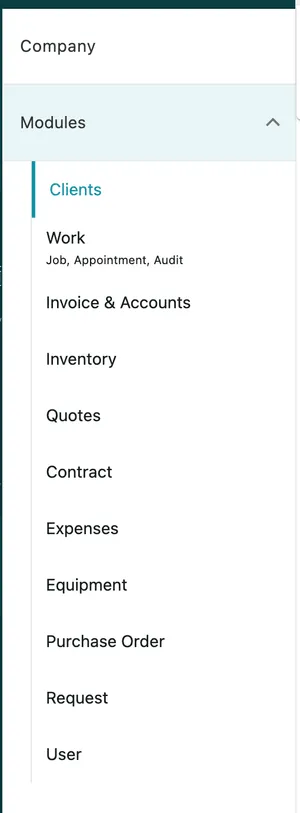
Settings → Modules
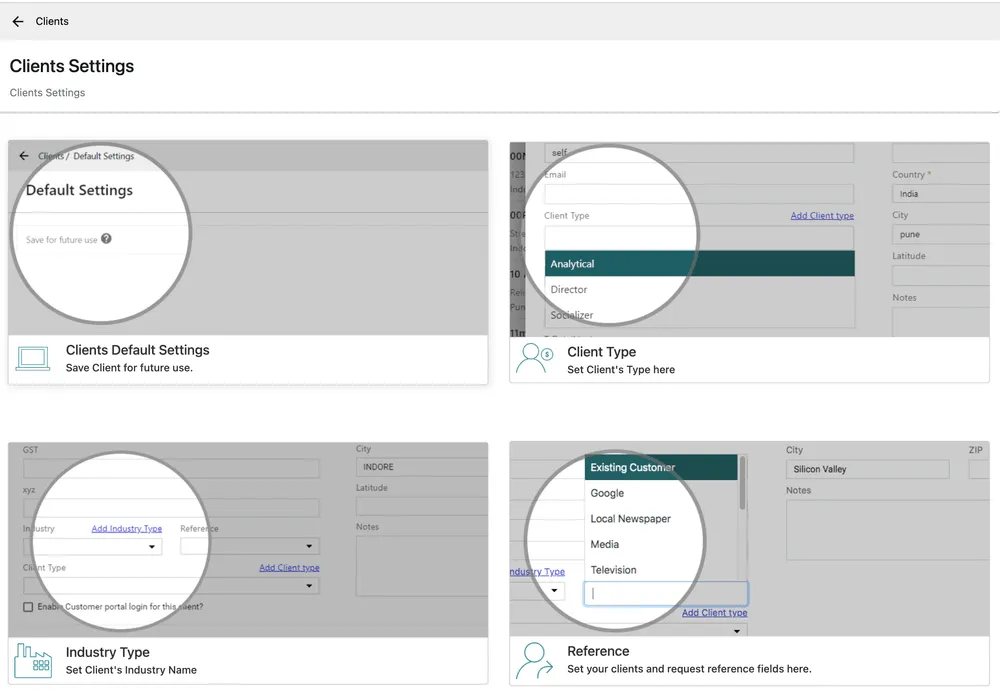
Settings → Modules → Clients
Every list works the same way: open it, press its Add button, type the value, Save. The pencil on a row edits it and the bin deletes it. New entries are offered on the client form straight away.
Default settings
Section titled “Default settings”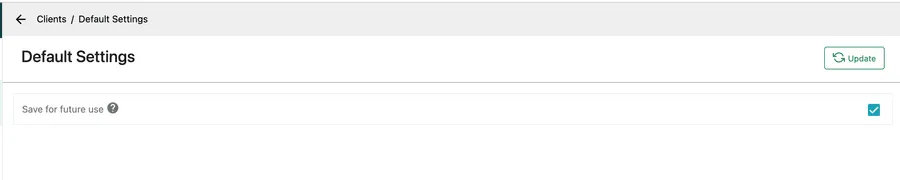
Settings → Modules → Clients → Clients Default Settings
One tick box, Save for future use, and it decides how the same tick box arrives on the forms where you can type a client in without leaving what you are doing — adding a request, or a job for somebody who is not on your books yet.
Ticked here, that person is kept as a client when the record is saved. Cleared, their details stay attached to the one record and no client is created. Tick it if most of the people who come to you are worth keeping; clear it if you deal with a lot of one-off callers.
Update saves.
Client Type
Section titled “Client Type”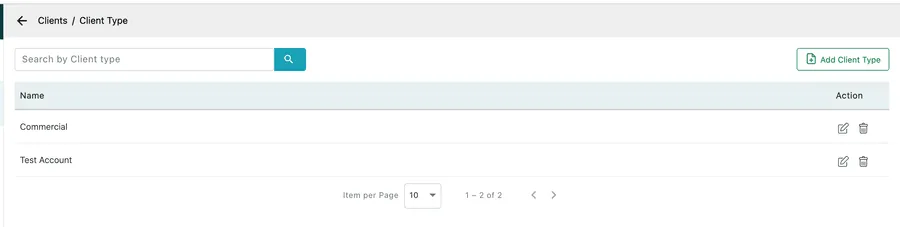
Settings → Modules → Clients → Client Type
What kind of customer this is — Commercial, Domestic, Contract, Warranty. Client type is the split you report and filter on, so keep it to the handful of categories your pricing or process actually treats differently.
Also creatable from the client form itself, through Add Client type.
Industry Type
Section titled “Industry Type”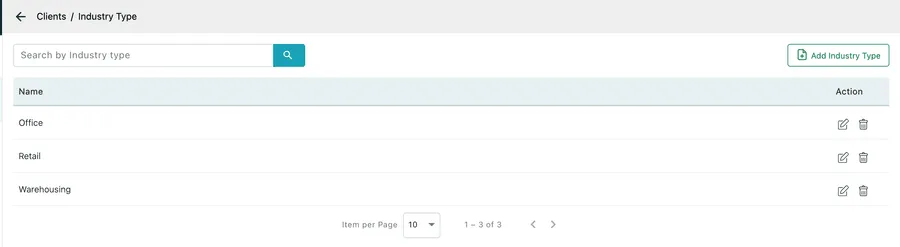
Settings → Modules → Clients → Industry Type
What the client’s business does — Office, Retail, Warehousing, Hospitality. Where client type is about your relationship with them, industry is about them.
Reference
Section titled “Reference”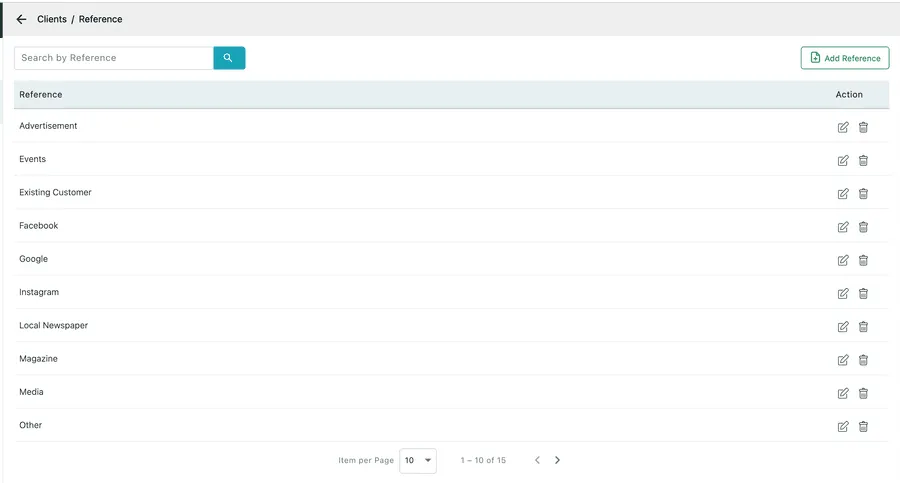
Settings → Modules → Clients → Reference
How they heard about you. This is the longest list as it ships — the usual advertising channels, word of mouth and Other — and it is the one to prune first, because a marketing answer is only useful if the person filling it in can find their option quickly.
Reference appears on the client form and on a request, which is where it usually gets filled in: the enquiry arrives before the client exists.
Contact Tag
Section titled “Contact Tag”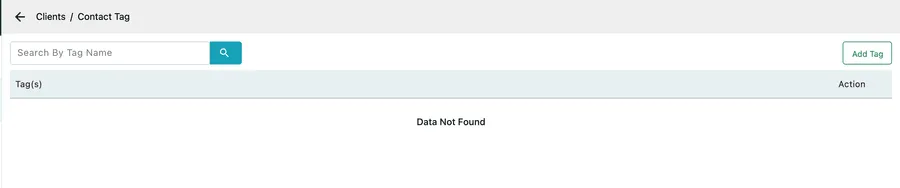
Settings → Modules → Clients → Contact Tag
Labels for the individual people at a client — Accounts, Site manager, Out of hours. A client has one or more contacts, and a tag says what a given contact is for, so the right person is emailed about the right thing.
Ships empty.
Payment Term
Section titled “Payment Term”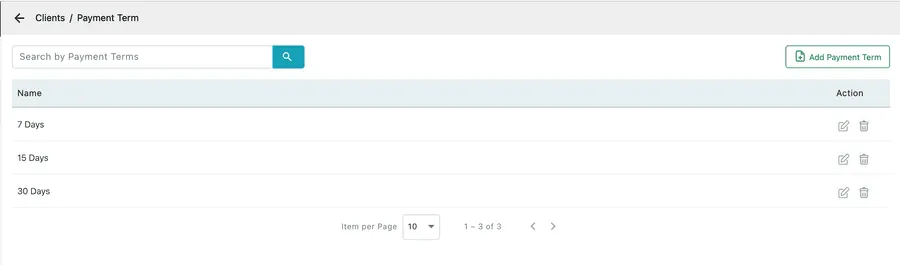
Settings → Modules → Clients → Payment Term
How long this client gets to pay. Setting a term on a client is what makes the due date on their invoices fill itself in.
Ships with 7, 15 and 30 days. Add whatever else you trade on.
Property Type
Section titled “Property Type”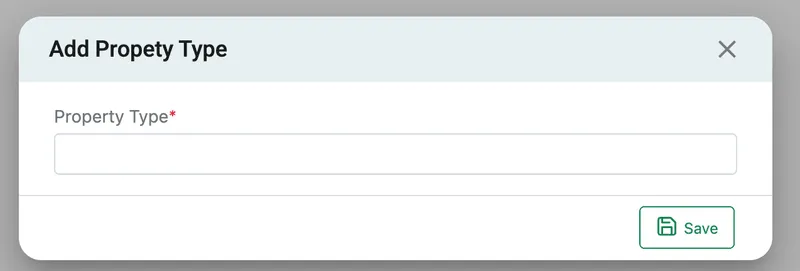
Settings → Modules → Clients → Property Type → Add Property Type
What kind of building you are going to — Flat, Detached house, Office block, Factory unit. It describes the site rather than the customer, and it is worth filling in when the building type changes how a job is priced or how long it takes.
Ships empty.
Related
Section titled “Related”- How do I edit a client — where these lists are used
- Adding a site to a client
- Site custom fields — for anything the site form does not already ask