Invoice line items
An invoice’s lines are what the client is actually being charged for. Three buttons build them, and they cover the three things a field service business bills: parts, services, and time.
Lines get onto an invoice two ways: linked from a job, where the job’s items come across on their own and are colour-coded to it, or added by you, which is everything below. You can always add your own lines to any invoice, however much is already on it — see standalone items.
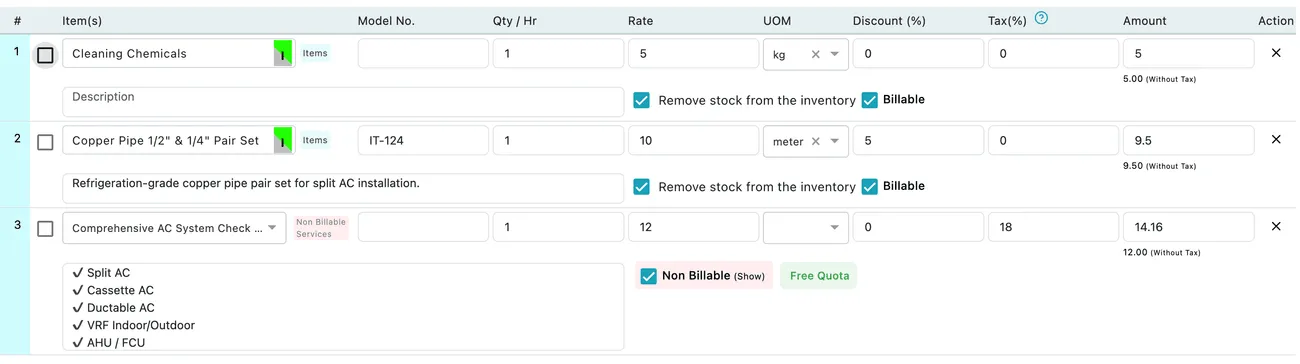
Edit Invoice → line items
Add Item — parts and products
Section titled “Add Item — parts and products”Add Item adds a line for something physical. Each carries Item(s), Model No., Qty / Hr, Rate, UOM, Discount (%) and Tax (%), and the Amount is worked out for you as you type — shown with tax, and the without-tax figure beneath it. Under the row is a free-text description for anything the line name doesn’t say.
Two tickboxes sit under each item row, and they do quite different jobs:
- Billable — whether the client pays for this line. Untick it and the line still appears on the invoice, for the record, without being charged.
- Remove stock from the inventory — whether selling this deducts it from your stock. It is ticked by default, so the item leaves your inventory as it leaves your van.
Untick it and the line is invoiced without touching your stock — which leaves the item on your books as something you no longer have, so untick it only when the stock genuinely did not move.
Add Job Type/Services — the work performed
Section titled “Add Job Type/Services — the work performed”Add Job Type/Services adds labour of the named kind. Pick the job type from the dropdown, then fill in the Services, Qty/Hr, Rate, discount and tax — again with the amount calculated as you go.
A service line does not show only its own name. Where the job type covers several services, they are listed and ticked beneath it on the invoice — so a line reading Comprehensive AC System Check also spells out the unit types it covered underneath.
One line at one price, with the work it included itemised under it, is easier for a client to check than a bare service name and a number.
Non-billable services and free quota
Section titled “Non-billable services and free quota”Where an invoice covers work under a contract, some services are already paid for by the recurring fee. Those arrive marked Non Billable, with a Free Quota badge showing that the work fell inside what the contract includes.

Edit Invoice → a non-billable line
A non-billable service still appears on the invoice — the (Show) option keeps it visible — but adds nothing to the total. Leaving it on shows the client the work was done, and that they were not charged twice for what their contract already covers.
This is the rate card and free quota rule reaching the invoice. If a service you expected to charge for has come across as non-billable, the contract’s quota is why.
Lines that come to nothing
Section titled “Lines that come to nothing”A line can also sit at quantity 0 and rate $0.00, contributing nothing. The tax % on such a line makes no difference while the amount is zero — it is there so the line bills correctly if a quantity or rate is later filled in.
Labour is added on the job, not on the invoice
Section titled “Labour is added on the job, not on the invoice”Labour does not go on an invoice directly. You add it on the job, and it reaches the invoice from there.
The reason is that labour is worked out from who worked, and for how long — and those hours belong to a job. When you are building an invoice there may be no job linked to it yet, and an invoice can carry several jobs at once, so there is nothing at that level to calculate from.
To add labour, open the job, go to Item / Invoice → Item(s), and use Calculate:
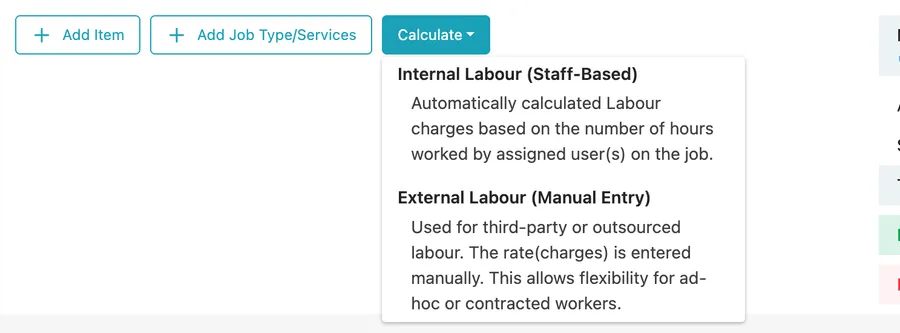
Job → Item / Invoice → Item(s) → Calculate
- Internal Labour (Staff-Based) — labour charges worked out automatically from the hours your assigned users put in on the job.
- External Labour (Manual Entry) — third-party or outsourced labour, where you enter the rate yourself. Use it for ad-hoc or contracted workers.
The Labour window
Section titled “The Labour window”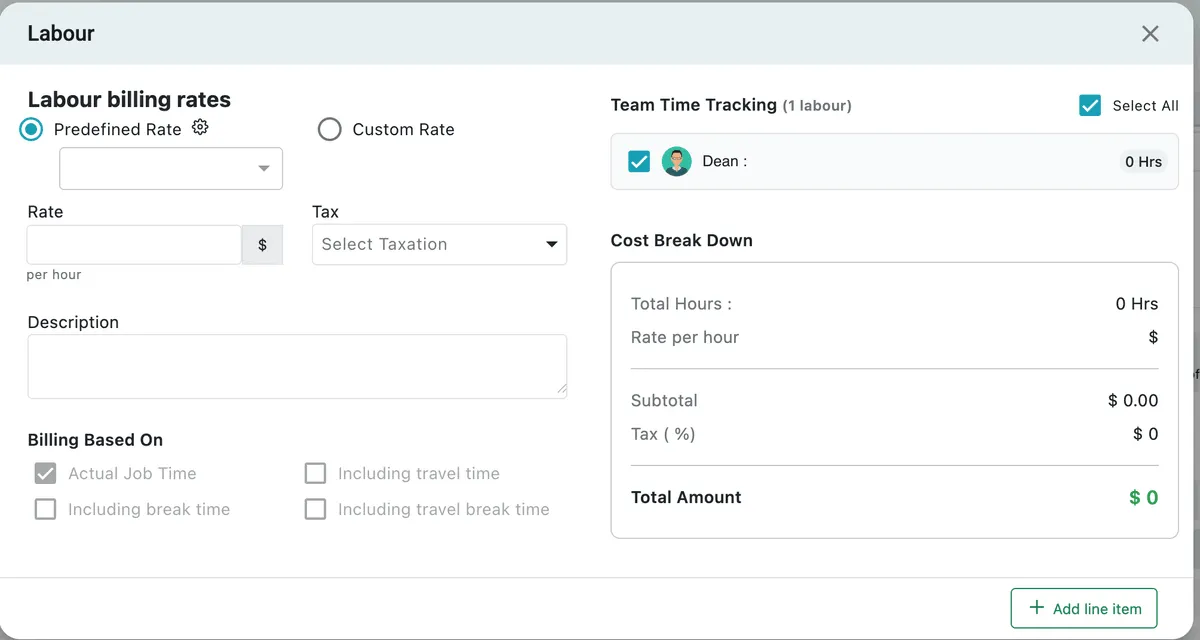
Job → Calculate → Internal Labour
Labour billing rates is either a Predefined Rate picked from your saved rates, or a Custom Rate you type for this job alone. Alongside it sit the Rate per hour, the Tax to apply, and a Description for the line.
Billing Based On decides what counts as billable time:
| Option | What it charges for |
|---|---|
| Actual Job Time | Only time spent on the job itself |
| Including travel time | Job time plus getting there |
| Including break time | Job time plus breaks taken |
| Including travel break time | Job time plus travel and breaks |
Whether the client pays for travel is normally a term of your agreement, so pick the basis that matches what you told them.
Team Time Tracking lists everyone who worked on the job with their recorded hours, and you tick who to bill for — Select All takes the whole team. The Cost Break Down beside it shows total hours, rate per hour, subtotal, tax and total amount as you go.
Add line item puts the calculated labour onto the job, from where it reaches the invoice.
Editing and removing lines
Section titled “Editing and removing lines”Every field on a line is editable in place, and the Amount recalculates immediately as you change quantity, rate, discount or tax. The × in the Action column removes a whole line.
How discounts interact with tax
Section titled “How discounts interact with tax”There are two levels of discount, as on a quote:
- Per line, in the Discount column, read as a percentage or a flat amount according to the invoice’s Discount Type.
- Additional Discount on the invoice as a whole, applied either before tax or after tax.