Xero integration
Connecting Xero keeps your clients, invoices and payments in step across both systems, so the same customer is not typed into two places and reconciled by hand afterwards.
It is the same job as the QuickBooks integration, for the other accounting package. The one real difference is that Xero also wants an account mapping, not just a tax one.
Where to find it
Section titled “Where to find it”Settings → Integrations holds every connection EyeOnTask makes to an outside system.
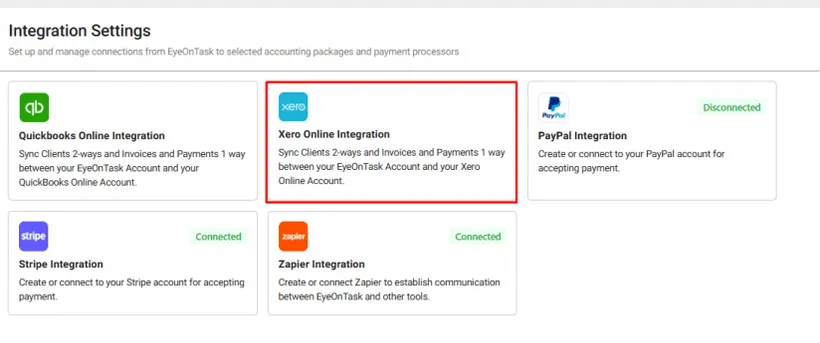
Settings → Integrations
Xero Online Integration is the second card.
Connecting
Section titled “Connecting”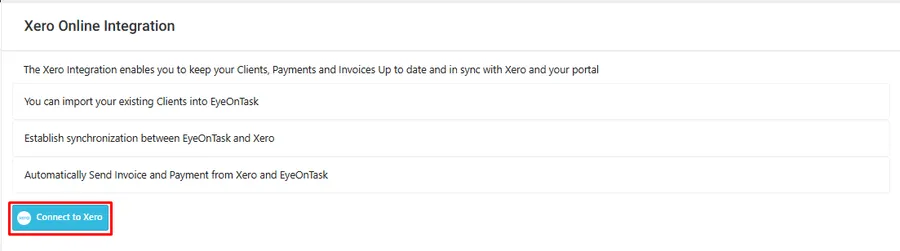
Settings → Integrations → Xero Online Integration
Connect to Xero hands you to Xero to sign in. You are signing in to Xero itself here, not to EyeOnTask.
Xero sign-in
Xero then asks which organisation to connect — its word for a set of books.
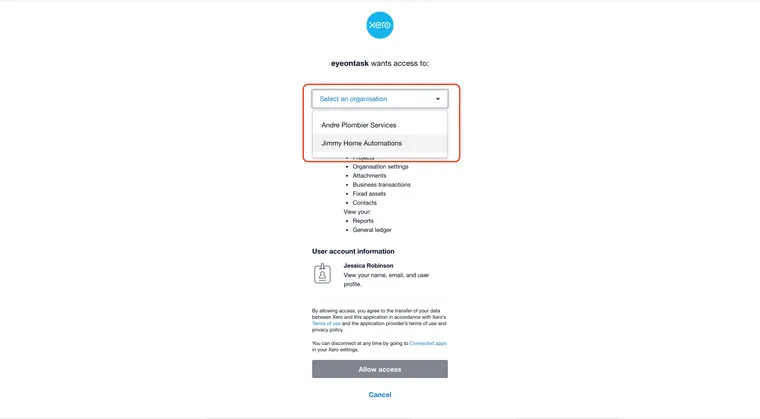
Xero → select organisation
Pick the organisation whose books this EyeOnTask account bills for, and allow access.
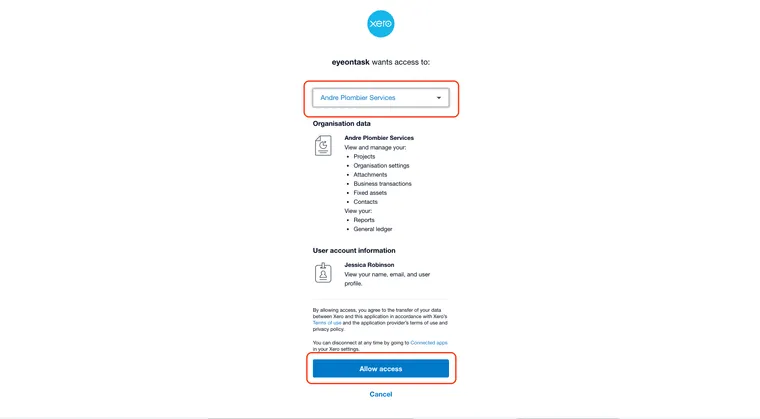
Xero → allow access
Mapping
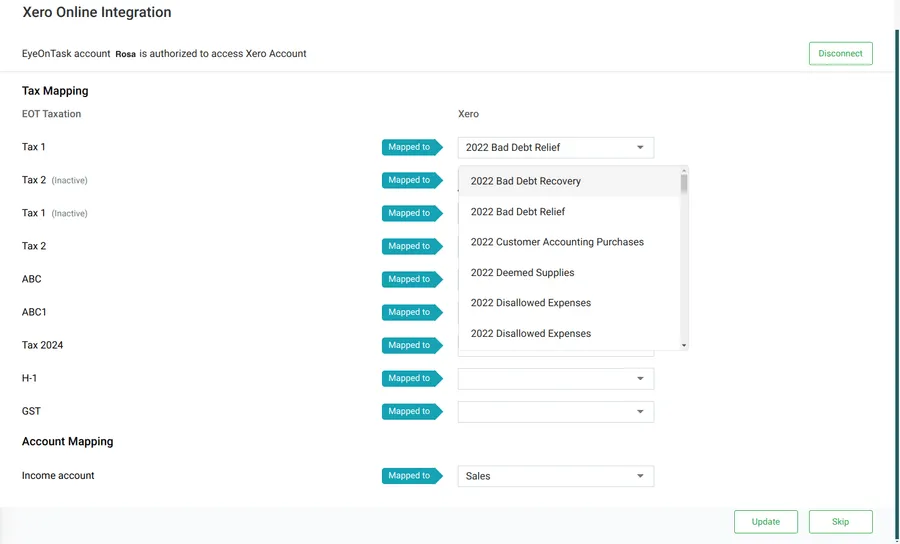
Section titled “Mapping”Allowing access brings you back to EyeOnTask, on the mapping screen. This is where you tell the two systems that your tax is their tax — without it, a synced invoice arrives in Xero with nothing in the tax field.
Xero Online Integration → mapping
Tax Mapping pairs each tax you charge in EyeOnTask with a Xero tax rate. Work down the list and match them off.
Account Mapping is the part QuickBooks does not ask for. Income account decides which Xero account synced invoices are posted to — usually Sales. Get this wrong and the invoices still arrive, but they land in the wrong place in your chart of accounts, which your accountant will find before you do.
Update saves the mapping. Skip moves on without it, which is useful the first time you connect and want to see the sync tabs first. Go to mapping brings you back to this screen at any point.
The four sync tabs
Section titled “The four sync tabs”Past the mapping screen sit four tabs — Client, Invoice, Payment and Inventory. Each lists what is available to sync, with tickboxes to choose rows and a button to send them.
Which way each one travels is the thing to learn, because they are not all the same:
| Tab | Direction |
|---|---|
| Client | Both ways — EyeOnTask → Xero, and Xero → EyeOnTask |
| Invoice | One way — EyeOnTask → Xero only |
| Payment | Both ways |
| Inventory | One way — Xero → EyeOnTask |
A fourth Inventory tab sits alongside them, covered below.
Clients
Section titled “Clients”
Xero Online Integration → Client
Tick the clients you want and press Sync Clients to Xero.

Xero Online Integration → Client, the other direction
Sync Client From Xero brings them the other way, which is how you start when your customer list already lives in Xero — you import it rather than retyping it.
The clients you sent across turn up in Xero under Contacts.

Xero → Contacts
Invoices
Section titled “Invoices”
Xero Online Integration → Invoice
Invoices travel one way only, out of EyeOnTask. That is deliberate: EyeOnTask is where the work is priced, so it is where the invoice is raised, and Xero receives it.
What you send appears in Xero under Business → Invoices.
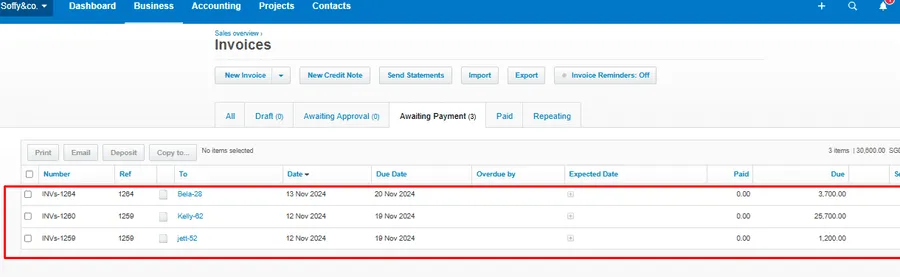
Xero → Business → Invoices
Sending payments to Xero
Section titled “Sending payments to Xero”Payments go both ways, because money genuinely arrives on both sides — a card payment taken through EyeOnTask, a bank transfer reconciled in Xero. Syncing both directions is what stops a client looking unpaid in one system and settled in the other.

Xero Online Integration → Payment
A payment sent to Xero shows against its invoice there, which flips the invoice to Paid.
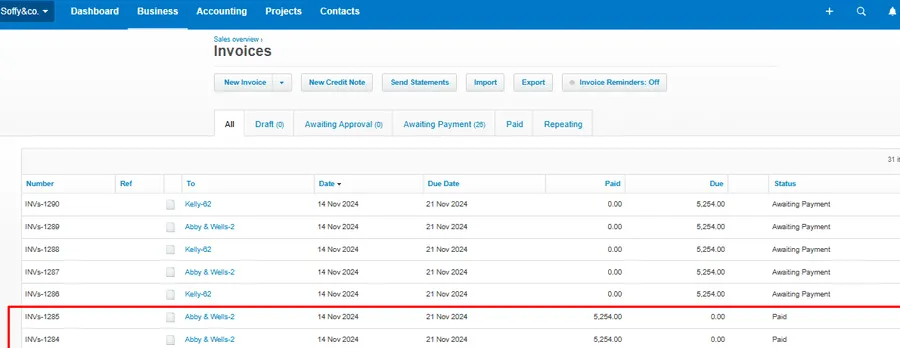
Xero → Business → Invoices, after syncing payments
Bringing payments in from Xero
Section titled “Bringing payments in from Xero”
Xero Online Integration → Payment, the other direction
The invoice in EyeOnTask updates itself. A payment brought in from Xero is applied to the invoice it belongs to, and the invoice’s own payment status follows the amount received:
- Paid — the payment covers the full invoice amount and nothing remains.
- Partially Paid — the amount received is less than the total due, and the balance still outstanding is carried on the invoice.
The status is EyeOnTask’s, not Xero’s. The sync brings the money across; the invoice works out what that leaves.
The transaction is also written to the client’s payment ledger, marked with where it came from, so the money is visible on the client record as well as on the invoice.
Nobody has to mark an invoice off by hand after a sync. A bank transfer reconciled in Xero this morning settles its EyeOnTask invoice in the same pass.
Inventory
Section titled “Inventory”The Inventory tab is the products and services side of the connection: the things your invoice lines refer to, rather than the invoices themselves.
It only travels inwards. The tab imports the products and services already set up in Xero, so your item list matches the one your accountant bills from. There is no button here that sends your items the other way.
Items reach Xero on invoices instead. Whatever item or service is on an invoice goes across with it when that invoice syncs, and is created in Xero if it is not there already. That is the only route out — you cannot export your item list directly, and you do not need to: anything you actually bill for arrives the first time you bill for it.
It matters because an invoice cannot cross without its items. A line pointing at something Xero has never heard of is what turns into “contact or item not found” — so an item list that agrees on both sides is what makes invoice syncing quiet. See when something will not sync.
Disconnecting
Section titled “Disconnecting”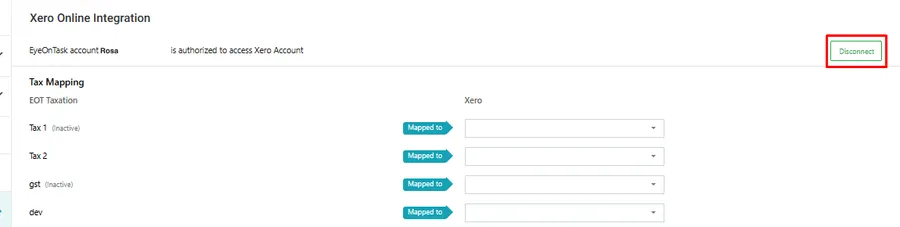
Xero Online Integration → mapping, with Disconnect highlighted
The back arrow — or Go to mapping — returns you to the mapping screen, and Disconnect ends the connection with the organisation you are on.
Do that when you are finished with one organisation and want to connect another: an account is joined to one Xero organisation at a time, so the current one has to be disconnected before the next can be authorised. Connecting the new one is the same run as the first — authorise the organisation, then map its taxes and accounts, because the mapping belongs to the organisation rather than to EyeOnTask.
Disconnecting stops the two systems talking. It does not reach into Xero and remove what has already gone across: invoices, clients and payments already synced stay exactly where they are in the organisation you are leaving.
When something will not sync
Section titled “When something will not sync”A row that refuses to go across is usually Xero rejecting it, not EyeOnTask failing to send it, and the message comes back from Xero itself. See QuickBooks and Xero sync errors.
An invoice in a currency the organisation does not hold is refused as well. Xero has to be carrying that currency before it will take the invoice — add it under Settings → Currencies there, then sync again. See a currency mismatch.
The other one worth knowing in advance: an invoice whose client is archived in Xero is rejected, because an archived contact cannot receive it. The error names a deleted or merged contact whatever actually happened to it — see the client associated with this invoice was deleted or merged.
Where to go next
Section titled “Where to go next”- QuickBooks integration — the same job, the other accounting package
- QuickBooks and Xero sync errors — what the refusals mean and how to clear them
- A client’s payments — where synced payments land on the client record
- Invoice and accounts settings — numbering, tax and the rest of the invoicing setup