How quotes work
A quotation in EyeOnTask is a priced offer to one client, valid until a date. It lists what you propose to supply, what each line costs, and what the whole thing comes to — and it is the document the client actually says yes or no to.
Once the client says yes, the quote is the starting point for everything that follows: the job you go out and do, the contract you sign, the invoice you send. This page covers what a quote is, where to find one, and how to read it. The pages under where to go next cover each part in detail.
Quotes do not only start in the office. A fieldworker who finds extra work while they are on site raises a Quote Request from the job on their phone, which is the cheapest moment to price it and the easiest moment to sell it. See a job in the app.
Finding your quotes
Section titled “Finding your quotes”Quotes on the main menu is the way in.
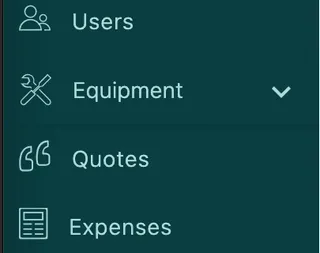
Main menu
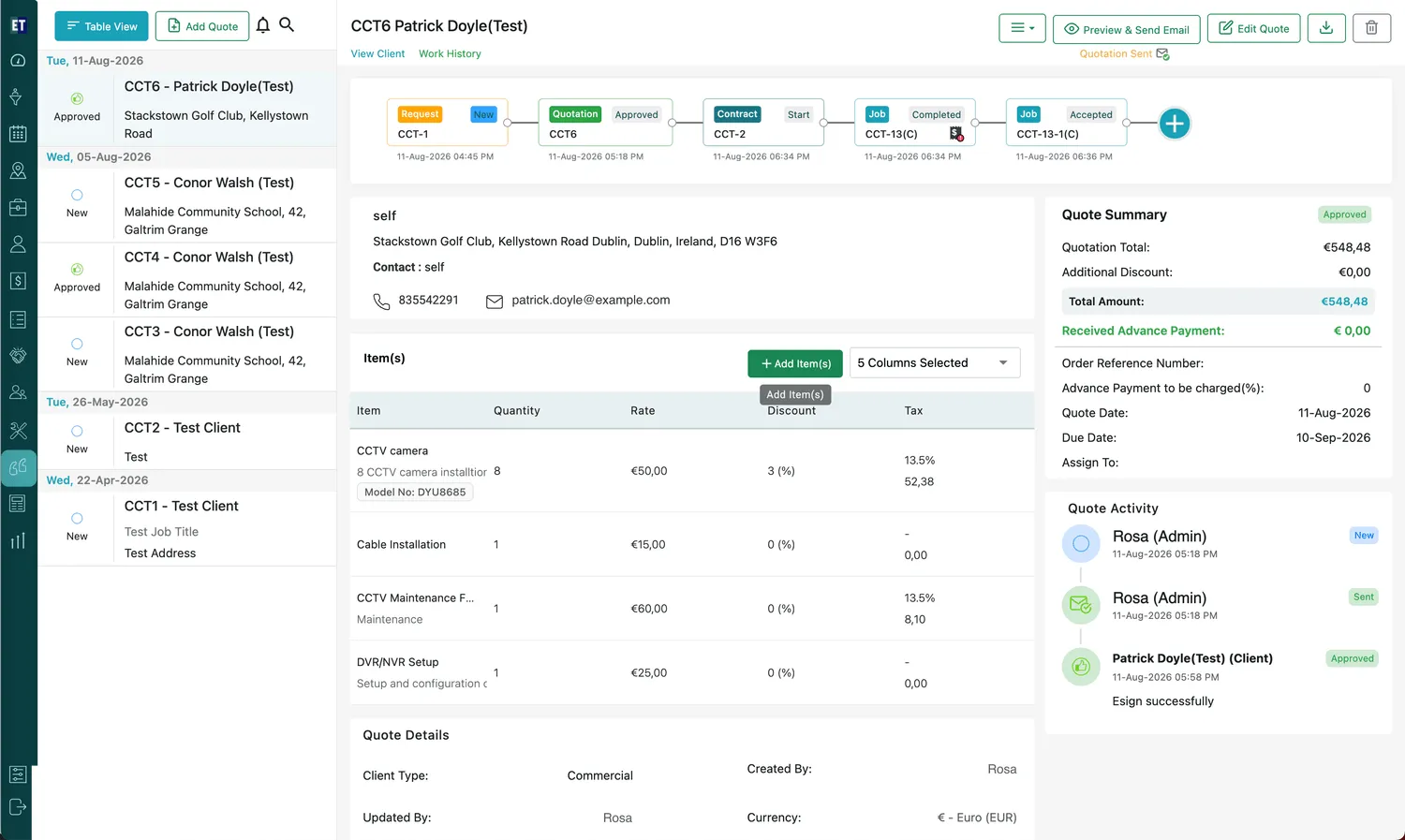
The list is drawn two ways, and the button in the top-left switches between them — it is labelled with the view you are going to, so Table View takes you to the table and Simple View brings you back.
Simple View is where you actually read quotes. The list runs down the left, grouped by quote date, each entry showing its status, quote code, client and site address — and clicking one highlights it and opens the whole quote alongside, on the right. So you move between quotes without ever leaving the list.
Quotes → Simple View
That right-hand panel is the quote page, and it is what reading a quote below describes. The search icon in the top bar opens a search box over the list, which narrows it by quote code or client name as you type.
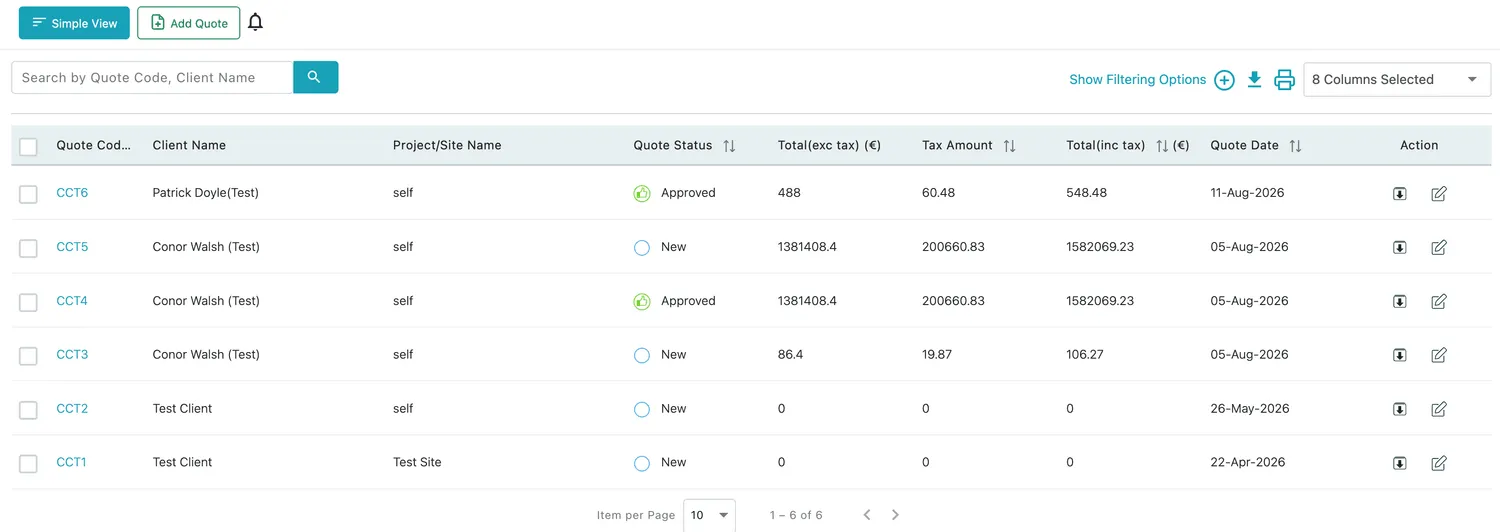
Table View drops the panel and gives you the list on its own — everything on one row, sortable and searchable:
Quotes → Table View
It carries the numbers you need to compare quotes at a glance: Quote Code, Client Name, Project/Site Name, Quote Status, Total (exc tax), Tax Amount, Total (inc tax) and Quote Date. The arrows beside a heading sort by it.
Around the table:
- Search by Quote Code, Client Name finds a specific quote without scrolling.
- Show Filtering Options opens the filters for narrowing the list.
- The download and print icons take the list itself — not one quote — out of the app.
- 8 Columns Selected chooses which columns are drawn, so you can strip the table back to what you care about.
- The tickboxes down the left select rows to act on together, and Item per Page controls how much of the list you see at once.
Each row’s Action column has a download icon for the quote’s PDF and a pencil for editing it. Add Quote, top-left, sits in the same place in both views — see creating a quote.
Reading a quote
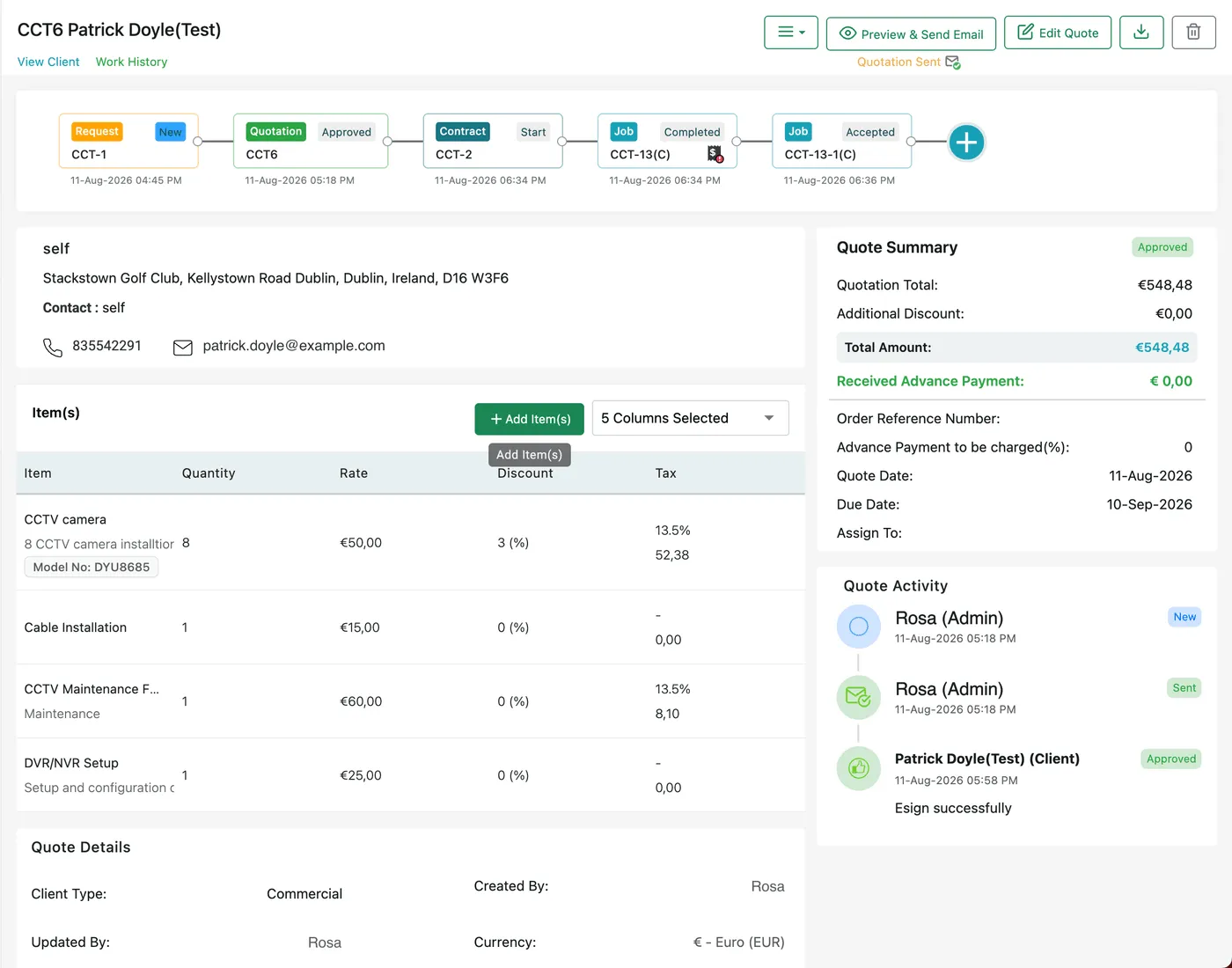
Section titled “Reading a quote”A quote looks the same wherever you open it — as the right-hand panel in Simple View, or on its own page from the table: the timeline across the top, the offer down the middle, and the money on the right.
Quote page, full view
The header
Section titled “The header”The quote’s code and client name title the page, with View Client and Work History beside them — the first opens the client record, the second the history of work done for them. The current status is shown under the action buttons.

Quote page → action bar
The actions are, from the right: delete, download the PDF, Edit Quote, Preview & Send Email, and the ≡ menu — which holds converting the quote into a job, invoice or contract, and copying it. Editing, downloading, printing and deleting are covered in editing, downloading and deleting a quote.
The timeline
Section titled “The timeline”
Quote page → timeline
The strip at the top is the timeline — the same one that appears on a request, a contract and a job. It answers one question wherever you find it: what happened, in order, and what was created from what.
A quote’s card shows its code and status, and the cards either side of it are whatever the quote came from and whatever came out of it — a request that became this quotation, then the contract and jobs that followed, each with its own code, status and timestamp.
The + at the end opens Quote Action, which is how you turn this quote into a job, invoice or contract or leave a private note on it.
The offer
Section titled “The offer”Beneath the client and site details sits the Item(s) table — the lines being quoted, with quantity, rate, unit of measure, discount and tax. Add Item(s) adds to it, and the column dropdown decides which columns are drawn.
A line can also be marked optional, which means it appears on the client’s copy with its price but does not count towards the total — until the client themselves chooses to take it. That is what lets one quotation carry an upsell, or three competing brands the client picks between, instead of three separate quotes. See quote line items.
Quote Summary
Section titled “Quote Summary”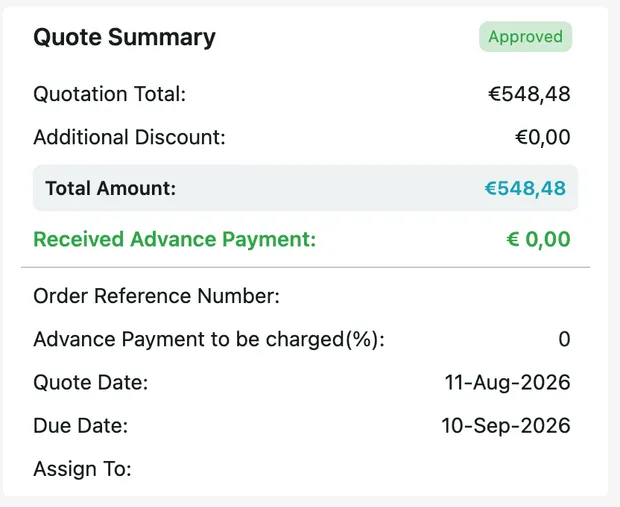
Quote page → Quote Summary
The card on the right is the commercial summary, and its status badge repeats the quote’s status:
- Quotation Total — what the quoted lines come to, tax included.
- Additional Discount — a reduction applied to the quote as a whole, on top of any per-line discounts.
- Total Amount — the figure the client owes.
- Received Advance Payment — how much of the advance has actually come in.
- Order Reference Number — the client’s own reference, if they gave you one.
- Advance Payment to be charged (%) — the deposit you are asking for up front, as a percentage of the total amount.
- Quote Date and Due Date — when it was raised, and the date it stops being valid.
- Assign To — the fieldworker the quoted work is meant for.
Quote Activity
Section titled “Quote Activity”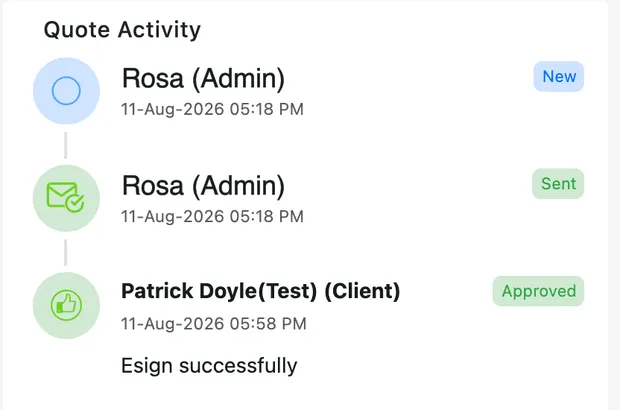
Quote page → Quote Activity
Down the right, under the summary, is the audit trail: who did what to this quote and when. It records your side and the client’s in the same list — the quote being created, being sent, and the client’s own reply, timestamped and named. When a client signs electronically, that lands here too, marked as signed successfully.
This is the answer to “did they ever actually get back to us, and when?”.
Quote Details
Section titled “Quote Details”At the foot of the page, Quote Details records the administrative side: the Client Type, who created the quote, who last updated it, and the currency it is priced in.
Quote statuses
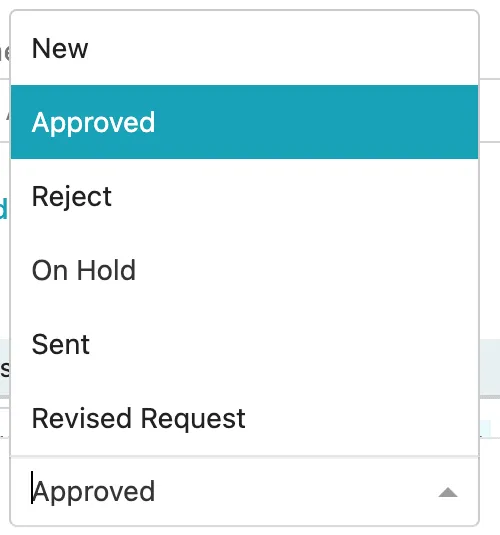
Section titled “Quote statuses”A quote starts as New, becomes Sent when it goes out, and ends up Approved, Reject or Revised Request depending on what the client says.

Edit Quote, footer
Edit Quote → Status
| Status | What it means |
|---|---|
| New | Raised but not yet sent. The quote exists and is being worked on. |
| Sent | It has gone to the client. Set for you when you send it. |
| Approved | The client has agreed — the usual cue to turn the quote into a job, an invoice or a contract, though conversion is not gated on it. |
| Reject | The client has declined. |
| Revised Request | The client wants changes before they will commit — the quote comes back to you to be reworked and sent again. |
| On Hold | Paused. Nothing is wrong with the quote; it is simply parked, and no reply is expected right now. |
Two things set the status, and they end up in the same place. The client’s reply — accepting and signing the emailed quote marks it Approved by itself, with the signature on the activity trail; see sending a quote and e-signature. Or you — plenty of clients answer by phone, so open Edit Quote, set the Status dropdown in the footer and press Update.
Approval is what unlocks the rest of the chain. An approved quote is the one you turn into the job, the contract or the invoice that follows.
Editing, downloading and deleting
Section titled “Editing, downloading and deleting”Edit Quote reopens the same window you created the quote in, with everything already filled in — client and site, dates and terms, and every line item. Change what you need and press Update. Nothing is off limits, including the Status dropdown in the footer.
The download icon gives you the quote as a PDF — the same document the client receives, not a separate internal version. You can take it from the action bar, from a row in Table View, or from the Download button inside Preview & Send when you want to check it first or pick a different layout. Printing is that same PDF; there is no separate print layout.
The bin icon removes the quote, asking first with Yes, Delete it and No, keep it.
Where to go next
Section titled “Where to go next”| Page | What it covers |
|---|---|
| Creating a quote | The Add Quote form — client and site, dates and validity, currency, advance payment and discount mode |
| Quote line items | Items, services and packages; rates, discounts and tax; optional lines and how the total is worked out |
| Sending a quote and e-signature | Emailing or WhatsApping the quote, and the form the client replies on — accepting, rejecting, or asking for changes |
| Converting a quote | Turning an approved quote into a job, invoice or contract; copying it; private notes |
| Questions and troubleshooting | Totals that don’t add up, optional lines the client added, statuses that changed on their own |
Settings behind this module
Section titled “Settings behind this module”- Quote settings — Numbering, advance payment, e-signature rules and reusable terms