Finding and filtering jobs
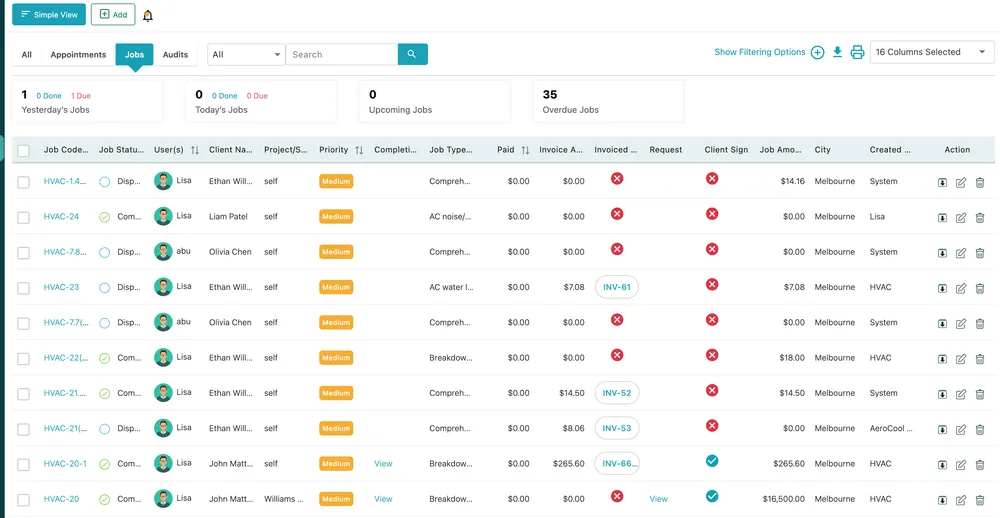
Table View turns the job list into one row per job with every field as a column. It is the view for answering questions about a lot of jobs at once — what is overdue, what is unbilled, what did we do for this client, who has too much on.
Work → Jobs, Table View
The counters
Section titled “The counters”
Work → Jobs, Table View
Four counters sit above the table and are the fastest read on the state of the operation:
| Counter | What it tells you |
|---|---|
| Yesterday’s Jobs | What was scheduled for yesterday, split into done and still due |
| Today’s Jobs | The same for today — the number to watch during the day |
| Upcoming Jobs | What is booked ahead |
| Overdue Jobs | Jobs whose finish time has passed without being completed. The number that needs chasing |
The columns
Section titled “The columns”The table shows, per job: Job Code, Job Status, User(s) assigned, Client Name, Project/Site, Priority, Completion, Job Type/Services, Paid, Invoice Amount, Invoiced (a chip with the invoice number, or a cross when it has not been billed), Request, Client Sign, Job Amount, City and Created By.
Two of them repay a second look. Invoiced is how you find completed work that never got billed. Client Sign shows whether the client signed on site, which is what you reach for when a job is disputed.
Created By distinguishes jobs raised by a person from jobs raised by System — the occurrences of a recurring job or of a contract’s work pattern.
The arrows next to a column heading sort by it.
Choosing which columns you see
Section titled “Choosing which columns you see”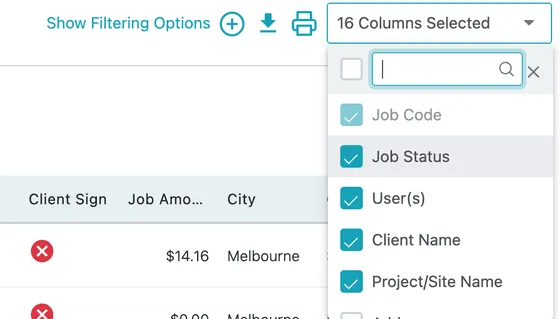
Table View → Columns Selected
The Columns Selected dropdown at the top right decides what the table shows. Untick what you do not use and the remaining columns get the width. Job Code cannot be removed.
Filtering
Section titled “Filtering”Show Filtering Options opens the full set of filters above the table.
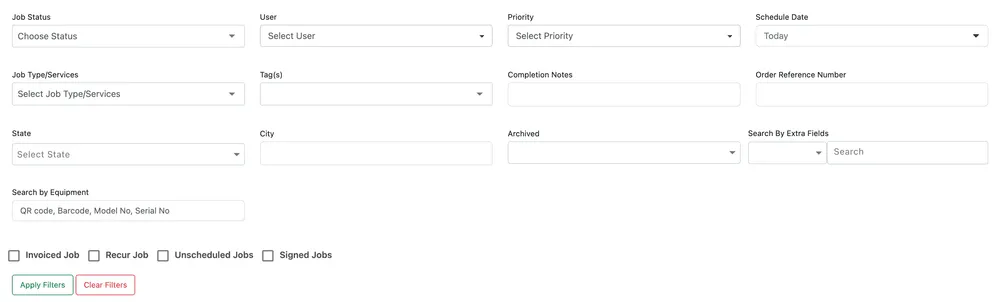
Table View → Show Filtering Options
| Filter | What it narrows to |
|---|---|
| Job Status | Dispatched, in progress, completed, and so on |
| User | One fieldworker’s jobs |
| Priority | Low, medium or high |
| Schedule Date | A day or a date range — the filter most often used first |
| Job Type/Services | One kind of work |
| Tag(s) | Whatever labels you put on jobs |
| Completion Notes | Text inside what the fieldworker wrote — for finding the job where someone mentioned a leak |
| Order Reference Number | The client’s own reference |
| State, City | Where the work was |
| Archived | Brings archived jobs back into view |
| Search By Extra Fields | Any custom field your account adds to jobs |
| Search by Equipment | A QR code, barcode, model number or serial number — finds every job that touched one particular unit |
Search by Equipment is worth knowing about on its own. Scan the code on a machine and you get its whole service history: every visit, who came, what they did.
Four tick boxes cut the list a different way: Invoiced Job, Recur Job, Unscheduled Jobs and Signed Jobs.
Apply Filters runs them; Clear Filters puts the list back.
The plain Search box at the top searches across jobs without opening the panel, and the dropdown beside it limits what is being searched.
Editing from the list
Section titled “Editing from the list”Some columns can be changed without opening the job. Clicking the User(s) cell, for instance, opens the list of fieldworkers with the current one ticked — so reassigning a job takes one click from the list rather than a trip through Edit Job.
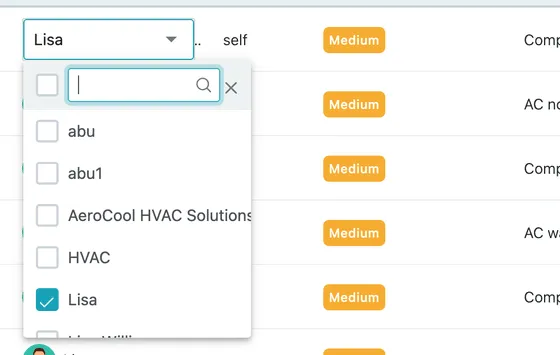
Table View → User(s) column
The Action column at the end of each row holds the same download, edit and delete actions the job page has.
Acting on several jobs at once
Section titled “Acting on several jobs at once”The tick boxes down the left of the table are what make Table View more than a long list. Tick the jobs you want — or the box in the header for all of them — and a row of actions above the table applies to the lot.
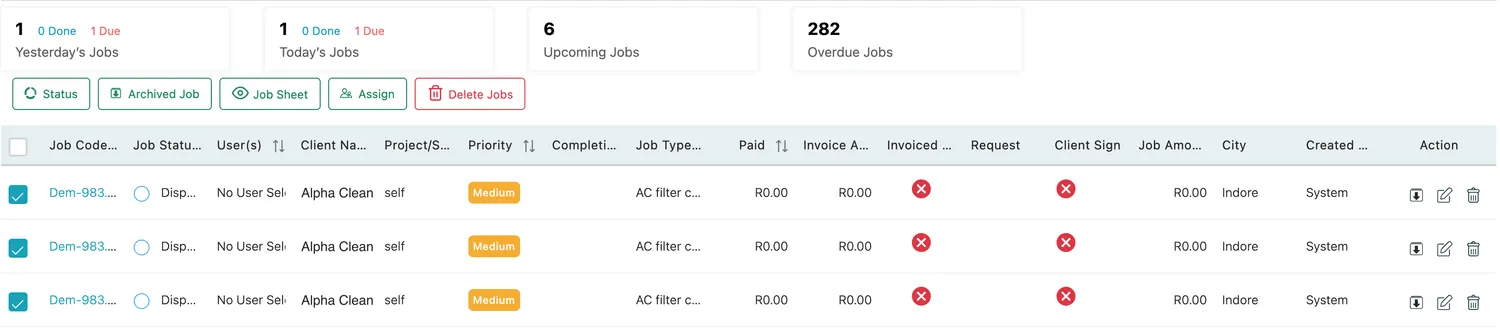
Work → Jobs, Table View → three jobs ticked
| Button | What it does |
|---|---|
| Status | Moves them all to one status. Pick it and press Change — the way to close off a day’s work, or to cancel a run of visits when a site shuts. |
| Archived Job | Archives the ticked jobs, taking them off the working list without deleting them. |
| Job Sheet | Produces the job sheet for each one, for printing a round in a single go. |
| Assign | Hands them to a fieldworker — the answer to a day’s work that has to be given to somebody, without opening twenty jobs to do it. |
| Delete Jobs | Removes them. Only for work that should never have existed; a real visit that is not going ahead should be cancelled instead, so the record survives. |
Doing any of these one job at a time through Edit Job is only worth it when the change is genuinely per job.
Exporting and printing
Section titled “Exporting and printing”The download and print icons at the top right act on the list as it is currently filtered. Filter to one client and one month, then export, and you have that client’s job history as a file — which is usually faster than building a report for it.
Getting back to a single job
Section titled “Getting back to a single job”Clicking a job code opens the job. Simple View returns you to the list-and-detail layout described in how jobs work.