Inventory settings
The lists behind the item form live at Settings → Modules → Inventory.
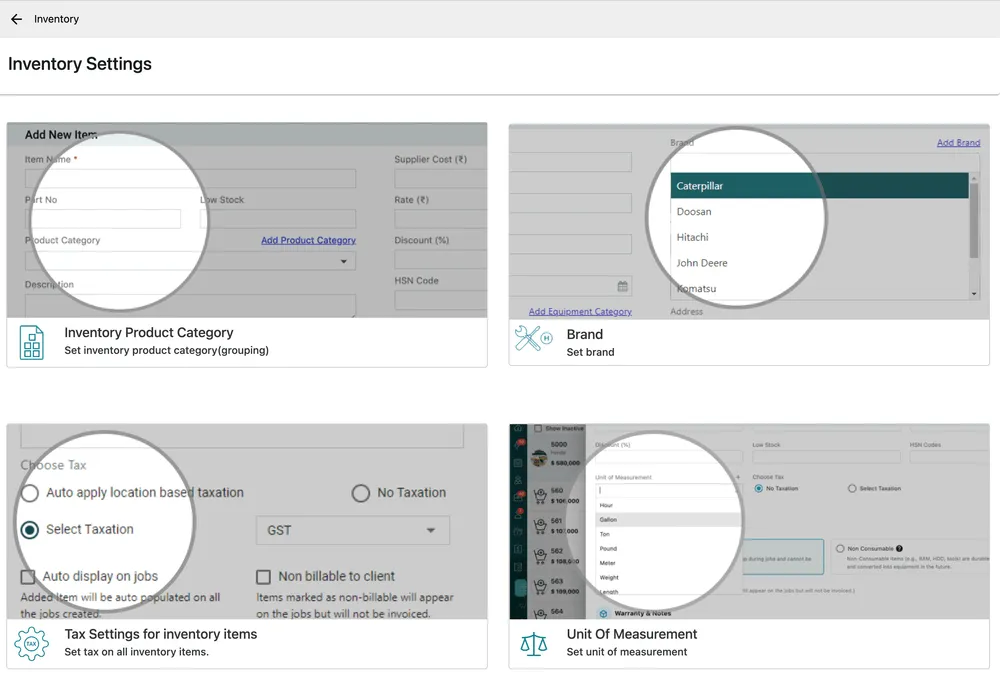
Settings → Modules → Inventory
Product category
Section titled “Product category”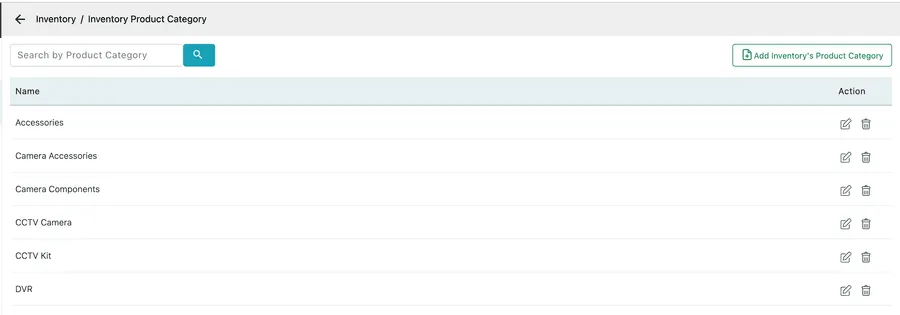
Settings → Modules → Inventory → Inventory Product Category
What kind of thing an item is — Cameras, Cable, Accessories, Consumables. Category is what you filter the item list by and what you group a stock report around, so it wants to match how your stores are actually laid out.
Add Inventory’s Product Category, type the name, Save.
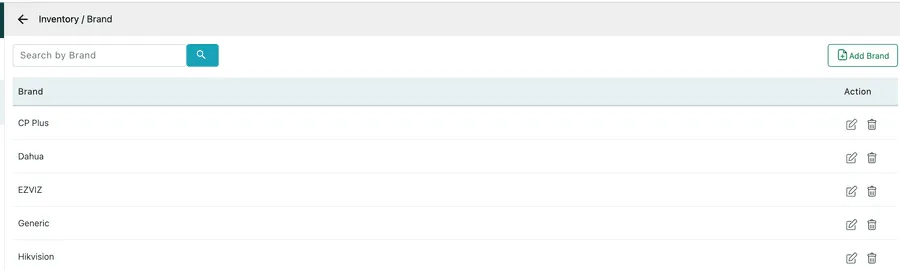
Settings → Modules → Inventory → Brand
The manufacturers whose products you stock. Brand sits alongside category on an item: the category says camera, the brand says whose.
Also creatable from the item form, through Add Brand.
Unit of measurement
Section titled “Unit of measurement”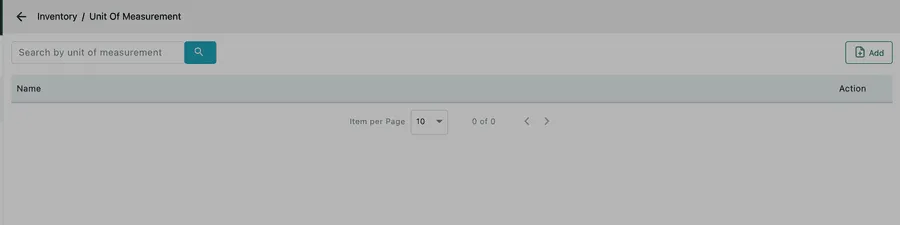
Settings → Modules → Inventory → Unit Of Measurement
What you count an item in — each, metre, box, roll, litre. Getting this right matters more than it looks: stock is a running balance, and a balance is only meaningful if everyone agrees whether 1 means one drum of cable or one metre of it.
Ships empty.
Tax settings for inventory items
Section titled “Tax settings for inventory items”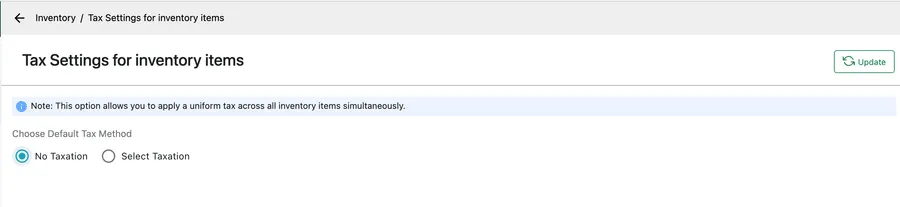
Settings → Modules → Inventory → Tax Settings for inventory items
This one is not a list. Choose Default Tax Method applies a single tax treatment across every inventory item at once — either No Taxation, or Select Taxation with one of your tax rates.
It is the shortcut for a business where everything is taxed the same way, which is most of them. Set it here rather than putting the same rate on item after item.
An individual item can still carry its own tax; this sets what they all get.
Related
Section titled “Related”- How inventory works
- Adding an inventory item — where these lists are used
- Purchase order settings — delivery modes for buying stock in