Finding your work in the app
A fieldworker’s day is either “what am I doing now?” or “what have I got at all?”. The app answers them with two screens.
The calendar
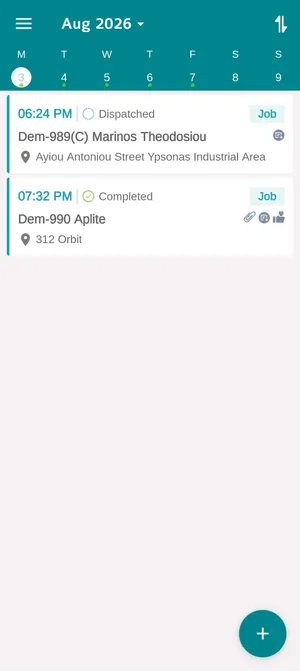
Section titled “The calendar”The calendar opens on today, with a week strip across the top. A dot under a date means there is work on it, so a glance at the strip shows where the week is busy without opening anything.
The app → Calendar
Each card is one piece of work: the time it starts, its status, and a tag on the right saying what kind of thing it is — Job here, but appointments and audits appear the same way. Under that sit the job code and client, and the site address.
The small icons on a card say what the job is carrying — an attachment, a form to fill in, feedback already given — so a job that needs more than a visit is obvious before it is opened.
The month name at the top jumps to another date, and the + in the corner starts something new from the field.
The jobs list
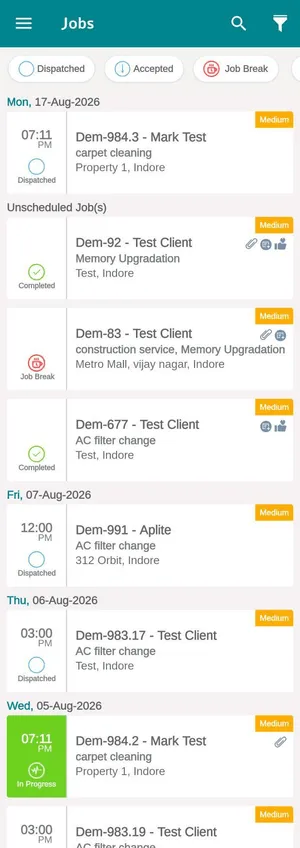
Section titled “The jobs list”Jobs on the menu is the same work without the calendar around it: everything they have, newest first, grouped by date.
The app → Jobs
The chips along the top filter by status — Dispatched, Accepted, Job Break and the rest, scrolling sideways for more. Tapping one is how a worker cuts a long list down to “what have I not accepted yet” or “what did I leave paused”.
The chips follow the statuses you allow in the app, so an office that has hidden Accepted and Travelling sees a shorter row here too. See choosing which statuses the app shows.
Unscheduled Job(s) is its own group: work assigned to them with no date on it. It sits with the dated work rather than hiding somewhere else, which is what stops an undated job being forgotten.
The colour band and label on the left is the status — a green card is In Progress, the one they are on right now. The badge on the right is the priority set in the office.
The magnifier searches, and the funnel opens the fuller set of filters.
What they can and cannot see
Section titled “What they can and cannot see”Only work that has been dispatched reaches the app at all. A job sitting at Not Dispatched exists in the office and nowhere else, which is what lets you build next week’s schedule without anybody acting on it. See dispatching a job.
At the other end, a Completed job stays on their phone — they can go back in and add the photo they forgot. Closing the job takes it off their list. See job statuses.