Jobs under a contract
Jobs are the actual visits carried out under a contract. This page covers the ways a job gets there, and — more importantly — what decides whether it adds anything to the bill.
For the model behind all of this, see how contracts work.
How a job reaches a contract
Section titled “How a job reaches a contract”Automatically, from the work pattern
Section titled “Automatically, from the work pattern”This is the normal route. A work pattern holds a repeating rule — how often it runs, at what time, and which service is performed — and the system creates the jobs from it on the dates they fall due. You set the pattern up once and the visits appear on their own for the life of the contract.
Whatever service you select in the pattern is the work every one of those generated jobs will carry.
Ad-hoc, from the contract
Section titled “Ad-hoc, from the contract”For anything unplanned — a call-out, an extra visit, a one-off repair — add the job straight from the contract:
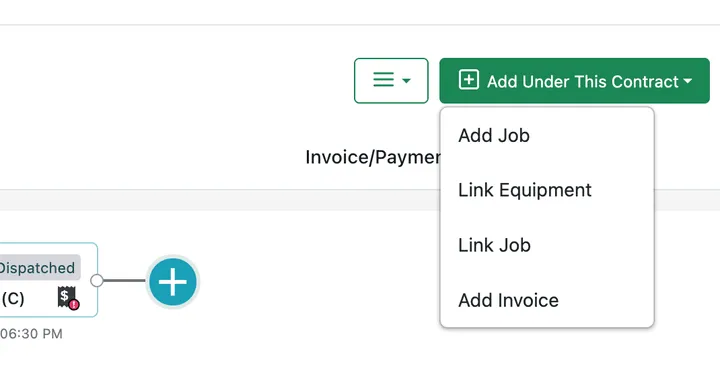
Contract page → Add Under This Contract
Add Job creates a new job that belongs to this contract. Link Job attaches a job that already exists, which is useful when work was raised before anyone realised it fell under an agreement.
From the Scheduler, by selecting the contract
Section titled “From the Scheduler, by selecting the contract”You can also create a job the usual way from the Scheduler or Work section and pick the contract on the Add Job form. A job counts as being under a contract whenever a contract is selected on it — it makes no difference where it was created.
By editing a job that already exists
Section titled “By editing a job that already exists”A job that was raised before the contract was picked can be attached from the job itself. Open the job, press Edit Job, choose the agreement in the Contract field, and press Update — see changing a job afterwards.
The ✗ beside the field takes the job back out of the contract.
What decides whether a job is billable
Section titled “What decides whether a job is billable”An ad-hoc job is not automatically an extra charge. The rule is the same one that governs everything else on a contract, and it has two halves:
A service bills automatically when it is on the contract’s rate card and it is picked on the job under Job Type/Services.
- Service not on the rate card — the job records the work and closes. Nothing flows to the invoice. When you raise the invoice and look for jobs to bill, it will not appear as a chargeable item. You can still add the charge by hand if you decide it belongs.
- Service on the rate card — the job carries the service into its items automatically, and the next invoice for that period picks it up. Its free quota then decides whether it lands as an included line at zero or a charge.
- On the rate card but not picked on this job — nothing. The rate card is a price list, not a standing charge: it prices work that was recorded, so a job that never mentions that service bills nothing for it.
Both halves are tested service by service, so a job carrying one of each behaves as both — one line in the cart, one to-do beside it. See it takes both.
The place to check this is the job’s cart. Services picked under Job Type/Services are instructions for the fieldworker; the cart is what reaches the invoice. A job whose service is not on the rate card looks like this:
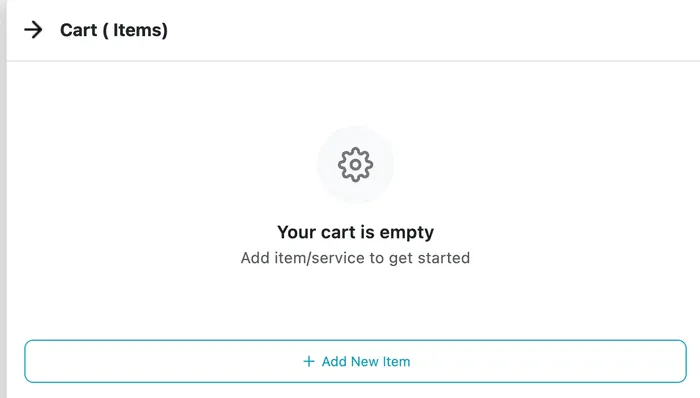
Create New job screen → Cart tab
This is what lets one set of screens produce very different agreements. Leave call-outs off the rate card and a fixed monthly fee covers as many of them as the client needs. Put them on it, and each one bills at the contract rate.
Changing the rate card does not reach this job
Section titled “Changing the rate card does not reach this job”A job’s cart is worked out when the job is created, from the rate card as it stood then. Putting the service on the rate card afterwards fixes every job raised from that point on; this job is unchanged, and still needs the line adding to its cart by hand.
That applies to rates and quotas as well, and it catches jobs a work pattern generated in advance. See changing the rate card after a job exists.
While the job is running
Section titled “While the job is running”A longer job does not have to be finished in one go. It can be paused for the day and continued later, staying a single record across several days rather than becoming several jobs.
Photos your fieldworkers capture while working collect on the contract as a visual record of what was done, separate from the contract document itself.