Request statuses
A request’s status is where it has got to. Three come with EyeOnTask — New, On hold and Closed — and the rest are yours to add: as few or as many as your intake actually has.
Every status carries a colour, which is what makes a list of requests readable without reading it.
Where they live
Section titled “Where they live”Go to Settings on the main menu, open Modules, then Request, then Request Status.
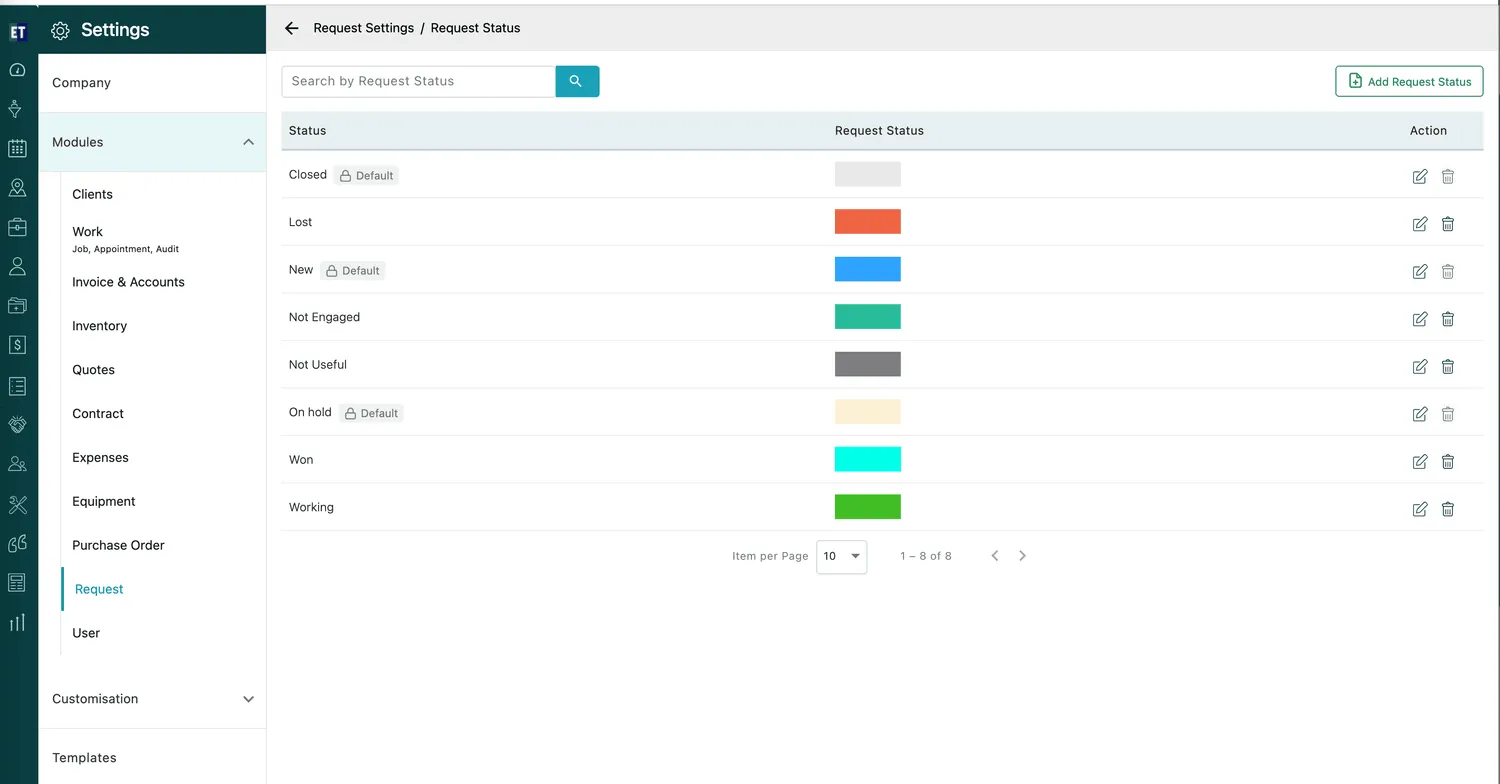
Settings → Modules → Request → Request Status
The list
Section titled “The list”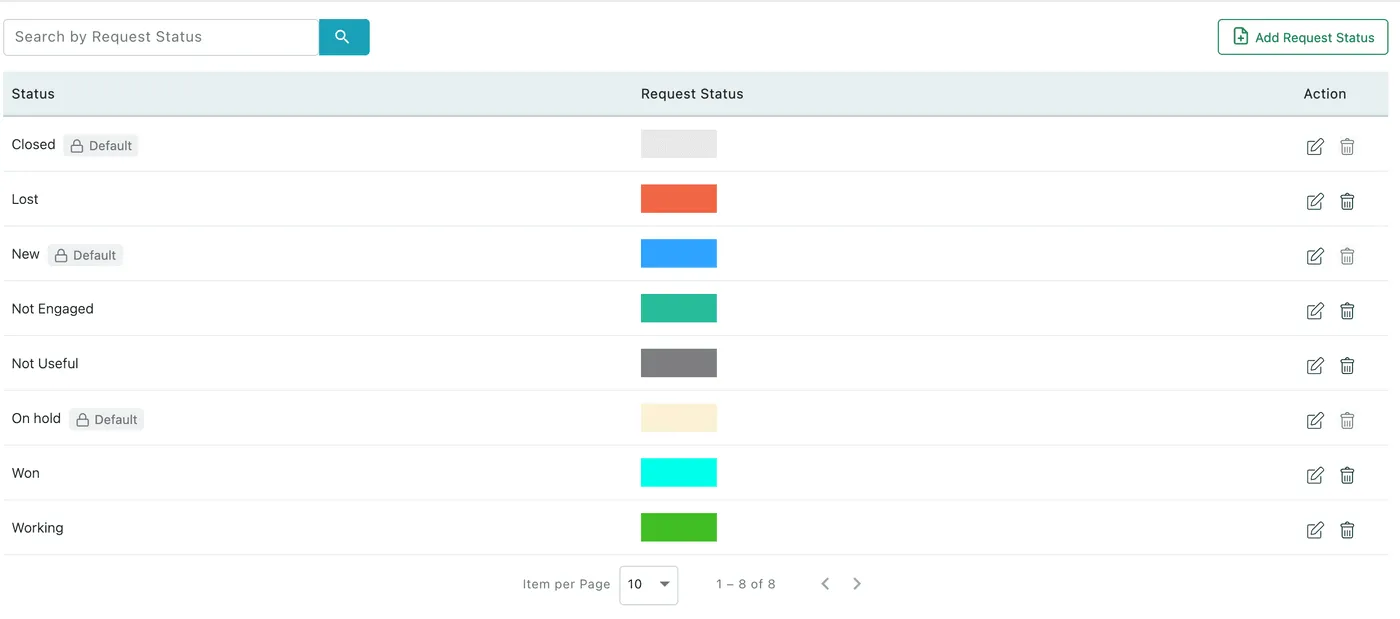
Request Status
- Status is the name the status goes by. Search by Request Status narrows a long list.
- Request Status shows the colour that status is drawn in.
- Action holds a pencil to edit the status and a bin to remove it.
The statuses above are one company’s intake read end to end: New arrives, Working is being dealt with, On hold is parked, and it finishes as Won, Lost, Not Engaged, Not Useful or Closed. Yours will be different, and that is the point of the screen.
The three defaults
Section titled “The three defaults”Closed, New and On hold carry a Default chip with a padlock. EyeOnTask relies on them, so the bin is greyed out on those three rows — they cannot be deleted. The pencil still works, so their name and colour are yours to change.
Everything you add yourself can be edited or deleted freely.
Adding a status
Section titled “Adding a status”Add Request Status, in the top-right corner, opens the form. Give the status a name and a colour, then save. It joins the list and is available on every request from then on.
Statuses that mean “this is over” are worth distinguishing rather than lumping into one: Won and Lost are both finished, and only one of them is worth reporting on.
Where a status shows
Section titled “Where a status shows”- Beside the request’s label at the top of the request page.
- On the request’s entry in Simple View, on the right.
- In the Status column in Table View, as a badge in the status’s colour.
Setting a request’s status
Section titled “Setting a request’s status”Open the request, click Edit Request, and use the Status dropdown in the footer — then Update.

Edit Request → footer
The dropdown lists exactly what is on the Request Status screen. See editing and deleting a request.