Expense categories and groups
Every claim can carry a category and a group. The category is what the money went on — food, travel, fuel, materials. The group collects related claims together, whatever “related” means for you: a site, a van, a month’s fieldwork.
Both are lists you set up once, and both then appear as dropdowns on the claim form, as columns in Table View, and under the claim’s name in the expense list.
Where they live
Section titled “Where they live”Go to Settings on the main menu, open Modules, then Expenses.
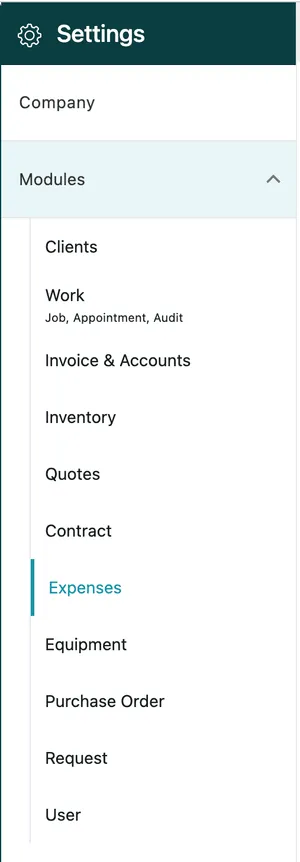
Settings → Modules → Expenses
Expense Settings holds two lists — Category and Group — and the arrow at the top left goes back between them.
Categories
Section titled “Categories”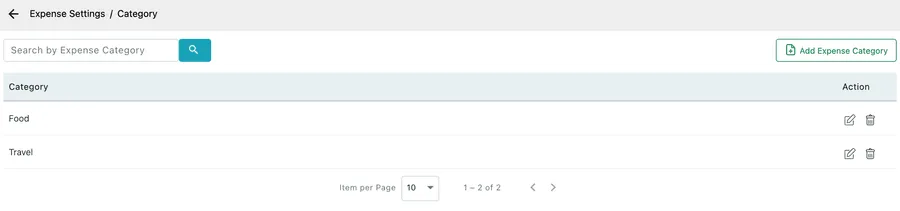
Settings → Modules → Expenses → Category
The categories you already have are listed one per row, with edit and delete icons on each. Search by Expense Category finds one in a long list.
Add Expense Category takes a name and adds it — ready to pick the next time somebody claims.
Name categories after the kind of spend rather than the occasion, so they stay useful across every job: Food, Travel, Fuel, Parking, Materials.
Groups
Section titled “Groups”
Settings → Modules → Expenses → Group
The group list works the same way, with Add Expense Group for a new one. Nothing is set up by default, so the list starts empty and the Group field on a claim stays blank until you create some.
A group is the looser of the two. Where a category answers “what was this?”, a group answers “what does this belong with?” — which is what you reach for when you want a month of a particular crew’s claims read as one set.
Adding one while claiming
Section titled “Adding one while claiming”Neither list has to be set up in advance. The claim form carries Add New Category and Add New Group links beside their dropdowns, so a fieldworker who needs a category that does not exist yet can create it without abandoning the claim. Anything added that way is in the list from then on.