Custom fields
A custom field is a question EyeOnTask does not already ask. When your trade records something the standard form has no box for — a meter serial, a gate code, a warranty reference — this is where you add it.
Settings → Customisation → Custom Field.
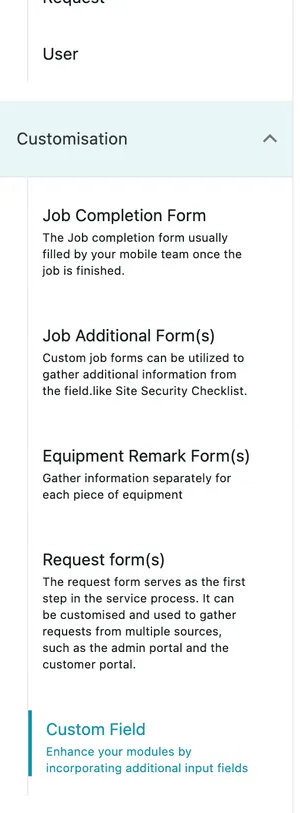
Settings → Customisation
Five places fields can go
Section titled “Five places fields can go”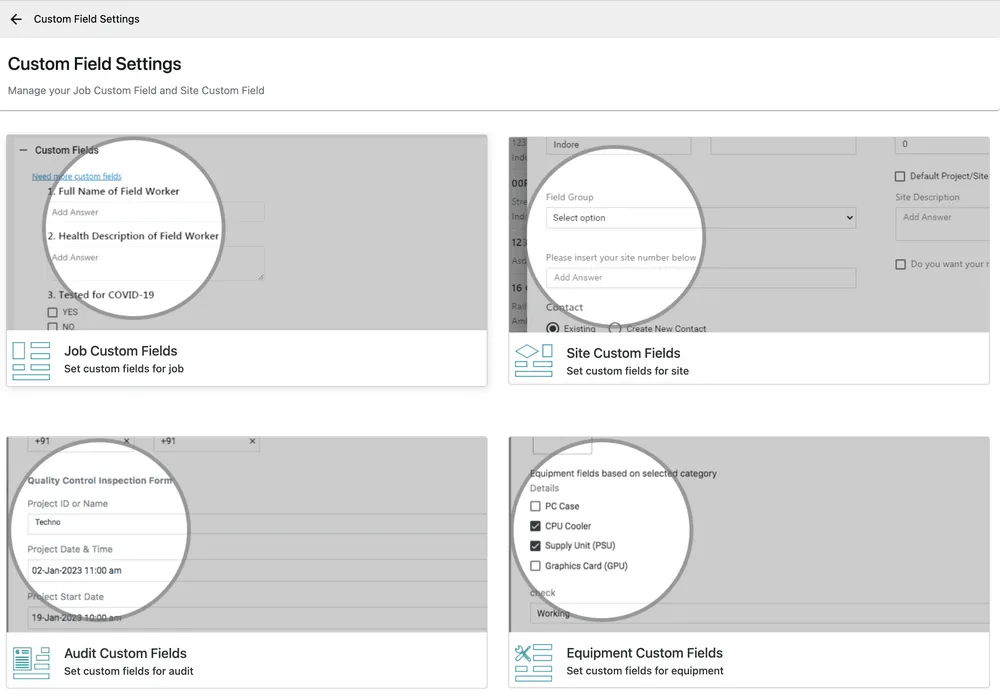
Settings → Customisation → Custom Field
| Where | What it is for |
|---|---|
| Job custom fields | Anything a job needs recording that the job form does not ask. |
| Site custom fields | Facts about a place that stay true between visits — access notes, a site number, who holds the key. |
| Equipment custom fields | Details of a unit, grouped by equipment category so a camera is asked different questions from a generator. |
| Contract custom fields | Terms and references particular to your agreements. |
| Audit custom fields | What an audit has to capture. |
The choice between them is about what the answer belongs to. A gate code belongs to the site, so record it once as a site field rather than asking on every job. A meter reading belongs to that visit, so it is a job field.
Adding a field
Section titled “Adding a field”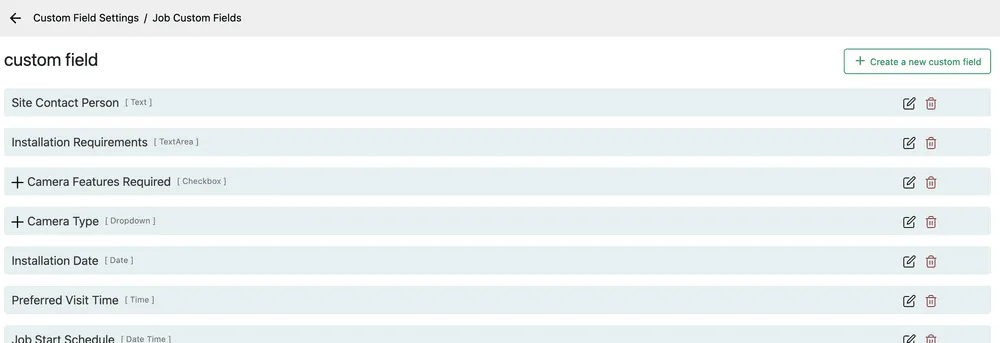
Settings → Customisation → Custom Field → Job Custom Fields
Create a new custom field adds one. Each row shows the question and, in brackets, its type.
| Type | Answer |
|---|---|
| Text | One line. |
| TextArea | Several lines, for notes and descriptions. |
| Checkbox | Tick boxes — more than one answer can be chosen. |
| Dropdown | A list — one answer. |
| Date, Time, Date Time | Picked from a calendar or clock rather than typed. |
| Attachment | A file or photo. |
Checkbox and dropdown fields carry the list of options with them; the + in front of those rows expands to show them.
The pencil on a row edits the field and the bin deletes it. Deleting removes the question from the form — answers already given on existing records are what you lose, so retire a field only when its history no longer matters.
Site custom fields
Section titled “Site custom fields”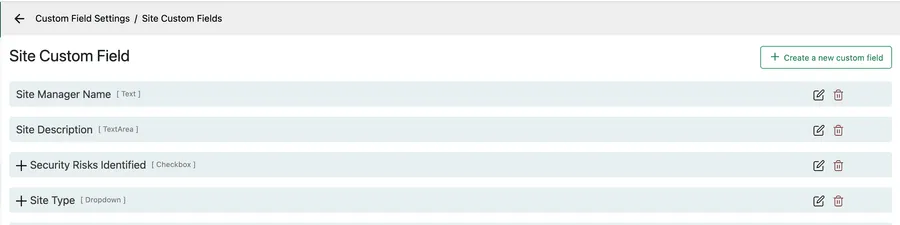
Settings → Customisation → Custom Field → Site Custom Fields
Site fields are answered once, on the site, and they are then true every time anyone goes there. Field Group on the site form gathers related fields under a heading so a long list stays readable.
Equipment custom fields
Section titled “Equipment custom fields”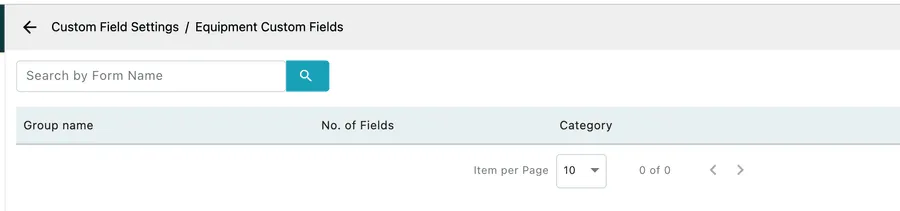
Settings → Customisation → Custom Field → Equipment Custom Fields
Equipment fields are organised into groups, and each group is tied to an equipment category. That is what stops the equipment form from asking every question about every unit — the fields you see depend on what kind of thing you are looking at.
Set the categories up first, in equipment settings, then build the field group against one.
Showing them on the form
Section titled “Showing them on the form”A custom field existing is not the same as it appearing. On jobs, Show custom fields on Add/Edit Job Form in add job form settings decides whether the questions are asked while the job is being written, or only afterwards on the job itself.
Custom fields or a form?
Section titled “Custom fields or a form?”Custom fields are permanent additions to a record — every job, every site gets them. An additional form is a set of questions attached to some work: a safety checklist for one kind of job, a survey for another.
Use a custom field when the answer is part of what the record is. Use a form when the questions belong to a particular kind of visit.