Editing and deleting a request
Editing a request
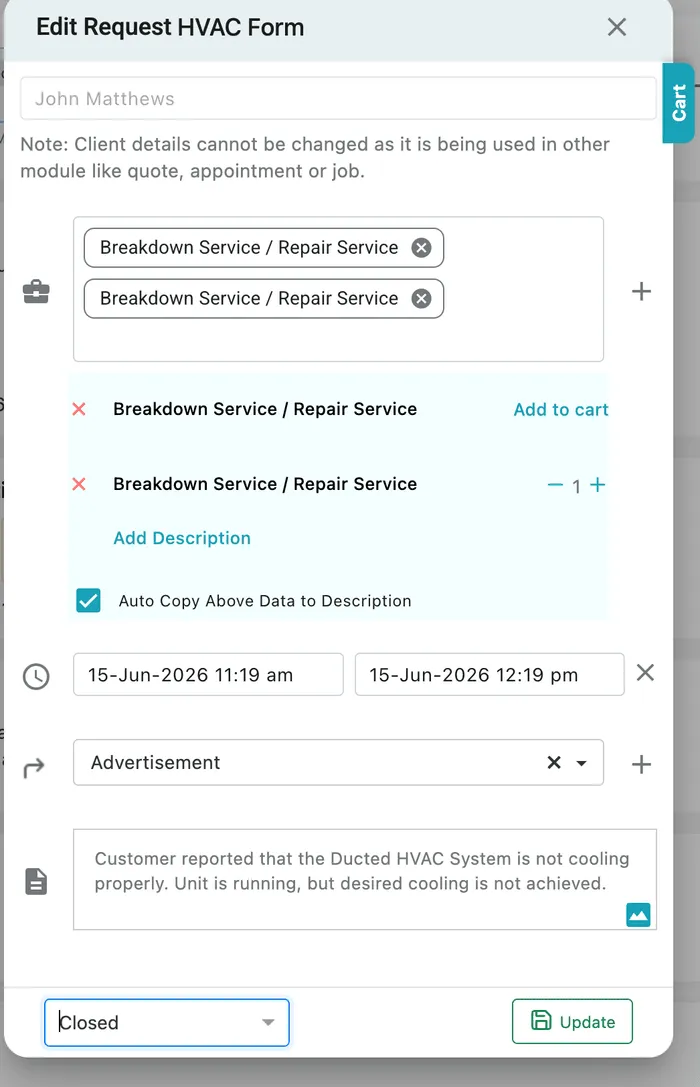
Section titled “Editing a request”Edit Request, in the request’s action bar, reopens the request in the form it was raised on — the form’s name is in the window title — with everything already filled in.
Request page → Edit Request
Change what you need and press Update.
Client details are locked once the request is in use
Section titled “Client details are locked once the request is in use”Once a request has a quote, appointment or job on it, the client on it can no longer be changed, and the form says so:
Note: Client details cannot be changed as it is being used in other module like quote, appointment or job.
Everything else on the request stays editable. To move work to a different client, raise it as its own request against that client.
The services
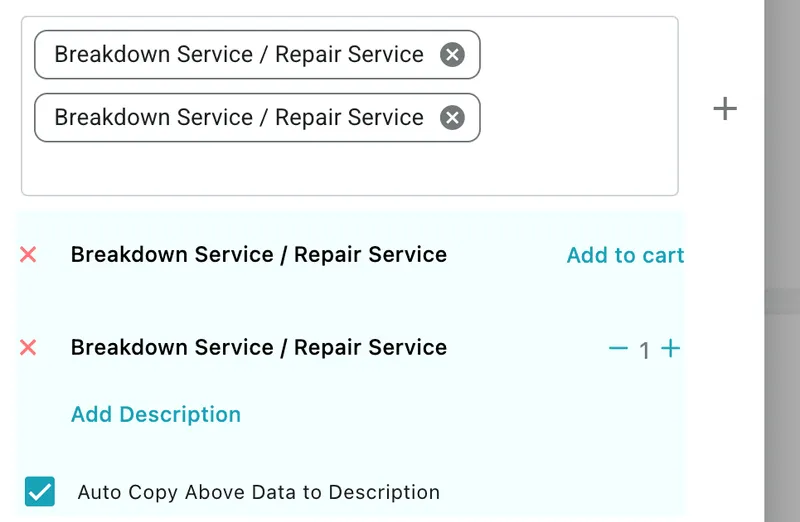
Section titled “The services”The services sit in two blocks. The chips at the top are what the request is for — the ✕ on a chip takes that service off, and the + beside the box adds another.
Under them, each service is listed again with what is being charged for it:
Edit Request → services
- The red ✕ removes the service.
- Add to cart puts it in the cart; once it is in, a − 1 + stepper sets its quantity.
- Add Description writes a note against that one service — what is wrong with it, what needs doing.
- Auto Copy Above Data to Description, ticked, copies those services and their descriptions down into the request’s Description. Untick it to write the description yourself.
Why the auto copy matters on the job
Section titled “Why the auto copy matters on the job”When the request is converted into a job, the description and the items come across with it.
Not every company shows its fieldworkers the rates and line detail on a job. Where those are hidden, the service description is what the fieldworker actually reads — so having each service and its description already in the main description means the person on site sees the full picture without anyone retyping the services one by one.
Setting the status
Section titled “Setting the status”The Status dropdown in the footer is how a request moves through your intake — and it is the only place it is set.

Edit Request → footer
The list is the one you have configured, so what you see here is your own set of statuses. See request statuses.
Setting a status records what you know; it does not tell the client anything. To tell them something, send them a message.
Downloading a request
Section titled “Downloading a request”The download icon in the action bar takes the request out of the app as a document. The same icon sits in the Action column on every row in Table View, and the download icon in the Table View toolbar takes the list rather than one request.
Deleting a request
Section titled “Deleting a request”The bin icon removes the request, asking first with Yes, Delete it and No, keep it.
A request will only delete if nothing has been raised from it. If it has a job, appointment, quote or audit attached, the delete is refused with an error — the records raised from it are real work, and deleting the request would orphan them.
To delete a request you genuinely do not want, remove the job, appointment, quote or audit that was raised from it first, then delete the request.