Saved reports and auto email
Most reporting is the same handful of questions asked over and over — the week’s incomplete jobs, last month’s unpaid invoices, yesterday’s check-ins. Rebuilding those from the catalogue every time is how they stop getting run.
Saving a report
Section titled “Saving a report”Once a report is set up the way you want it, Add this to my reports offers a Report Name and a Save Report button. Name it and save it, and it joins the list down the left of the Reports section.
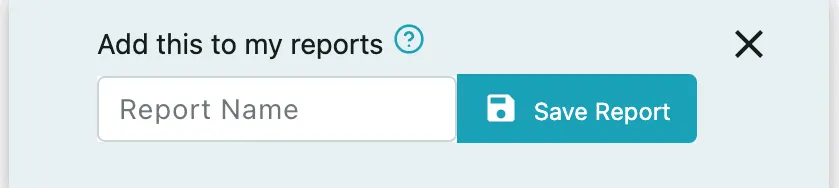
Reports → a report → Add this to my reports
What is saved is the question, not the answer: the report type and the filters that were set on it. Opening it later runs it again, so a report built on a relative range like Last 30 Days comes back with this month’s figures rather than the ones that were on screen the day it was saved.
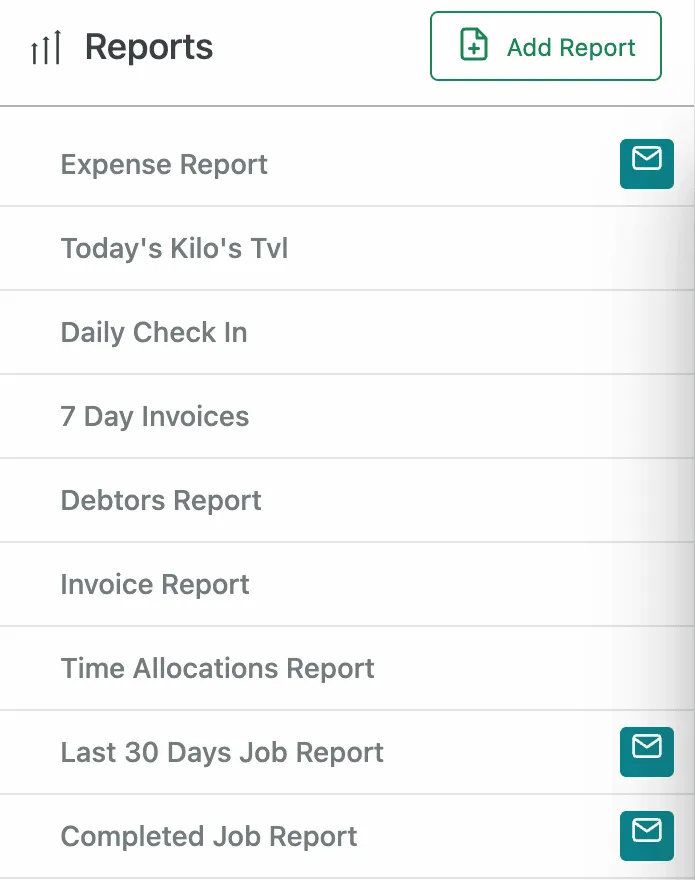
Reports → the saved-report list
Names are worth spending a moment on, because the list is the only thing anyone sees. The type alone will not do — an account ends up with several reports built on the same type, each cut a different way, and Invoice Report, 7 Day Invoices and Debtors Report are only distinguishable by name. Name a saved report after the question it answers, not the type it came from.
Deleting a saved report
Section titled “Deleting a saved report”The delete icon beside a report in the list removes it. What goes is the saved question — the report type and its filters — and nothing else: the jobs, invoices and hours it was reading are your records and are untouched.
A saved report on a schedule stops arriving once it is deleted. If the report is still wanted but the mail is not, turn Auto Email off instead and the saved report stays in the list.
Sending it on a schedule
Section titled “Sending it on a schedule”A saved report can send itself, which is the difference between a report somebody remembers to run and a report that simply arrives. An envelope beside a report in the list means it is on a schedule.
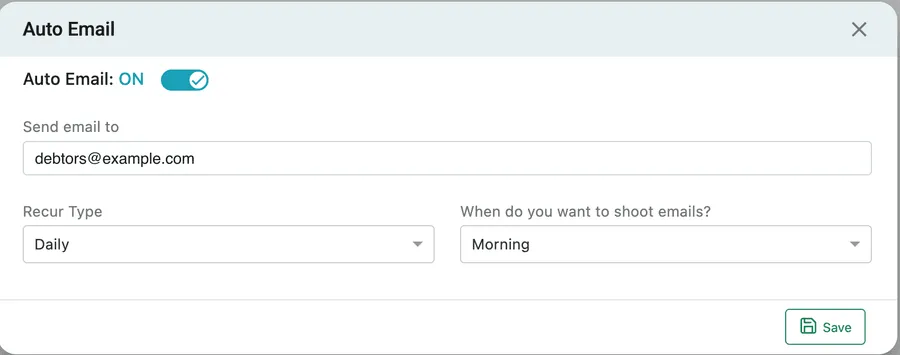
Reports → a saved report → Auto Email
Auto Email opens the settings, and there are only four:
- Auto Email: ON / OFF — the switch. Turning it off keeps the settings but stops the sending.
- Send email to — who gets it.
- Recur Type — how often, such as Daily.
- When do you want to shoot emails? — which part of the day, such as Morning. You are choosing a slot rather than a clock time, so a daily report lands with the morning’s post rather than at 09:04 exactly.
Save puts it live. Every send runs the report fresh, so a report built on a relative range covers the days up to the morning it arrives, not the days it was set up on.
Why this is the part that matters
Section titled “Why this is the part that matters”The recipient does not need an EyeOnTask login.
That is the whole point of it. The bookkeeper chasing last week’s unpaid invoices, the client contact who wants Friday’s completed jobs, the director who reads one number a month — none of them need an account, a password, or a walkthrough of the report catalogue. They need a file in their inbox, and this is how they get one.
It also removes the person in the middle. A report that somebody has to remember to run on the first of the month is a report that stops being run in about four months, usually when that person is on leave.
Pick the recipient accordingly. A report that carries money or personal data is still that report when it lands in somebody’s inbox — see the note on money in the Payroll Timesheet, and remember that a scheduled send keeps going until somebody turns it off.
The same setting elsewhere
Section titled “The same setting elsewhere”Auto email is not only a Reports section idea. The same Auto Email button appears on a person’s Payroll Timesheet and their attendance report, with the same four settings, doing the same job for one person’s figures.
For the times you want a report now rather than on schedule, Print and Export sit on the generated result’s heading row — see generating a report.