How jobs work
A job is one piece of work, for one client, at one site, on a date, done by someone. It is the unit the whole system is built around: the thing a fieldworker is sent to do, and the thing everything else attaches to — the equipment serviced, the parts used, the photos taken, the invoice raised.
Everything a job needs is decided when it is created: what the work is, when it happens, who does it, whose site it is at, who to ask for on arrival, which contract it falls under, which equipment it touches and what it will be charged for. From there the job runs its own course — dispatched to a phone, started and finished in the field, reported on, and billed.
Finding your jobs
Section titled “Finding your jobs”Work on the main menu is the way in.
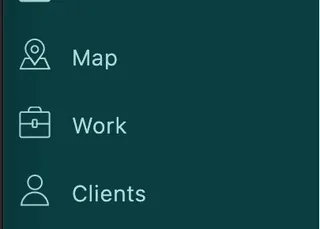
Main menu → Work
Work holds three kinds of scheduled activity, split across tabs at the top: Jobs, Appointments and Audits, with All showing everything together. Jobs is the one this section is about.
The notification bell
Section titled “The notification bell”The bell above the job list is the office’s own feed of what has moved. It carries the events somebody at a desk would otherwise have to go looking for:
- a job created — so the rest of the office sees new work as it is booked, not only the person who booked it
- a job assigned to a fieldworker
- a fieldworker accepting or rejecting work they were sent
- a job completed
- messages on the job’s internal and client threads
Clicking an entry opens the job it belongs to, and entries are marked as read once you have seen them, so the bell is a list of what is new rather than everything that has ever happened.
Which events reach you is a setting, and it is yours rather than the company’s. The gear at the top of the bell panel opens Notification Permission, four tick boxes headed Notify me when:
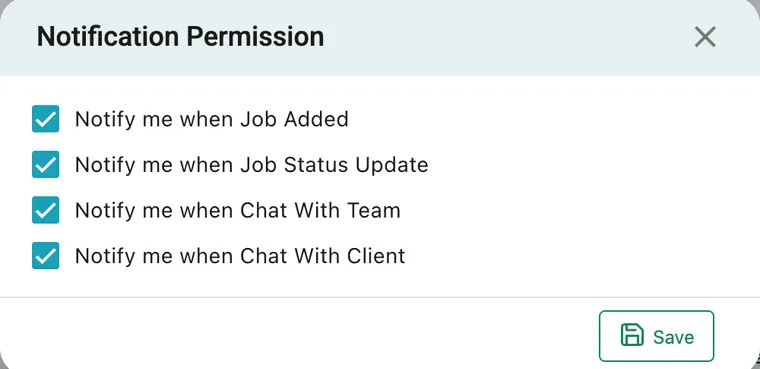
Job notifications → the gear → Notification Permission
| Tick box | What reaches you |
|---|---|
| Job Added | A job somebody has just created — which is how the rest of the office hears about new work, not only the person who booked it |
| Job Status Update | The work moving: assigned, accepted or rejected, started, completed |
| Chat With Team | Messages on the internal thread |
| Chat With Client | Messages on the client thread |
Save applies them. They are per person — notify me — so turning one off quietens your own bell and nobody else’s, and somebody who says they never hear about new jobs has Job Added unticked rather than a fault to report.
Overdue is not among them. Nothing pushes a notification when a job runs past its finish time; the Overdue badge on the job and the overdue counter above the list are how that is noticed. Beside the gear sit Clear All, which empties the feed, and a filter.
Email is controlled separately — these four are the in-app bell only. What goes out by email is set by the reminders and the wording by the email templates.
This is the office end. The fieldworker’s equivalent is a push notification on their phone — that is what dispatching sends, and it is also what reaches them when the office reschedules their job. The two are separate: the bell here does not notify the field, and the field’s push notifications do not appear here.
Two ways to look at the same list
Section titled “Two ways to look at the same list”The button in the top-left switches between them, and it is labelled with the view you are not in.
Simple View is a list on the left and the open job on the right — grouped by date, newest first, with the time, job code, client, job type, address and status on each row. It is the working view: click down the list and read jobs one after another. Unscheduled Jobs at the top of the list is a tick box that shows only the jobs with no date on them yet.
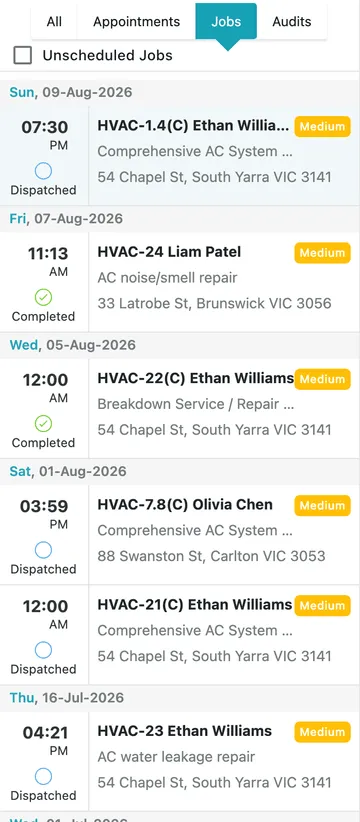
Work → Jobs, Simple View
Table View is one row per job with every field as a column — the view for finding, filtering, sorting and exporting. It is covered in finding and filtering jobs.
Job codes
Section titled “Job codes”Every job gets a code, and the code carries information:
- HVAC-24 — an ordinary job.
- HVAC-1.4(C) — the
(C)marks a job raised under a contract. The number after the dot means this is one of the jobs a repeat pattern produced, counting up from the original. - HVAC-20-1 — the
-1marks a revisit or sub job hanging off job HVAC-20.
You can set the code yourself when you create the job; left empty, it is generated for you.
Reading the job page
Section titled “Reading the job page”Opening a job gives you a header, a row of tabs, and the Overview beneath.

Job page → header
The title is the job code and the client. Under it, View Client opens the client’s record and Work History shows everything else you have done for them. The line below is the job type — what kind of work this is.
The buttons on the right act on the whole job:
| Button | What it does |
|---|---|
| Copy Job | Makes a new job with the same details, for when the same work comes round again |
| Payment | Takes money against the job — the same thing as the Payment sub-tab on Item / Invoice. See invoice payments |
| Job Card | Opens the job card — the client-facing document — to preview, send or download |
| Add Recurring / Edit Recurring | Puts a repeat pattern on the job, or opens the one it already has. See recurring jobs |
| Edit Job | Reopens the same form the job was created in, filled in |
| Archive | Files the job away without deleting it. Archived jobs are found again with the Archived filter |
| Delete | Removes the job, asking first |
The tabs
Section titled “The tabs”| Tab | What lives there |
|---|---|
| Overview | The whole job at a glance — schedule, site, contact, billing, contract, description |
| Item / Invoice | What the job is charged for, and the invoices and payments on it — see items and services on a job |
| Attachment | Documents and photos on the job — see attachments on a job |
| Completion Detail | What the fieldworker reported back — see job completion detail |
| Additional Form(s) | Extra questions answered on this job — see additional forms on a job |
| Feedback | What the client said afterwards — see feedback on a job |
| Expenses | Costs claimed against the job — see expenses on a job |
The number in brackets on a tab is how many things are in it, so Attachment(3) and Feedback(0) are readable without opening them.
The Overview tab
Section titled “The Overview tab”The timeline
Section titled “The timeline”The strip across the top is the job’s place in a chain. A job rarely stands alone — it came from a quote or a request, it sits under a contract, it was invoiced, it was revisited. The timeline shows those related records in date order with their own statuses, so you can jump straight to any of them.

Job page → Overview
The + button at the end opens the Job Action menu — the shortcut for raising the next thing from here.
The timeline cannot be turned off. It carries more than the chain — the private notes and the messages to the client and the fieldworker live on it too, so it is the job’s record of what was said as well as what was raised. The same strip appears on a request, a quote and a contract, always answering the same question: what happened, in order, and what came from what.
A purchase order raised from the work joins the chain like anything else and shows on the timeline — but the purchase order’s own page does not carry a timeline of its own. It is a link in somebody else’s chain rather than the start of one.
The cards
Section titled “The cards”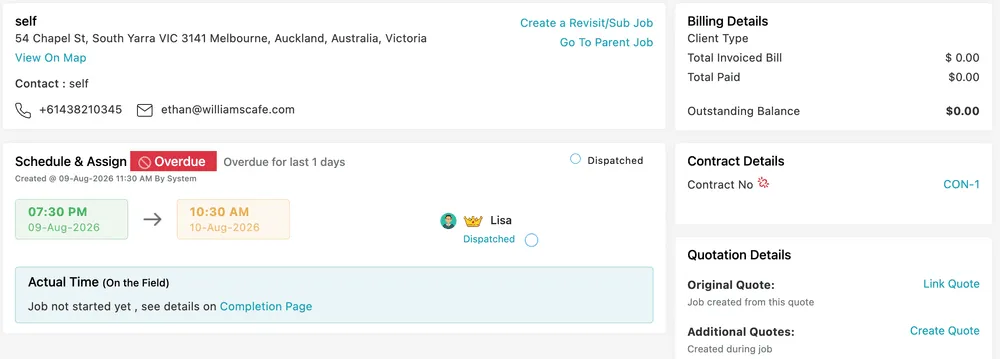
Job page → Overview
The site card names the project or site, its address, and the contact person to ask for on arrival, with their phone and email. View On Map places it. Create a Revisit/Sub Job and Go To Parent Job move between a job and its follow-ups.
Schedule & Assign is the working heart of the page: the scheduled start and finish, who it is assigned to, and whether it has been dispatched. A crown next to a name marks the team leader when more than one person is on the job. An Overdue badge appears when the finish time has passed and the job is not complete. Actual Time (On the Field) underneath fills in once work starts — until then it says the job has not been started yet.
Billing Details totals what has been invoiced, what has been paid, and what is outstanding. Contract Details names the contract the job belongs to, if any.
Quotation Details keeps two kinds of quote apart: the Original Quote the job was created from, and Additional Quotes raised during the job for extra work found on site — including the ones fieldworkers raise from the app while they are standing in front of the problem. See quotes and purchase orders from a job.
Below the cards sit Job Description (what the work is, for whoever is doing it), Job Instruction (how to go about it), Other Details (priority, order reference number, tags) and Request History.
Status History
Section titled “Status History”Status History, further down the Overview, is the record of how the job actually went. Every status the job passed through is listed with:
- the status it moved to — En Route, In Progress, Completed
- the date and time it was set
- the location it was set from, taken from the phone at that moment
The card at the top says where the job is now; this says how it got there. It is what you read when a client asks what time the engineer arrived, when a visit took longer than it should have, or when somebody says they were on site and the record needs to agree. Because the fieldworker sets each status on their phone as they go, the timestamps and the locations are the field’s own account of the visit rather than something typed up afterwards.
Email Log
Section titled “Email Log”Email Log, further down the Overview, lists the emails this job has sent — the dispatch notice, the completion notice, the service report, whatever went out.
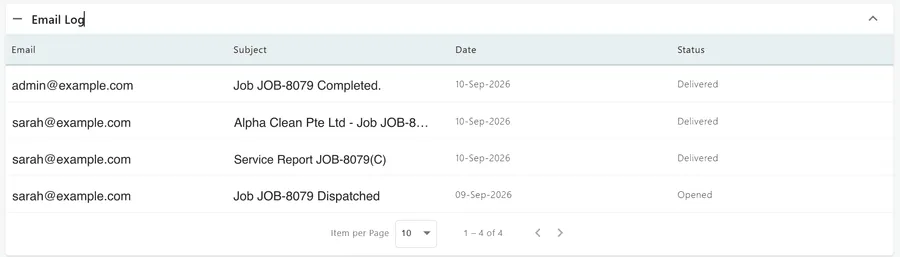
Job page → Overview → Email Log
Each row carries the address it went to, the subject as it was sent, the date, and a status: Delivered where the receiving mail server accepted it, Opened where it was opened afterwards. The panel is information only — clicking a row does nothing, and there is no copy of the message to read here.
It is outgoing mail only. Replies do not appear, and neither does anything else the client sends you: EyeOnTask records what it sent, not a mailbox. So the panel answers “did the client get the completion notice?” and cannot answer “did they write back?”
For the same question across every module at once, with Not Sent and Bounced as well, see the Email Log Report.
Job statuses
Section titled “Job statuses”The status circle on each row and in the Schedule & Assign card tracks where the work has got to. Most of the movement is not yours — the fieldworker changes it from their phone as they go, and it updates here as they do. See a job in the app.
There are thirteen built-in statuses, and they fall into four groups.
Before anyone has it
Section titled “Before anyone has it”| Status | What it means |
|---|---|
| Not Dispatched | The job exists in the office only. A non-dispatched job is hidden from the mobile app and from the client portal — nobody outside your team can see it |
| Dispatched | Sent to the assigned fieldworker. The point at which the job becomes real to them |
The fieldworker’s response
Section titled “The fieldworker’s response”| Status | What it means |
|---|---|
| Accepted | They have acknowledged the job and intend to do it |
| Reject | They have declined it — the cue to reassign |
These two, and the travel pair below, are the ones companies most often switch off. Any status can be hidden from the fieldworker app, which removes its button and shortens the workflow to what you actually use — see choosing which statuses the app shows.
While the work runs
Section titled “While the work runs”| Status | What it means |
|---|---|
| Travelling | On the way to site |
| Break | Paused while travelling |
| In Progress | Started on site |
| Job Break | Paused during the work itself |
| Multi Status | Two or more people are on the job, both updating their own status from the app, and those statuses are not the same — one still travelling while the other has started |
Break and Job Break are kept apart because the two are counted separately on completion detail, where break time and travel break time each have their own figure.
Multi Status is not something you set. It is what the job shows when a team’s individual statuses disagree, and it resolves itself as they catch up with each other.
Finished, or not going ahead
Section titled “Finished, or not going ahead”| Status | What it means |
|---|---|
| Completed | The work is done and reported on. The point at which the job can be billed and the job card sent. It stays on the fieldworker’s app |
| Closed | Settled and finished with. Closing a job takes it off the fieldworker’s app |
| On Hold | Parked. Nothing is wrong with the job; it is simply not happening right now |
| Cancel | Not going ahead at all |
Completed and Closed differ in one practical way, and it is the reason to use both. A Completed job is still on the fieldworker’s phone — they can go back into it, add a photo they forgot, correct a note. Closed clears it from their app. So complete the job when the work is done, and close it when you are finished with it and want it off their list.
On Hold and Cancel are the honest alternatives to deleting. A cancelled job keeps its history — who booked it, for whom, and when it fell over — which a deleted one does not.
Statuses are filtered on in Table View, and the full list lives in your Work settings.
Where to go next
Section titled “Where to go next”| Page | What it covers |
|---|---|
| Creating a job | The Create New form — client, site, contact, contract, job type, schedule, assignment and instructions |
| Equipment on a job | Servicing the client’s equipment, or deploying, servicing and uninstalling your own |
| Items and services on a job | The cart, the Item / Invoice tab, labour calculation and what carries through to the invoice |
| Dispatching a job | Getting the job onto the fieldworker’s phone and following it while it runs |
| A job in the app | The same job as the fieldworker sees it, from accepting it to raising a request from site |
| Recurring jobs | Repeating a job on a pattern instead of creating it again each time |
| Work that runs over several days | One long job held and continued each day, or one sub job per day |
| Finding and filtering jobs | Table View, filters, columns, exporting and editing straight from the list |
| Job completion detail | The report that comes back from the field, and what of it reaches the client |
| The job card | The client-facing document — previewing, emailing, WhatsApping and downloading it |
| Job actions | Revisits, quotes, invoices, purchase orders, private notes and messages |
| Job questions and troubleshooting | The things people get stuck on |
Settings behind this module
Section titled “Settings behind this module”- Work settings — Job numbering, prefixes and auto-assign
- Job type/services and categories — What you do and what it costs
- Add job form settings — Which fields the job form asks for
- Job, appointment and audit statuses — The stages work moves through
- Job completion form — The questions every finished job asks