Service and history
Tracking units individually is worth doing because of what builds up underneath them. A unit that has been on your books for two years knows what has been done to it, when, and by whom.
Equipment’s Service
Section titled “Equipment’s Service”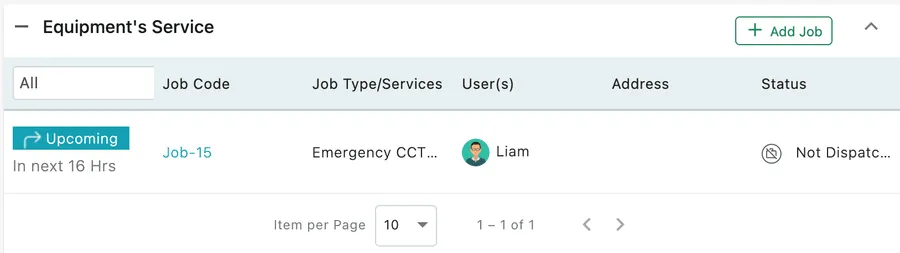
Equipment → the selected unit → Equipment’s Service
Every job this unit has been named on appears here, past and upcoming. Each row carries the job code — a link straight to the job — the job type or service performed, the fieldworker, the address and the job’s status. Anything not yet done is flagged, with how long there is to go.
The All dropdown narrows the list to a particular kind of work, which is how you separate routine servicing from call-outs on a unit with a long history.
Add Job
Section titled “Add Job”Add Job raises a new job with this unit already attached. It is the natural move when a client rings about a specific machine: open the unit, look at what has been done to it, and book the visit from the same screen.
Jobs raised anywhere else reach this list too, as long as the unit is named on them — see equipment on a job.
What comes back from a visit
Section titled “What comes back from a visit”Because the job names the unit, the fieldworker reports against that unit rather than against the visit as a whole. Their condition report, remarks, photographs and the parts they fitted all come back attached to it, and appear on the job’s completion detail.
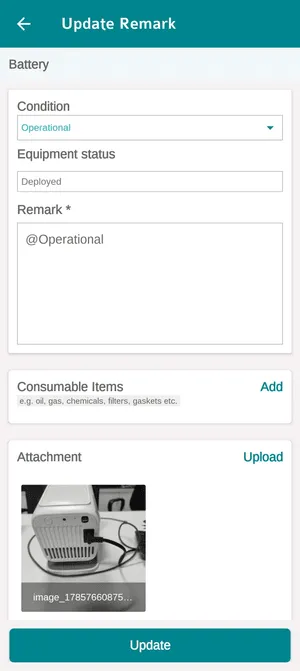
The app → an equipment unit → Service
That form is where all of it is entered, standing in front of the machine — and the Condition chosen on it is where Last checked Condition on the unit’s status card comes from. See equipment in the app.
Equipment Activity
Section titled “Equipment Activity”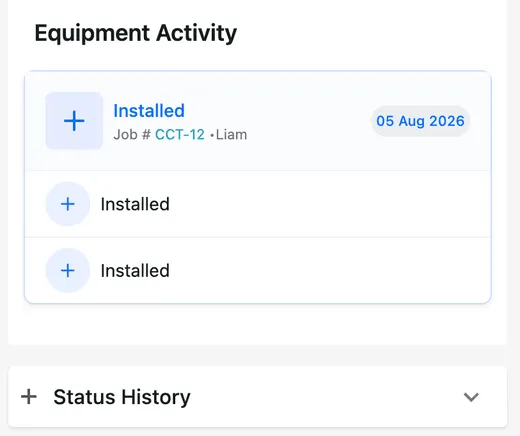
Equipment → the selected unit → Equipment Activity
The rail on the right is the unit’s life story — installed, serviced, moved — each entry naming the job it happened on, who did it and the date. Expanding an entry shows its detail.
Status History
Section titled “Status History”Status History, underneath the activity, records every change of status with the date and who made it: available → ready to deploy → deployed. It is the audit trail behind the single word on the status card.
Assign Fieldworker(s) History
Section titled “Assign Fieldworker(s) History”For your own equipment, Assign Fieldworker(s) History at the foot of the page records who has had custody of the unit. Kit that lives in a van rather than in the stores still has an answer to “who has it?”.
Keeping servicing on schedule
Section titled “Keeping servicing on schedule”A unit’s Service Interval — set on the add equipment form — is how often it is due to be looked at. It is what automated client reminders work from, so units without an interval are never chased. Scheduled servicing itself is usually driven by a contract’s work pattern; see equipment on a contract.