The job card
The job card is the job as the client sees it — the service report you hand over or send when the work is done. It pulls together what was agreed, what was found and what was done, into one document with your company on the top of it.
Job Card in the job’s header opens it.
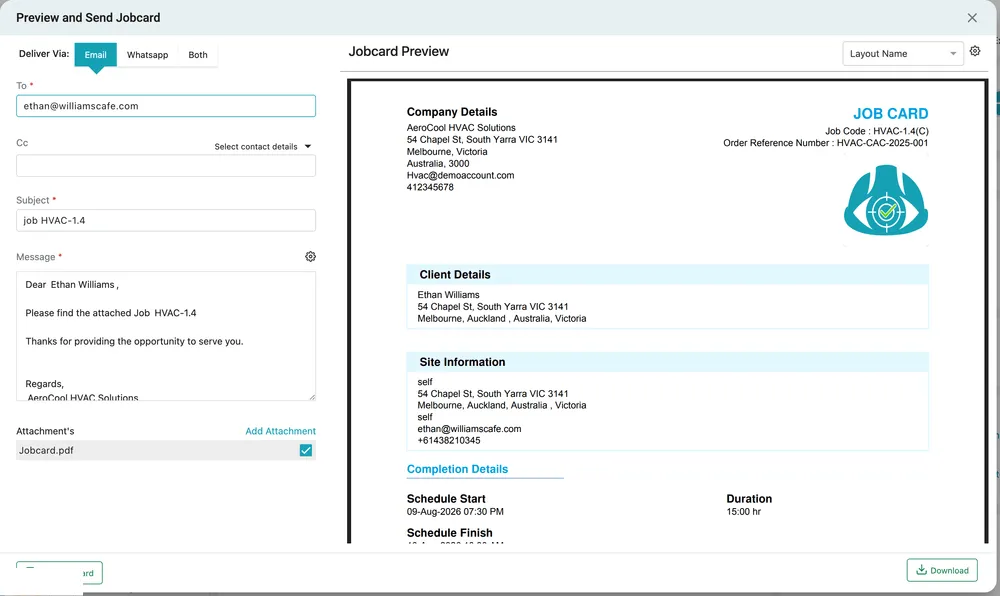
Job page → Job Card
What is on it
Section titled “What is on it”The preview on the right is the document itself, and it is worth reading before it goes out:
- Company Details — your name, address, email, phone and logo.
- Job Code and Order Reference Number, so the client’s team can match it to their own paperwork.
- Client Details and Site Information — who it was for, where the work happened, and who the contact was.
- Completion Details — schedule start, schedule finish and duration, followed by what was reported: the work done, the equipment covered with its condition and remarks, the parts used, the photos, and the client’s signature.
What the client reads in the comment, and which time figure is printed, are set on the Completion Detail tab. Set those first, then open the job card.
Layout Name at the top right switches between the layouts set up for your account, so the same job can go out on a plain internal sheet or a full branded service report. The gear beside it opens the layout settings.
Sending it
Section titled “Sending it”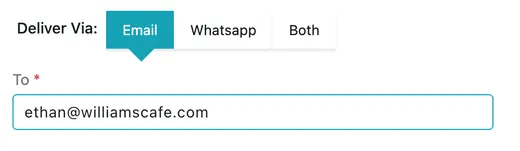
Preview and Send Jobcard → Deliver Via
Deliver Via chooses Email, Whatsapp or Both.
For email, To is filled in from the job’s contact — check it, because this is the address on the job rather than the client’s general one. Cc takes anyone else who should have a copy, and Select contact details offers the client’s other contacts rather than making you type them.
Subject and Message are pre-filled with your standard wording and can be edited for this one send. The gear beside Message opens the template they come from, for when the change should apply to every job card from now on.
Attachment’s shows Jobcard.pdf ready to go, ticked. Add Attachment puts more with it — a warranty document, a photo set, a quote for the follow-up work.
Send Jobcard sends it and confirms with Jobcard generated and mail sent successfully.
Downloading it
Section titled “Downloading it”Download at the bottom right saves the same document as a PDF without sending anything — for printing on site, for filing, or for attaching somewhere else yourself.
The download icon in the Action column of Table View does the same thing straight from the list, without opening the job.