Additional forms
An additional form is a set of questions attached to particular work rather than to all of it — a safety checklist before an installation, a survey at the end of a service visit, an authorisation for extra charges.
This page is where forms are built. Using one on a job is covered in additional forms on a job.
Settings → Customisation → Job Additional Form(s).
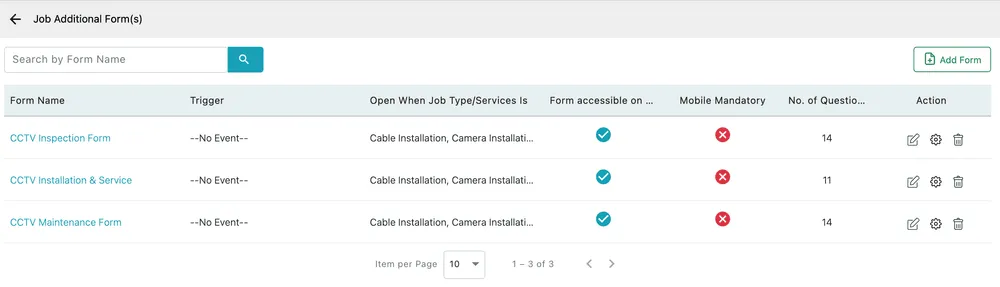
Settings → Customisation → Job Additional Form(s)
What the columns mean
Section titled “What the columns mean”| Column | What it says |
|---|---|
| Form Name | Click it to open the form’s questions. |
| Trigger | The event that opens the form by itself. --No Event-- means nothing opens it automatically. |
| Open When Job Type/Services Is | The job types that pull this form onto a job. Pick Camera Installation on a job and its form is filled in for you. |
| Form accessible on mobile | Whether the fieldworker can see and answer it in the app. |
| Mobile Mandatory | Whether they must answer it before the job can be completed. |
| No. of Questions | How long the form is. |
Add Form creates one. On a row, the pencil edits the form’s details, the gear opens its settings, and the bin deletes it.
The column that does the real work is Open When Job Type/Services Is. Tie the form to the job types that need it and nobody has to remember which questions go with which work — booking the job type is enough.
The questions
Section titled “The questions”Clicking a form name opens its question list.
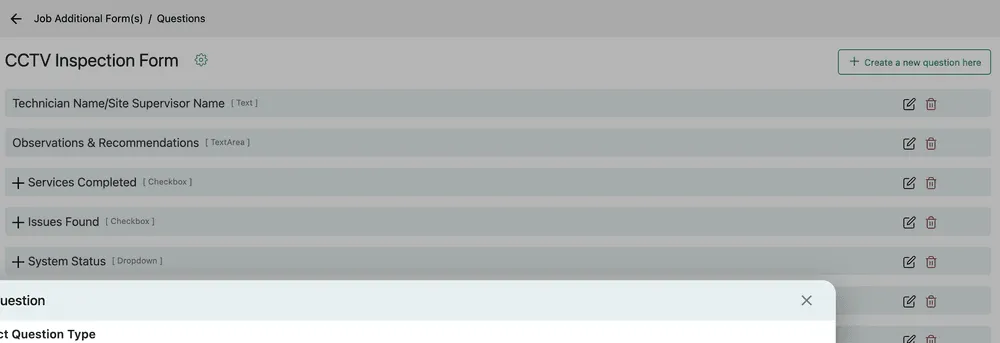
Settings → Customisation → Job Additional Form(s) → a form
Create a new question here adds one; the pencil edits and the bin deletes. Questions take the same types as custom fields — text, long text, checkbox, dropdown, date, time, attachment — and a + in front of a row expands the options a checkbox or dropdown offers.
Editing a question opens the same editor as the job completion form, with its Disable switch, Change Question Type, the Full / Half / One Third width and Mandatory.
Mandatory on mobile
Section titled “Mandatory on mobile”Mobile Mandatory is the strongest setting on this page: with it on, an engineer cannot mark the job complete until the form is filled in. It is the right answer for a safety check that has to happen and the wrong answer for a form that is merely useful — a blocked engineer will find the fastest route through the questions rather than the honest one.
Related
Section titled “Related”- Additional forms on a job — attaching one and reading the answers
- Job completion form — the questions every job asks
- Equipment remark forms — the same idea, per piece of equipment