Managing stock
Stock moves on its own as you work — a job that fits a part takes it off the shelf. Add/Remove Stock, on the item page, is for the movements that are not a job: a delivery arriving, a stocktake correcting the number, an item written off.
The three figures
Section titled “The three figures”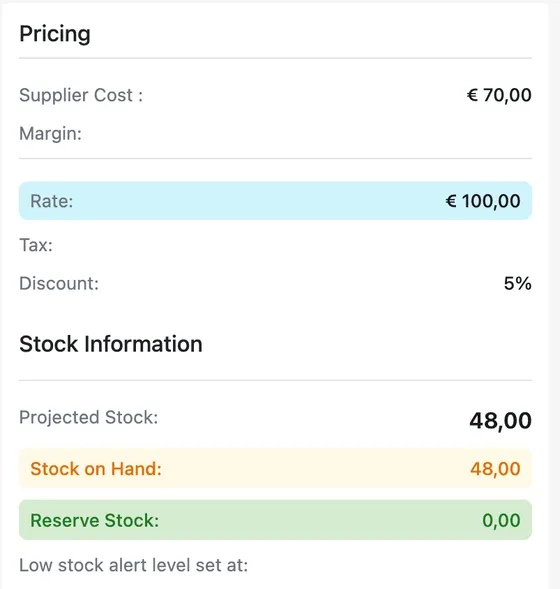
Item page → Stock Information
- Stock on Hand — how many you are physically holding right now. This is the real count on the shelf.
- Reserve Stock — how many of those are already promised to work that has not happened yet.
- Projected Stock — where the number ends up once that promised work has taken what it needs.
The difference between the first and the last is work booked for the future. Put an item on a job scheduled for next week and it counts against your Projected Stock straight away, because you now know it is going. It does not come off Stock on Hand — the part is still in the stores, and nothing has physically left the building. Stock on Hand only moves when the item actually does.
So read Stock on Hand to answer “what is on the shelf this minute?”, and Projected Stock to answer “what will I have left after the work I have already committed to?” — the second is the one to look at before promising a part to another job.
Underneath, Low stock alert level set at shows the threshold you set in the item’s Low Stock field, so you know when the item is due for reordering. It is set on the item’s form — see adding an inventory item.
Adding or removing stock
Section titled “Adding or removing stock”Add/Remove Stock on the item page opens the Stock window.
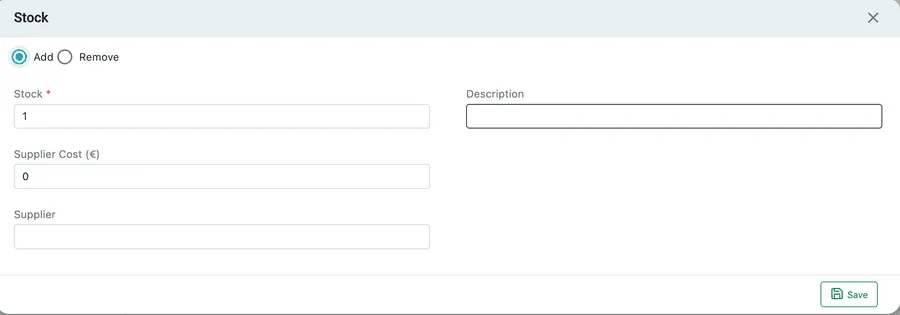
Item page → Add/Remove Stock
- Add or Remove — which way the quantity goes. Everything below works the same either way.
- Stock — how many units to move. This is the change, not the new total.
- Description — why. Whatever you type here appears against the movement in the item’s history, so “delivery, PO 1183” or “damaged in transit” is worth the few seconds.
- Supplier Cost — what this batch cost you per unit.
- Supplier — who it came from.
Save applies the change. The stock figures update, and the movement is added to the item’s stock transaction history.
For a whole stocktake rather than one item, Bulk Update in the item list’s Table View sets quantities on many items at once from a spreadsheet — see bulk updating items.
Stock that moves without you
Section titled “Stock that moves without you”Your own adjustments are one of three sources. Jobs and invoices take stock out as they save — Remove stock from the inventory is ticked by default on their item lines — and delivered purchase orders bring it in. Neither needs this window opening. It all lands in the same running balance and the same history.
How inventory works sets out all three sources, and the one path that bypasses stock entirely.