Invoice payments
Raising an invoice says what is owed. Recording a payment says what has actually arrived — and it is what keeps the due figure meaningful.
Recording a payment
Section titled “Recording a payment”From the invoice, use Add Payment on the ≡ menu. From a job, use the $ Payment button and then Pay Now. Both open the same window.
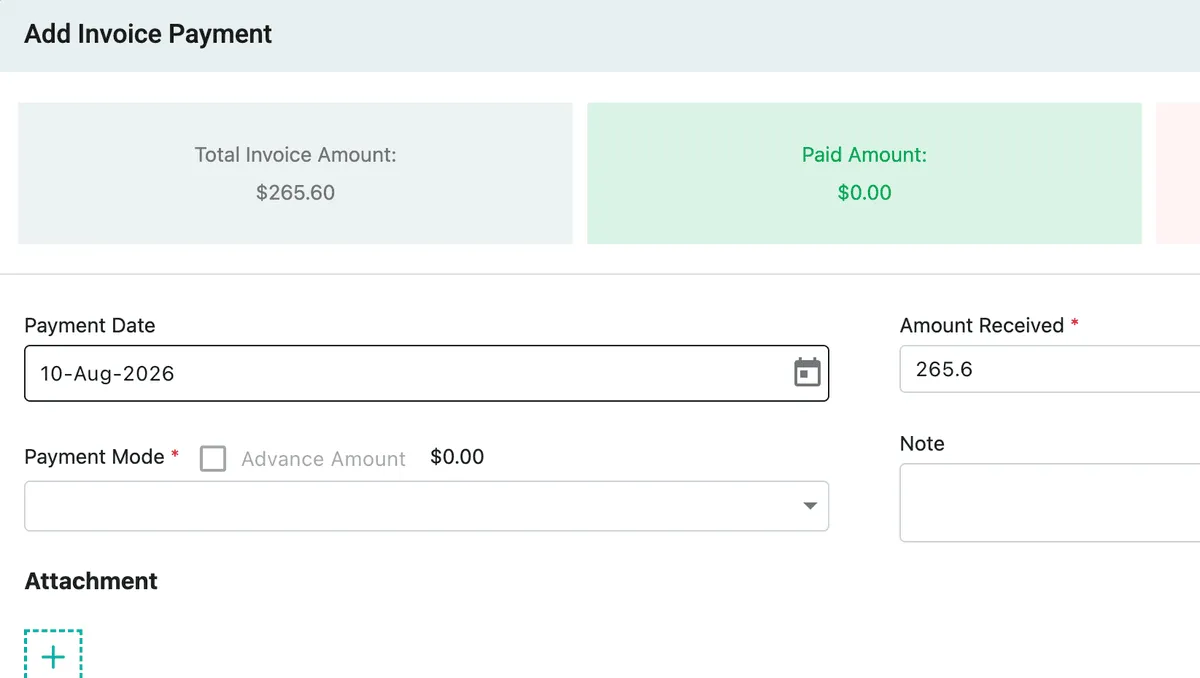
Invoice → Add Payment
Three figures sit at the top so you are never recording a payment blind: Total Invoice Amount, Paid Amount and Due Amount.
What you fill in:
- Payment Date — when the money was received, which is not always today.
- Amount Received — how much. It arrives pre-filled with the full outstanding amount, so settling an invoice in full is one click; overwrite it for anything less.
- Payment Mode — cash, bank transfer, card, PayPal and so on, from the list under invoice and accounts settings, which every module shares.
- Note — a cheque number, a reference, a part-payment arrangement.
- Attachment — a receipt, remittance advice or bank confirmation, kept with the payment.
Fields marked with an asterisk are required. Save records it, confirming with “Payment received successfully.”
A client who pays through the payment button in the invoice email needs no entry here — the invoice is marked paid on its own.
Applying an advance
Section titled “Applying an advance”Beside Payment Mode sits Advance Amount, showing what the client already has on account. Tick it to settle this invoice from that balance rather than asking for the money again.
It is unavailable when the figure is $0.00 — no advance held means nothing to apply.
Where an advance comes from. A client’s advance balance can be built two ways:
- From a quotation — the deposit asked for with Advance Payment to be charged (%), taken as a percentage of the quoted amount and collected when the client approves.
- Directly from the client — the client record has its own Add Advance Payment option, for money taken outside any particular document.
Either way it lands in the same place: a balance held against the client. Whatever sits there can be used to settle an invoice, so a deposit taken at quotation time months earlier is still there to draw on when the bill finally goes out.
Sending a payment receipt
Section titled “Sending a payment receipt”A receipt confirms to the client that their money arrived. There are two ways to send one.
At the time you record the payment — tick Send payment receipt to client? at the foot of the Add Payment window.
Afterwards, if you didn’t tick it — open the Payment History tab and use the Payment Receipt Preview action on the payment’s row. Nothing is lost by forgetting the tickbox.
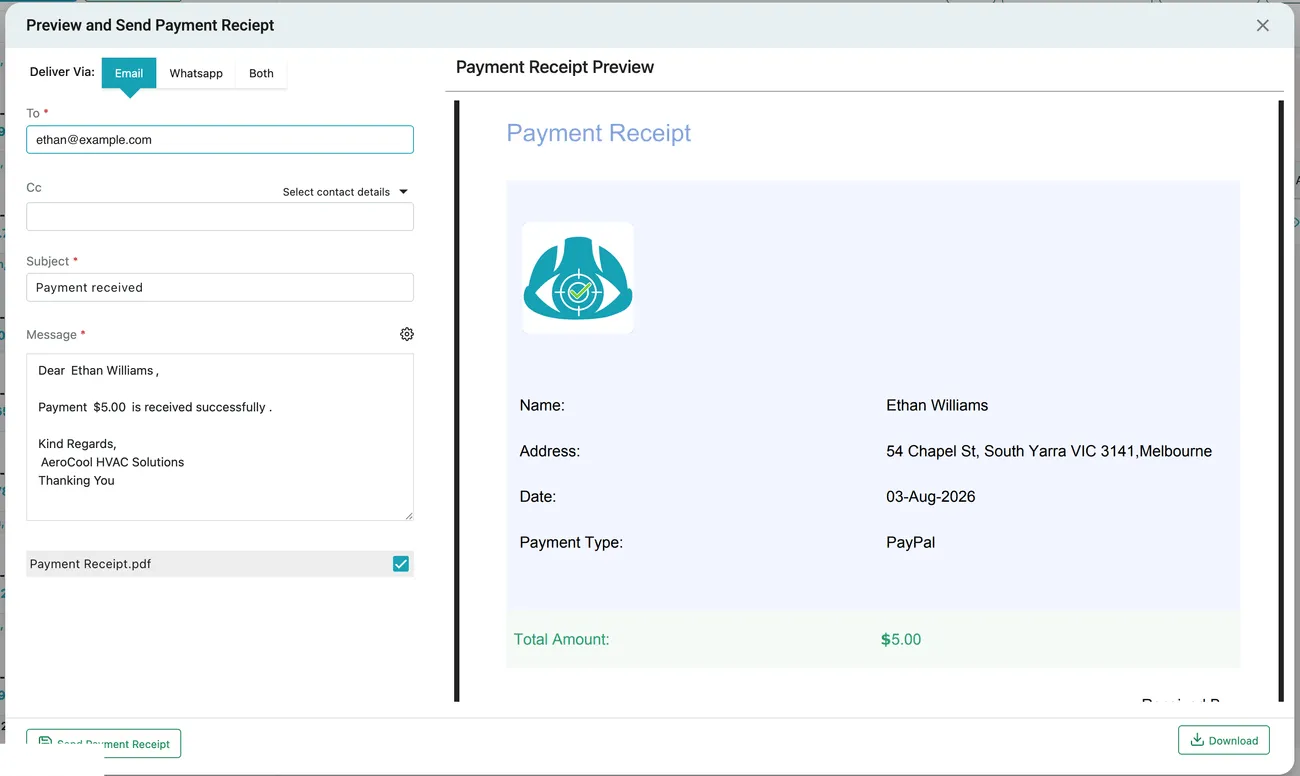
Payment History → Payment Receipt Preview
Either route opens Preview and Send Payment Receipt, which works like the other send windows: Email, Whatsapp or Both, a To and Cc, a subject and a message generated from a template you can edit — the gear beside Message changes it for every receipt from then on — and Payment Receipt.pdf attached.
The receipt itself is short by design: who paid, their address, the date, the payment type and the amount. Download saves it without sending.
Part payments
Section titled “Part payments”Because Amount Received is free, an invoice can be settled in instalments — a deposit now, the balance on completion. Record each as it arrives and the paid and remaining amounts move each time, so the invoice always shows the true position.
An invoice is badged Unpaid in the list until something is received, Partially Paid while part of it is still owed, and Paid once nothing remains — see payment statuses.
The payment history
Section titled “The payment history”The Payment History tab on an invoice is the full record.
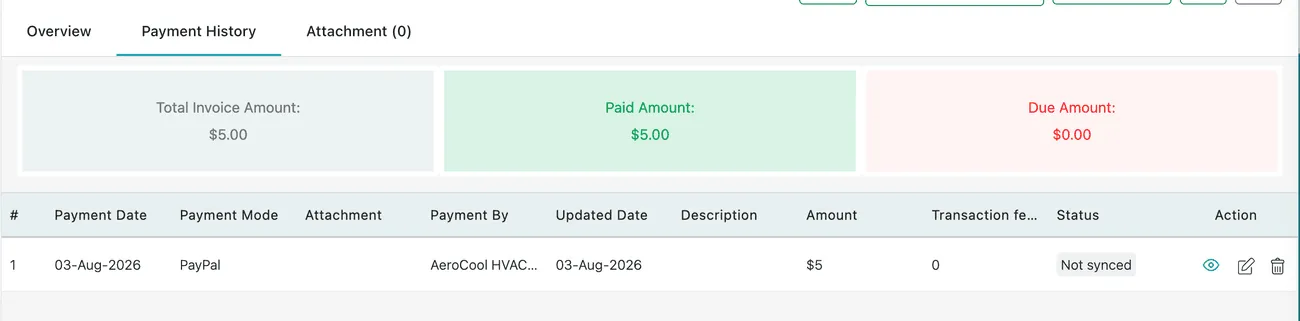
Invoice page → Payment History
The three totals are repeated at the top, and every payment is listed beneath with:
| Column | What it holds |
|---|---|
| Payment Date | When the money was received |
| Payment Mode | How it was paid |
| Attachment | The receipt or remittance held with it |
| Payment By | Who recorded it |
| Updated Date | When the record was last changed |
| Description | The note against the payment |
| Amount | How much |
| Transaction fee | What the payment cost you to take — card and gateway fees |
| Status | Whether it has been synced to your accounts package |
Each row can be viewed, edited or removed from the Action column, so a payment entered wrongly can be corrected rather than worked around. The view action is Payment Receipt Preview — the way to send a receipt after the fact.
Record a Transaction fee where a gateway takes a cut: the client paid the full amount, but you received less.
Status shows whether the payment has reached your accounts software. A payment reading Not synced exists here but not in your books yet.
If a payment will not sync, check the invoice first: a payment can only sync against an invoice that has already synced. See what syncs, and which way.
Credit notes
Section titled “Credit notes”A credit note is the opposite direction: money owed back to the client, or an amount written off. Add Credit Note sits on the invoice’s ≡ menu.
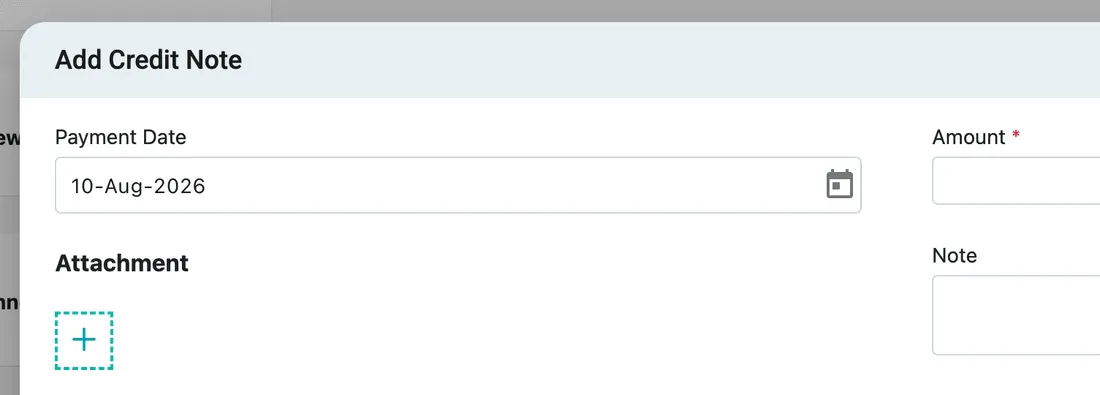
Invoice → ≡ menu → Add Credit Note
It takes very little: a Payment Date, the Amount (the only required field), a Note, and an Attachment for the paperwork behind it.
The client’s copy is on their Payment tab. The credit note has a document of its own: the Credit Note column on the client’s payment ledger opens a Preview that names the invoice the credit was raised against, with Download and Send on it. Raise it here; hand it over from there.
A credit note is how you correct an invoice that has already been paid or sent, since a paid invoice cannot simply be deleted and editing one the client already holds means reissuing it. Overcharged by $40? Credit $40 against the invoice, with the note saying why. The original bill stays as it was sent, and the correction sits beside it.
Editing the invoice is the other route, and which one to reach for depends on where the invoice has got to. Nothing paid and nothing sent — edit it and the figure is simply right. Already paid, or already in the client’s hands — credit note, so the document they hold still matches yours and the correction has a date and a reason of its own.
Paid invoices are protected
Section titled “Paid invoices are protected”Once payment is recorded, the invoice can no longer be deleted. It has become a financial record rather than a draft. If it was wrong, correct it by editing it, or issue a credit note — not by making it disappear.