Dashboard
The Dashboard is the first option on the hamburger menu and where you land after signing in. You build it yourself from a library of widgets — counters, monthly charts, and lists of work that needs attention — so the numbers you care about are on one screen.
EyeOnTask at the very top of the menu is a different screen: the getting-started checklist and the help videos.
Adding a widget
Section titled “Adding a widget”Click + Add Widgets at the top-left of the dashboard.

Pick any widget from the list and it’s added straight away, with a confirmation alert. Add as many as you like — the dashboard grows down the page.
Configuring or removing a widget
Section titled “Configuring or removing a widget”Every widget card carries two controls in its top-right corner:
- ⚙ Settings — configure the widget (see below).
- ⊖ Remove — takes it off the dashboard. Add it back any time from + Add Widgets.
What you can change in settings
Section titled “What you can change in settings”Most widgets aren’t fixed — the numbers they report are a setting, not a rule. Open ⚙ Settings on a card to change:
- The reporting period — the range or frequency the widget covers. The badge under a widget’s title always shows the period currently in effect, so Last 7 Days on Active Jobs Per Fieldworker or Next 15 Days on the expiry watchlists is a starting point, not a limit. Widen or shorten it to match how far ahead your team actually plans.
- The widget name — rename a card to whatever your team calls it, which helps when you have several similar charts on one dashboard.
This is worth knowing before you decide a widget isn’t useful: a list that looks empty or a chart that looks flat is often just reporting on too short a window.
Widgets worth knowing
Section titled “Widgets worth knowing”Most widgets are exactly what their title says: the Add User / Client / Quote / Invoice / Job cards are a running total plus a shortcut to the matching form, and Clients, Jobs, Equipments, Quotations and Expenses Per Month are plain bar charts of that month’s count. The ones below behave differently enough to be worth a look.
Revenue Per Month
Section titled “Revenue Per Month”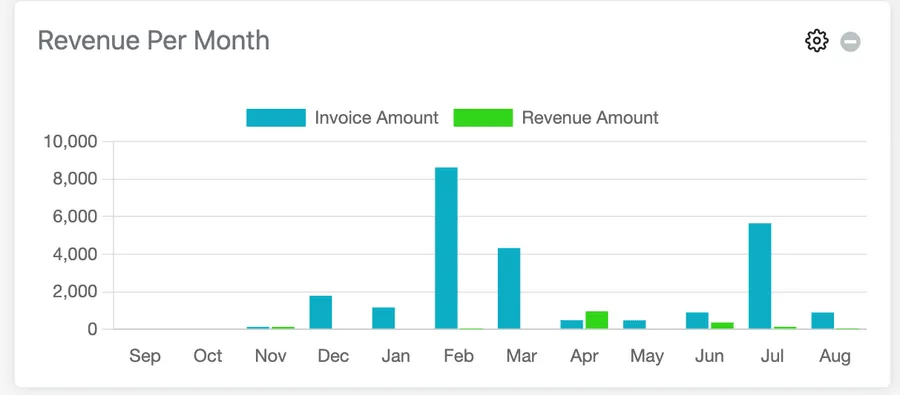
Plots two series side by side — Invoice Amount (what you billed) against Revenue Amount (what came in). The gap between the two bars is your outstanding amount for that month.
Active Jobs Per Fieldworker
Section titled “Active Jobs Per Fieldworker”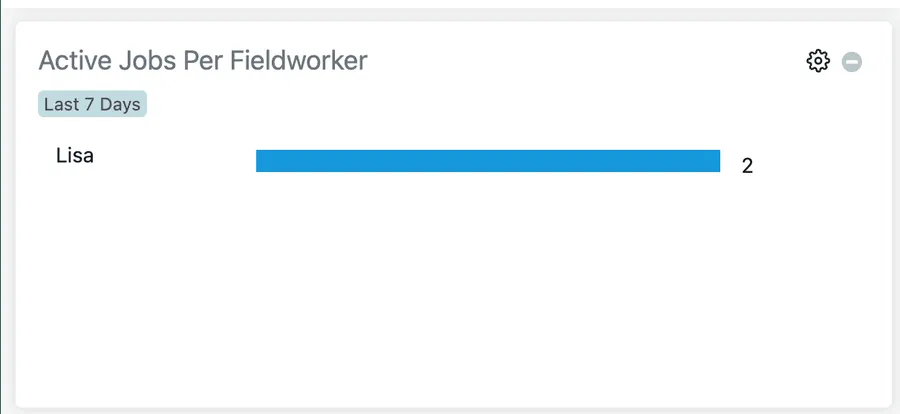
Active jobs broken down by fieldworker, so you can see who is loaded and who has capacity before you assign more work. It arrives set to Last 7 Days; widen that in ⚙ settings if your jobs typically run longer than a week.
Today’s Unassigned Job(s)
Section titled “Today’s Unassigned Job(s)”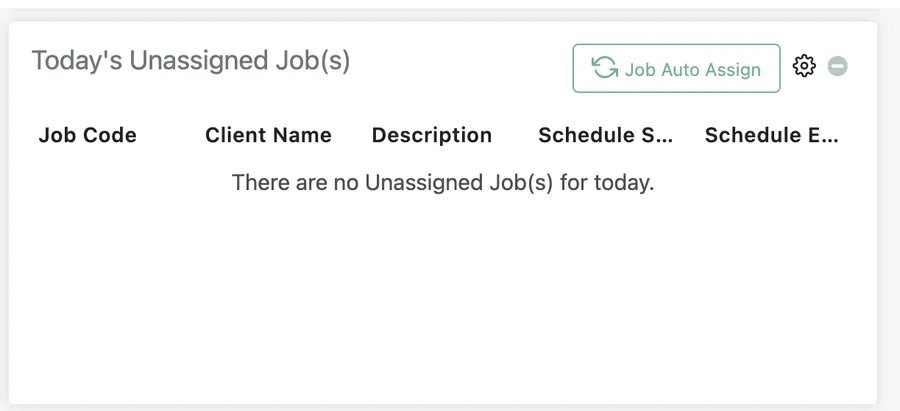
Today’s jobs with nobody assigned yet. This is the one widget you can act on directly: Job Auto Assign distributes them across your available fieldworkers in one click, without opening the scheduler.
Job Recur Schedule and Invoice Recur Schedule
Section titled “Job Recur Schedule and Invoice Recur Schedule”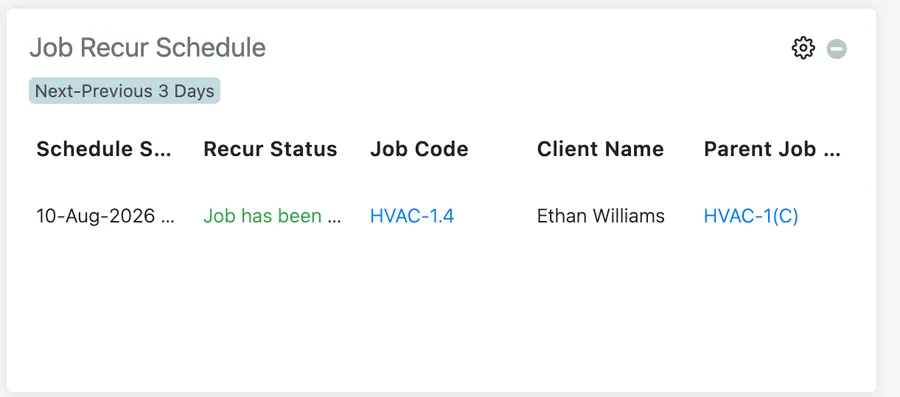
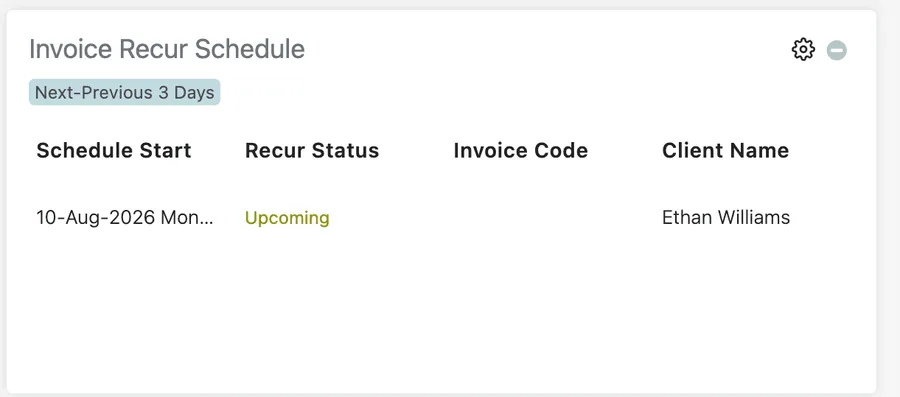
Upcoming instances generated by your recurring jobs and invoices, covering three days either side of today. Recur Status tells you whether each one has been created yet or is still upcoming, and the job rows link back to the parent job the recurrence came from.
Scheduled Maintenance Due
Section titled “Scheduled Maintenance Due”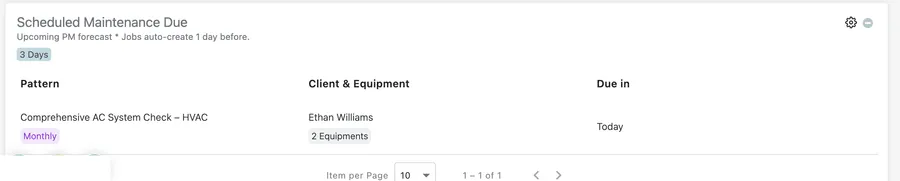
A forecast of preventive maintenance coming due, grouped by the maintenance Pattern it belongs to and showing the client and equipment involved. Worth understanding: these jobs are created automatically one day before they’re due, so this list is a preview of work about to appear, not work you need to raise yourself.
Expiry and service watchlists
Section titled “Expiry and service watchlists”Three widgets warn you about things about to lapse. All three use the same layout — a look-ahead badge under the title and a table of whatever falls inside that window — and all three ship set to Next 15 Days, which you can lengthen in ⚙ settings if you need more notice to act:
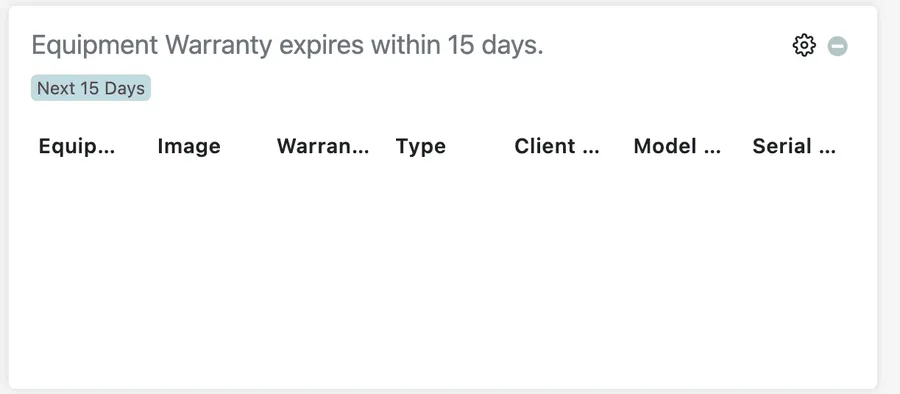
- Equipment Warranty expires within 15 days — equipment whose warranty is about to run out.
- Your Contract expires within 15 days — client contracts approaching their end date.
- Equipment Service Due — equipment with a service falling in the same window.
Equipment’s Last Assignee
Section titled “Equipment’s Last Assignee”
Who each piece of equipment went to last, and where it currently sits — the quickest way to track down a specific tool without going through the Equipment module.