Add job form settings
The job form is the thing your office fills in dozens of times a day, and most businesses do not need every field on it. This screen decides what it asks for, and what it fills in by itself.
Settings → Modules → Work → Add Job Form Settings.
Each option is numbered, and the Guide Image down the right of the screen shows where that number lands on the actual form — so you can see what you are turning off before you turn it off.
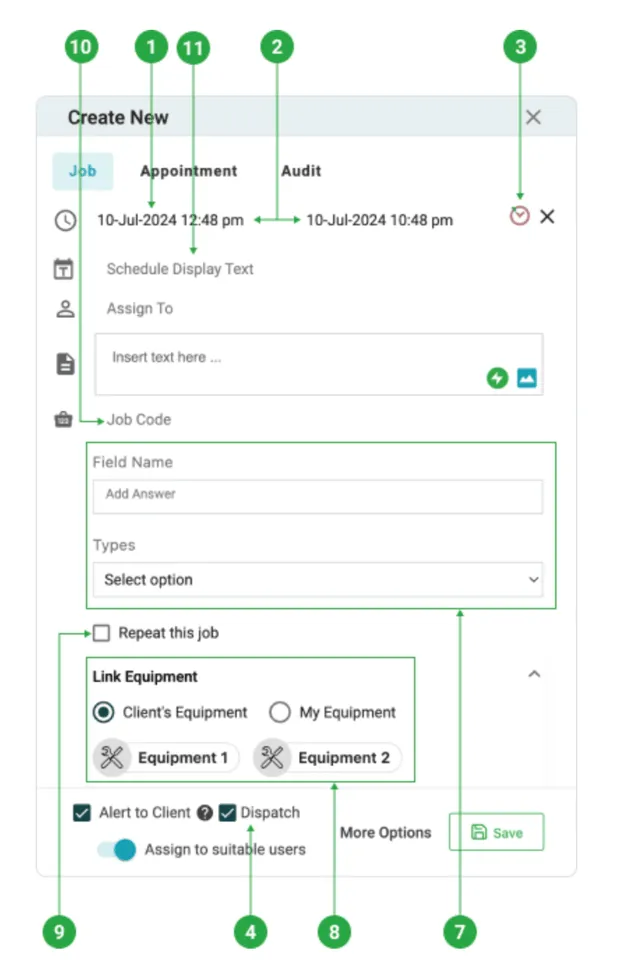
Settings → Modules → Work → Add Job Form Settings
Time and duration
Section titled “Time and duration”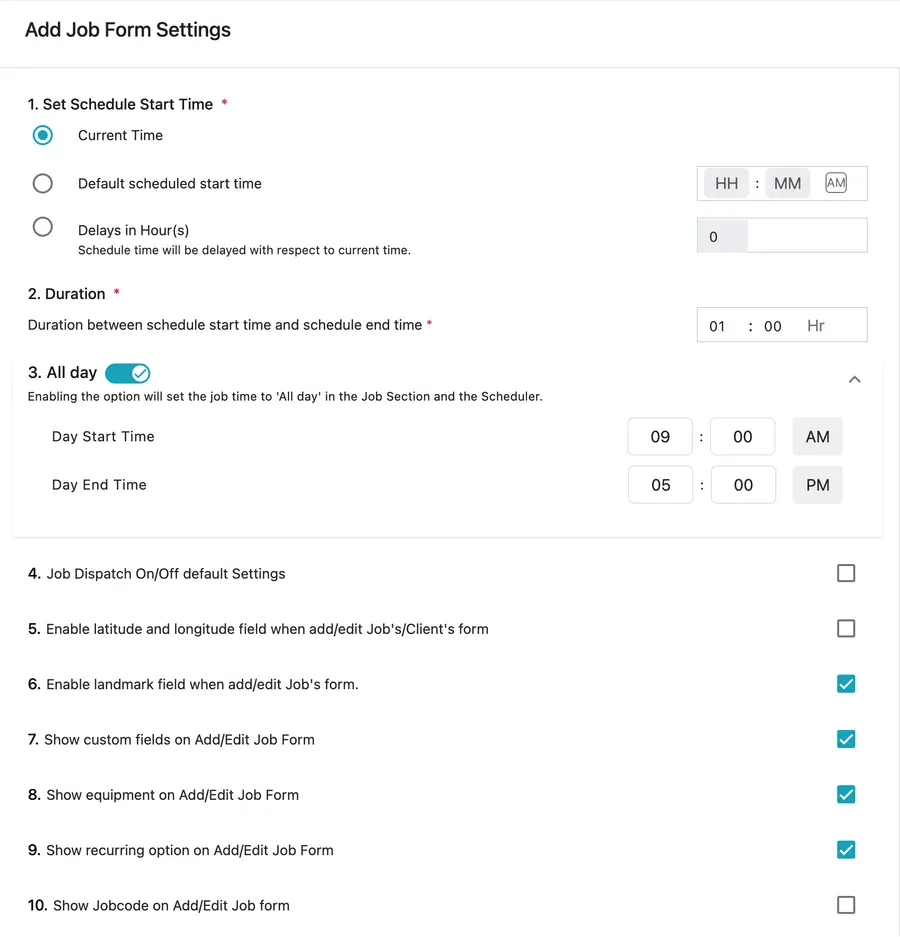
Settings → Modules → Work → Add Job Form Settings
1. Set Schedule Start Time decides what time a new job starts out with:
| Option | What the form does |
|---|---|
| Current Time | Starts the job now. Right for work that is booked as it comes in. |
| Default scheduled start time | Always opens at a set time — 09:00, say — so the day is planned rather than stamped. |
| Delays in Hour(s) | Starts a set number of hours from now. Use it when there is always lead time between taking a job and doing it. |
2. Duration is the gap between the start and end time — 01:00 Hr gives every new job an hour until somebody changes it. Both this and the start time are only the starting position; either can be edited on the job.
3. All day puts the All day switch on the job form, beside the start and end times, and sets the Day Start Time and Day End Time an all-day job fills.
The switch itself is used job by job — see creating a job. Turning it on here is what makes it available; a job with it switched on shows as All day in the job list and on the scheduler rather than occupying a time slot.
The rest of the form
Section titled “The rest of the form”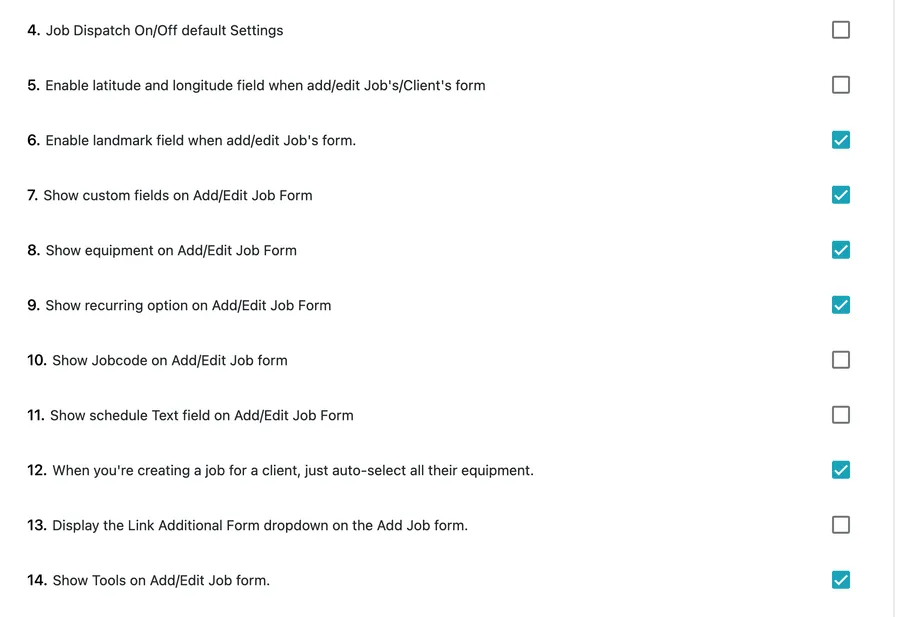
Settings → Modules → Work → Add Job Form Settings
| # | Setting | What it does |
|---|---|---|
| 4 | Job Dispatch On/Off default Settings | Whether the Dispatch control on the job form can be used at all. Off, it is greyed out and jobs are saved undispatched; on, it is available and arrives ticked, so a saved job goes straight to the engineer. See dispatching a job. |
| 5 | Enable latitude and longitude field | Turns the coordinate fields on, for sites a street address does not find. They appear when you edit the site, not on the job form itself — see sites and contacts. |
| 6 | Enable landmark field | Turns on a landmark line — behind the petrol station — for the same problem in a different way, and on the same site screen. |
| 7 | Show custom fields on Add/Edit Job Form | Whether your job custom fields appear while the job is being written. |
| 8 | Show equipment on Add/Edit Job Form | Whether equipment can be linked as the job is created. |
| 9 | Show recurring option on Add/Edit Job Form | Whether Repeat this job is offered. See recurring jobs. |
| 10 | Show Jobcode on Add/Edit Job form | Whether the job code is shown and editable rather than assigned quietly. |
| 11 | Show schedule Text field on Add/Edit Job Form | Adds Schedule Display Text — free text shown on the scheduler strip in place of the default label. |
| 12 | Auto-select all their equipment | Ticks every piece of equipment at the job’s site automatically, rather than leaving them to be chosen. Saves time where nearly every visit covers the whole site. |
| 13 | Display the Link Additional Form dropdown | Lets an additional form — a safety checklist, a site-specific questionnaire — be linked while the job is created rather than afterwards. |
| 14 | Show Tools on Add/Edit Job form | Whether the tools a job needs can be selected on it. See my tools. |
Update saves.
Turning things off
Section titled “Turning things off”Every one of these is on the form for somebody. The question to ask about each is whether your office fills it in — a field nobody completes is a field that slows down every job and teaches people to skip past sections, including the ones that matter.
Turning an option off hides the field on new and edited jobs. It does not delete anything already recorded in it.
Two of these do not put anything on the job form at all. Rows 5 and 6 govern the Latitude, Longitude and Landmark fields on the site, which is where a hard-to-find address is actually recorded — so switching them on and then looking for them on the job form is a wasted hunt.