Customer portal settings
The customer portal is the part of EyeOnTask your clients see. They sign in to it to raise a request, look at a quote, check a job or pay an invoice — and this screen is where it is designed.
Settings → Customer Portal.
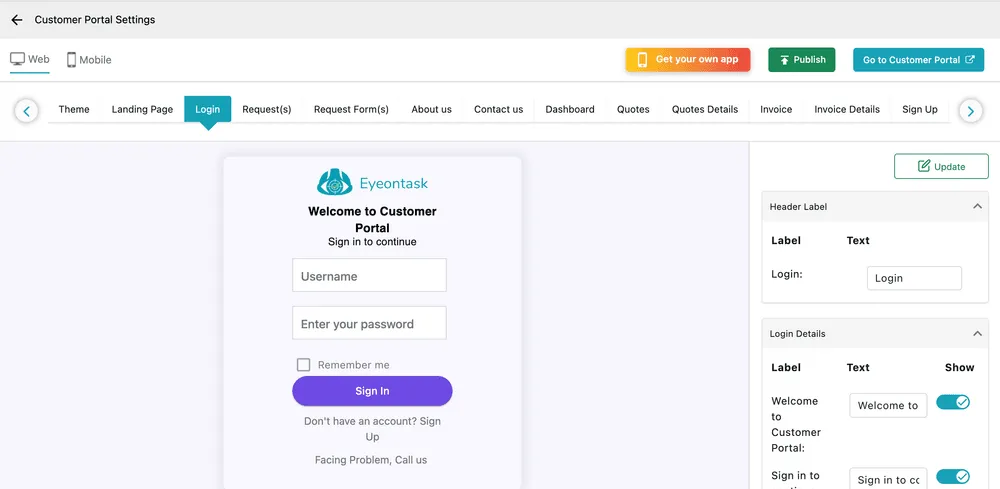
Settings → Customer Portal
The customer portal is an Advance plan feature. See plans and pricing.
How the editor works
Section titled “How the editor works”Web and Mobile at the top left are the two versions of the portal; each is styled separately.
The row of tabs below is the portal’s pages, and you move along it with the arrows at either end:
| Tab | The page |
|---|---|
| Theme | Colours and styling for the whole portal. |
| Landing Page | What a visitor sees before signing in. |
| Login, Sign Up | The sign-in and registration pages. |
| Request(s), Request Form(s) | Where a client raises and views requests. |
| About us, Contact us | Your own copy. |
| Dashboard | What they see once they are in. |
| Quotes, Quotes Details | Quotes to review and accept. |
| Invoice, Invoice Details | Invoices to read and pay. |
Pick a tab and the page appears as a live preview, with panels down the right for each part of it.
Editing a page
Section titled “Editing a page”Each panel lists the page’s elements as Label, Text and Show:
- Label names the element — Welcome to Customer Portal, Sign in to continue.
- Text is what you want it to say. Type over it.
- Show turns the element off entirely.
Update saves the page you are on.
This is how the portal is made to sound like your business rather than like software. The shipped wording is serviceable and generic; the login page of a company your customer already deals with should say something they recognise.
Publishing
Section titled “Publishing”Three buttons sit at the top right:
- Publish makes your changes live. Until you press it, you are editing a draft and your clients still see the previous version.
- Go to Customer Portal opens the portal as it stands, so you can check it as a customer would.
- Get your own app starts the process of having the portal published as a branded app under your own name.
What the portal shows
Section titled “What the portal shows”Styling decides how it looks; other settings decide what is in it. A job type/service marked hide from the customer portal does not appear, and services shown here carry the image and description set against them.
The request form your clients fill in is built under Request settings, and the language and labels screen has a Customer Portal tab of its own for renaming fields portal-wide.