Additional forms on a job
The standard job fields cover what most work needs. Additional Form(s) is for everything else your trade or your client requires recorded — a safety checklist, gas pressures, meter readings, an authorisation to charge extra, a customer approval signature.
A form is a set of questions attached to a job. The fieldworker answers them on the phone; the answers come back here.
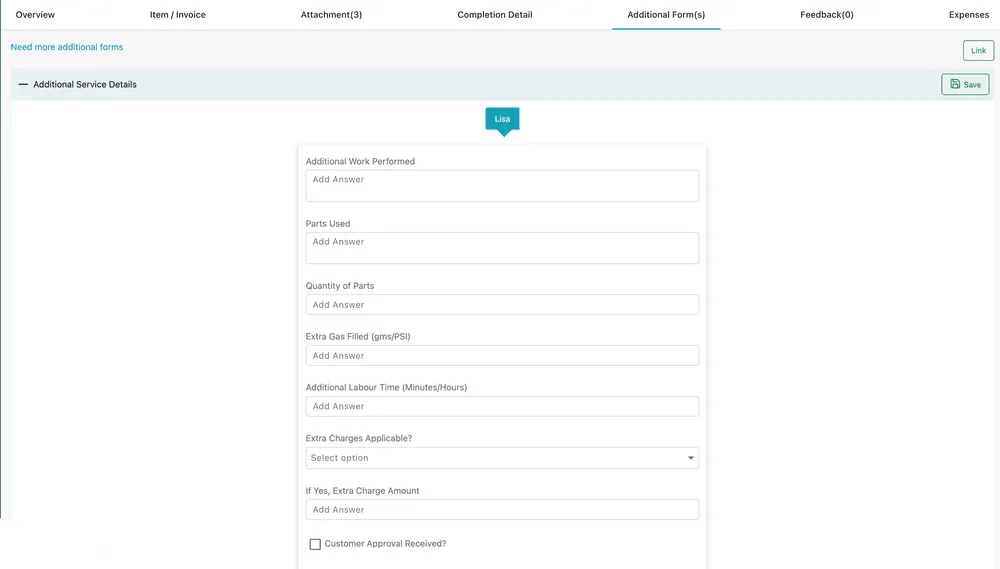
Job page → Additional Form(s)
Where the form comes from
Section titled “Where the form comes from”There are three ways a form ends up on a job.
The job type chooses it for you. Set a form against a job type, and from then on picking that job type on a job fills it into the Additional Form(s) field automatically. Choose Breakdown Service / Repair and its form is already there; nobody has to remember which questions that kind of work needs.
This is the setting worth getting right, and it is what makes the questions consistent across everyone who books work. It also stays visible — the form is filled into the field rather than attached behind your back, so you can see what this job is going to ask for, and change it for the one job that is different.
You choose it while creating or editing the job. Link Additional Form(s) on the job form takes any of your predefined forms — for the visit that needs something recorded which its job type does not normally ask for. See attaching a form to the job.
You attach it afterwards. Link at the top right of this tab offers the forms already built for your account. Need more additional forms goes to where forms themselves are created and edited.
However it got there, a form also has a trigger deciding when it shows on the phone — when the job is accepted, when it goes in progress, or when it is being completed. A form triggered at completion appears alongside the completion form, as another thing to answer before the visit can be closed.
Reading and correcting the answers
Section titled “Reading and correcting the answers”The tab shows each linked form with its questions, the answers the fieldworker gave, and a chip naming who filled it in. Questions can be free text, numbers, dates, dropdowns, tick boxes, signatures or attachments, depending on how the form was built.
Answers can be edited here and saved. That is for genuine corrections from the office — a figure typed into the wrong box, a question missed because the app lost signal — and it confirms with “answer updated successfully”.
Making a form compulsory
Section titled “Making a form compulsory”A form can be set so the fieldworker cannot finish the job without it. That is what turns a checklist from a suggestion into a control: no gas readings, no completed job.
Two settings do it, on the form itself: Form accessible on mobile app makes it available to fieldworkers at all, and Mobile Mandatory makes it compulsory — either for everyone on the job, or only for the team leader.
Use it for the things that must not be skipped: isolation checks, before-and-after photos, the client’s approval of extra charges.
Where the answers end up
Section titled “Where the answers end up”Form answers sit alongside the completion detail as part of the job’s record, and can be printed on the job card — so a client who asks for their compliance paperwork gets the readings and the signature in the same document as the work.