QR code and barcode template
This is the only template that produces something you stick on a thing rather than send to somebody. It is the label that goes on a piece of equipment, so an engineer can scan it instead of typing a serial number.
Settings → Templates → QR Code & Barcode Template.
Settings → Templates → QR Code & Barcode Template
The two previews
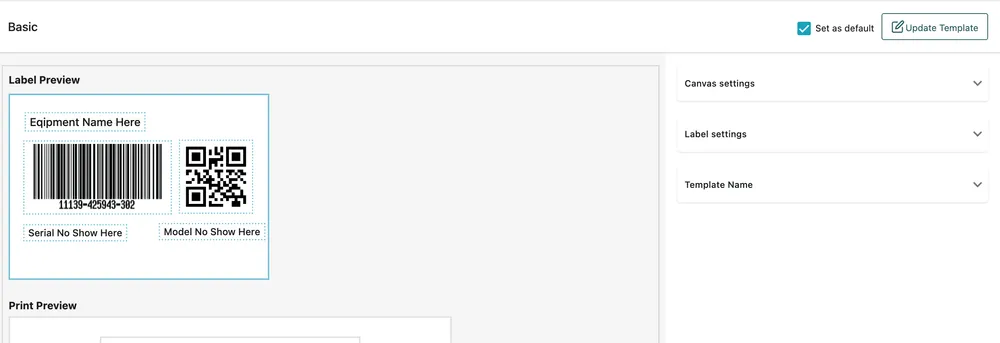
Section titled “The two previews”Label Preview at the top is the label itself, and it is a canvas — each element sits in a dashed box you position. The default carries the equipment name, a barcode, a QR code, the serial number and the model number.
Print Preview below shows the same label laid out as it will come off the printer, repeated down the sheet.
The panels
Section titled “The panels”| Panel | What it sets |
|---|---|
| Canvas settings | The size and shape of the label — match it to the stock you print on. |
| Label settings | Which elements appear and how they are drawn. |
| Template Name | What this design is called, for when you keep more than one. |
Set as default marks the design used when a label is printed without choosing one, and Update Template saves.
Barcode and QR together
Section titled “Barcode and QR together”The default carries both because they are read by different things. A barcode is what a handheld scanner in a stores reads fastest; a QR code is what a phone camera reads, which is what your engineer has on site.
Keep both unless your labels are too small, in which case keep the QR code — the phone is the device that is always there.
What to put on it
Section titled “What to put on it”The temptation is to print everything. The label is small and usually stuck somewhere awkward, so the useful test is what a person needs to read without scanning: enough to know they are looking at the right unit. The name and serial number do that. Everything else is what the scan is for.
Related
Section titled “Related”- How equipment works
- Finding equipment — where a scanned code takes you
- Equipment in the app