Adding a user
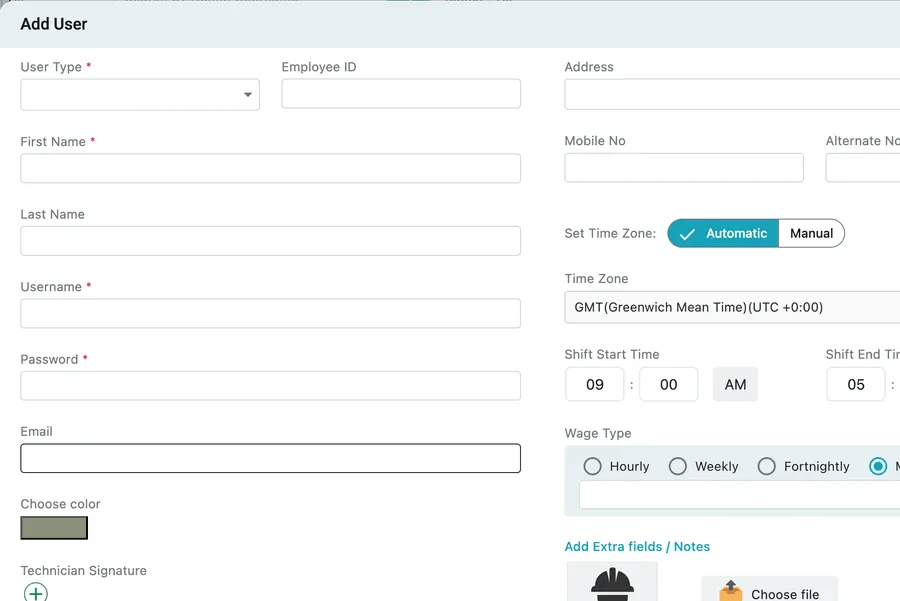
Add User, above the user list, opens the form for a new person.
Users → Add User
Everything marked with a red asterisk has to be filled in before the form will save.
Who they are
Section titled “Who they are”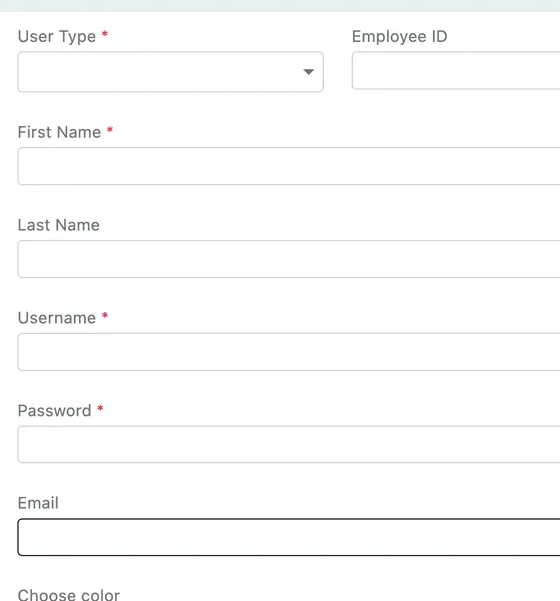
Users → Add User
- User Type decides where the person can work. An Admin gets both the desktop application and the mobile app; a Fieldworker gets the mobile app only. Choose it first: the permissions that come with the type appear once it is set, and they are different for each. See how users work.
- First Name and Last Name.
- Username is what they sign in with. It is theirs alone and worth agreeing before you type it, because it is what they will be typing on a phone at seven in the morning. It cannot be shared: a login holds one session at a time, so the moment somebody signs in with it, whoever was using it is signed out.
- Password is their first one. They can change it themselves afterwards — see changing your password.
- Email is where their sign-in details are sent when you save. Like the phone numbers, it is not checked for uniqueness — two users can be saved on the same address, which is what you want when a crew shares one inbox or a subcontractor’s people are all reached through the office. It is not what anybody signs in with.
- Choose color sets the colour their work is drawn in on the scheduler. Give people colours you can tell apart, because on a full board the colour is how you read who is on what.
- Technician Signature stores their signature so it can go onto the paperwork they complete, rather than being collected job by job.
The photograph at the bottom right of the form takes a picture of them with Choose file. It is what makes the user list readable at a glance.
How they work
Section titled “How they work”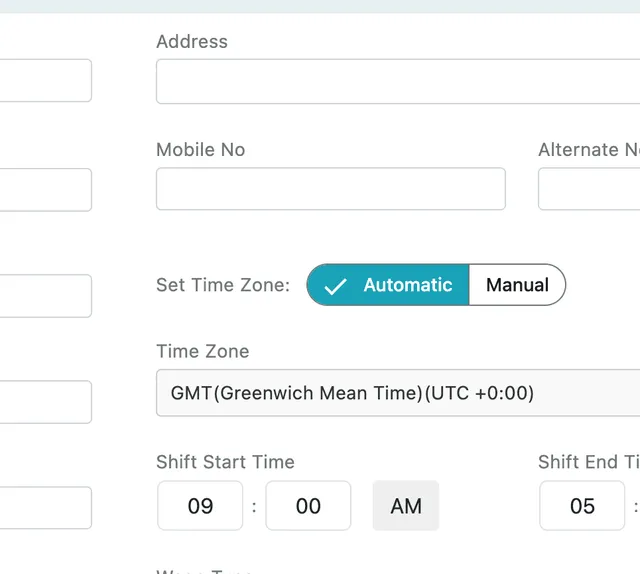
Users → Add User
- Employee ID — your own staff number, if you use one.
- Address — where they are based.
- Mobile No and Alternate No. Neither has to be unique — two people can be saved on the same number, which is what you want for a shared works phone or a subcontractor’s crew reached on one line. The number is contact detail, not identity: Username is what a person signs in with and what has to be theirs alone.
- Set Time Zone — Automatic takes the zone from their device, Manual lets you choose it below. Automatic is the one to leave alone unless somebody works in a zone their phone will not be in.
- Shift Start Time and Shift End Time — their working day. Attendance is measured against these two times: what falls beyond them is overtime, and what falls short is a late arrival or an early departure. They default to 9:00 AM and 5:00 PM.
What they are paid
Section titled “What they are paid”
Users → Add User
Wage Type is how the person is paid — Hourly, Weekly, Fortnightly or Monthly — with the amount underneath.
This is the rate everything else is worked out from. A monthly wage is what the salary calculation divides across the month’s working days; an hourly rate is what the worklog multiplies the hours by.
Add Extra fields / Notes adds anything the form does not have a box for — a licence number, a shirt size, the depot they collect from.
Saving
Section titled “Saving”Save creates the person and emails them their sign-in details. They appear in the user list straight away, and a fieldworker can sign in to the app with the username and password you set.
Their permissions can be narrowed at any point afterwards from their own record — see fieldworker mobile app permissions.