Expenses on jobs and clients
Money is nearly always spent on something — a job, or a client. Pointing the claim at it is what makes the cost countable later.
What Link to does
Section titled “What Link to does”Link to on the claim form has three settings:
- Job takes a Job Id. The claim appears on that job’s Expenses tab and comes off the job in its estimated profit figure.
- Client takes a Client Id, for a cost that belongs to a client rather than to one visit.
- None leaves the claim as a general company cost — a van service, a parking permit.
Starting the claim from a job’s own Expenses tab fills the job in for you.
The job’s Expenses tab
Section titled “The job’s Expenses tab”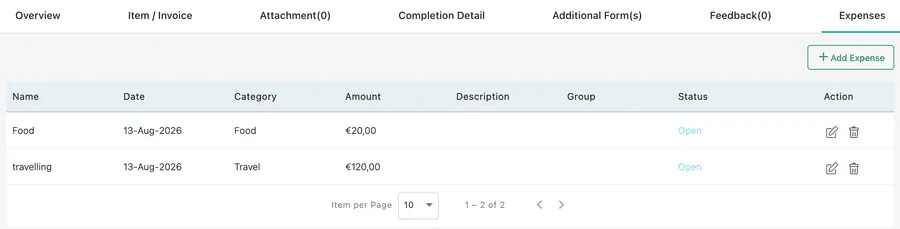
A job → Expenses
Every claim linked to a job is listed on the job itself, so the true cost of a visit sits next to the work. A job nobody has claimed against shows Data Not Found.
Add Expense here opens the same form as everywhere else, already pointed at this job. See adding an expense and, for the tab in the context of the rest of the job, expenses on a job.
Something bought on site
Section titled “Something bought on site”A fieldworker turns up and needs a camera the van does not have, so they buy one on the way and fit it. Add it to the job as an item line on the Item / Invoice tab.

A job → Item / Invoice → an item line
Mark as expense on that line carries the cost through to the invoice, so the client is charged for what was bought. Billable alongside it sets the line up as something you charge for at all. See items and services on a job.
From the app, on site
Section titled “From the app, on site”The fieldworker who actually paid for the part does the same thing from the app, on the Add Item screen, where the tick box is spelled out: Report it as an expense and request reimbursement.
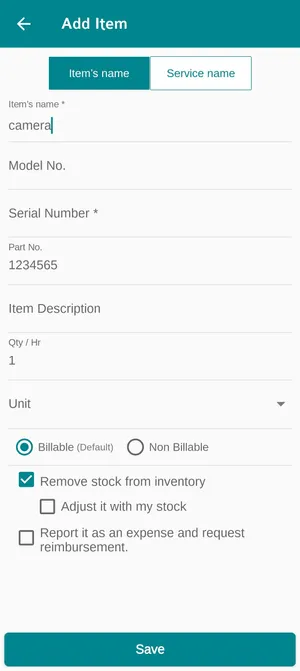
The app → a job → Add Item
Ticking it raises the claim in their name, and it goes through Open, Approved and Paid like any other — so the client is charged for the camera and the person who bought it gets their money back.
The same screen carries Remove stock from inventory with Adjust it with my stock under it, for a part that came off the fieldworker’s own van rather than being bought — see assigning stock to fieldworkers and adding items in the app.