Creating a job
Add, at the top of the Work list, opens Create New — one form that holds everything the job needs. The tabs across the top of it choose what you are creating: Job, Appointment or Audit. Job is selected to begin with.
Fields marked with a red asterisk must be filled before the job will save. Everything else can be added later with Edit Job.
If Save appears to do nothing, the form is refusing rather than failing — something required is missing or invalid, and it is marked on the field itself rather than shown as an error box. Work down the form:
- Client, and the Project/Site Details it fills in — the job belongs to one site.
- Job Type/Services — required, and the one most often left empty.
- Start Date & Time and End Date & Time — normally pre-filled, so check they have not been cleared or left the wrong way round.
- Anything else carrying a red asterisk, including fields further down the form than the screen is showing — scroll the whole way before deciding nothing is marked.
If every required field is filled and it still will not save, send support a screenshot of the form as it stands.
Who the job is for
Section titled “Who the job is for”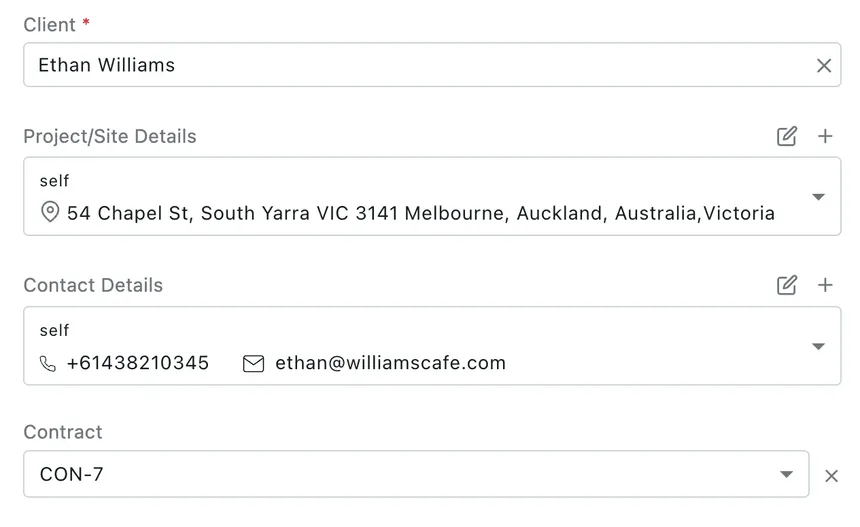
Add → Create New → Job
Client is the field that drives the rest. Start typing and the client list narrows; pick one and the site and contact fields fill themselves in.
Project/Site Details is where the work happens. A client can have many sites — three branches, four buildings, a dozen towers — and the job belongs to one of them. self means the client’s own main address. The pencil icon edits the chosen site; the + adds a new site to this client without leaving the form.
Contact Details is who to ask for on arrival, with the phone number and email address for that person. It is site-specific for the same reason: the person who meets you at the warehouse is not the person in head office. Again, the pencil edits and the + adds.
Contract puts the job under an agreement you already have with this client. If the client has exactly one running contract it is filled in for you; if they have several, choose the right one. The consequences are real: work done under a contract can be billed on the contract’s terms and rates rather than as a one-off, and the job shows up in that contract’s job list. The ✗ beside it takes the job back out of the contract. See jobs under a contract.
What the work is, and when
Section titled “What the work is, and when”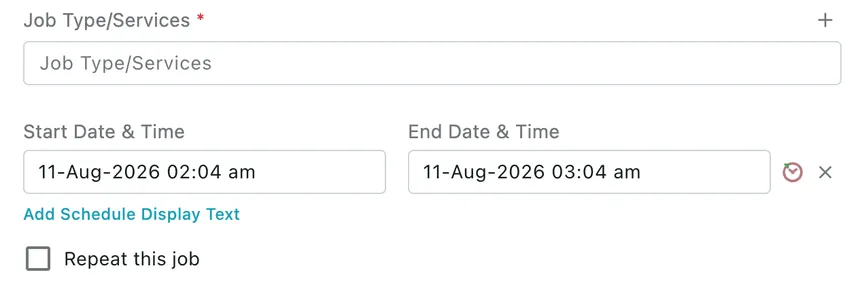
Add → Create New → Job
Job Type/Services is what kind of work this is — Comprehensive AC System Check, Breakdown Service / Repair, AC water leakage repair. It is required, and you can pick more than one when a visit covers several things at once.
Job type is not just a label. It can carry a standard price, the checklist of readings the fieldworker must record, and an additional form — which is selected on this job automatically the moment you pick the type. Choosing the right job type sets all of that up in one go, which is why the list is worth keeping tidy rather than letting it grow a variant per job.
A job type can be created in two places, and they write to the same list:
- The + beside this field, when the work in front of you does not match anything on the list and you do not want to leave the form.
- Settings → Modules → Work → Job Type/Services, where the whole list is managed and where the price, checklist and form behind each type are set.
Start Date & Time and End Date & Time are the scheduled window. The gap between them is the duration the fieldworker is expected to need, and it is what the job occupies in the Scheduler. Both are pre-filled from your Work settings — you can have new jobs default to the current time, to a fixed time of day, or to a set number of hours from now, with a standard duration on top.
All day, beside those times, takes the job off the clock. Switch it on and the job is All day rather than a slot — it reads that way in the job list and sits at the top of the day on the scheduler instead of occupying an hour. It is per job, so a survey that will take whatever it takes can be all-day while the rest of the day stays timed.
Work that will not fit in one day can be scheduled across the whole span, or split into one job per day — see work that runs over several days.
Add Schedule Display Text replaces the raw times with wording of your own where the schedule is shown — “Morning slot”, “Between 9 and 12” — for when a precise start time would promise the client more than you can hold to.
Repeat this job turns this into a repeating job rather than a one-off. See recurring jobs.
Who does it, and what they need to know
Section titled “Who does it, and what they need to know”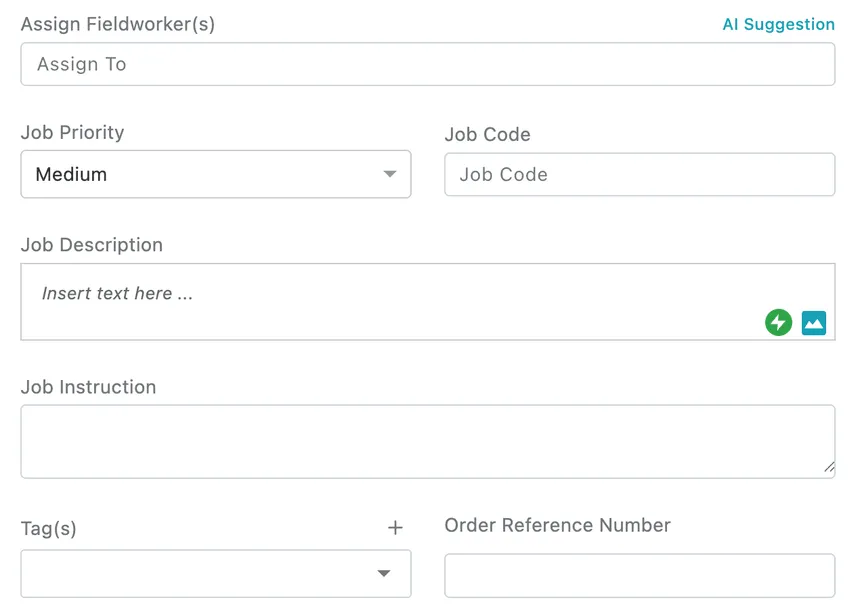
Add → Create New → Job
Assign Fieldworker(s) is who goes. More than one can be assigned; the first is treated as the team leader, marked with a crown on the job afterwards. AI Suggestion proposes who to send based on who is free and who is nearby.
The same field takes a group as well as a person. Choose a group and everybody in it drops into the field as individual names, which is the point of having one — the four people who always go out together get picked once rather than four times. They are ordinary assignees from that moment on, so you can add somebody to the job or take somebody off it without touching the group itself. See groups.
A job can be saved with nobody assigned — it then sits as unassigned work you can allocate later, from here or from the Scheduler.
Job Priority — Low, Medium, High — shows as a coloured badge everywhere the job appears, and is one of the things you can filter the list by.
Job Code is your own reference for the job. Leave it blank and one is generated.
Job Description is what the work is. This is the field that answers “what am I actually doing here?”, and it takes formatting and images, so a scope of work with a photo of the unit goes in as it stands. It is also the text that appears on the job card the client sees.
Job Instruction is how to go about it — gate codes, parking, ask for the duty manager, isolate before starting. Description is the work; instruction is the practicalities around it.
Tag(s) label the job for later retrieval, and the + adds a new tag. Order Reference Number is the client’s own reference — their purchase order — carried through so their accounts team can match the paperwork. It prints on the job card.
Attaching a form to the job
Section titled “Attaching a form to the job”Link Additional Form(s), near the bottom of the form, attaches extra questions to this job. The + beside it opens an Additional Form(s) field holding the forms already built for your account.


Create New → Job → Link Additional Form(s)
Most of the time you will not have to choose. A form set against the job type is filled in here automatically as soon as you pick that job type — so the standard questions for that kind of work are already attached, and what you are doing is checking them rather than remembering them. Changing the selection covers the one job that needs something different.
A form linked here goes out with the job, and the fieldworker fills it in on the phone — including as a condition of completing the job, where the form is set that way. See additional forms on a job.
Below this sit the parts of the form covered on their own pages: the job type’s checklist questions, Equipment Management, Tools Required, and the cart.
Saving, alerting and dispatching
Section titled “Saving, alerting and dispatching”
Add → Create New → Job
Two switches sit in the footer next to Save, and both are on by default.
Alert to Client emails the contact on the job to say a visit is booked and when it is coming. It is on by default here because that is nearly always what you want on a new job — the client should know someone is turning up at that time.
That default is itself a setting. If your work does not suit it — internal jobs, sites where the client is told another way, clients who would rather not be emailed per visit — the default can be turned off, or the option removed altogether, in Settings → Modules → Work. Change it there once rather than remembering to untick it on every job.
Dispatch sends the job to the assigned fieldworker’s phone straight away. Left ticked, they are notified the moment you save. Unticked, the job is created but stays with you, and you dispatch it when you are ready. See dispatching a job.
Greyed out? The control is switched off in settings, not broken. Settings → Modules → Work → Add Job Form Settings carries Job Dispatch On/Off default Settings; turn it on and the tick box is usable again, arriving ticked. Until then every job is saved undispatched and has to be sent afterwards. See the add job form settings.
Save creates the job and opens it.
Changing a job afterwards
Section titled “Changing a job afterwards”Edit Job in the job’s header reopens this same form with everything filled in. The schedule, the assignment, the equipment, the tools, the forms and the cart can all be changed while the job is open.
The client cannot. It is fixed once the job exists — the job belongs to that client, and everything hanging off it, from the invoice to the client’s work history, is filed under them. A job raised against the wrong client is corrected by creating it again for the right one and deleting the mistake, not by editing it across.

Edit Job → footer
The footer is the one part that differs. In place of Dispatch there is a Status dropdown, so the job’s status can be set from the office — closing a job off, putting it on hold, cancelling it, or correcting a status the field never updated.
Alert to Client is here too, but unticked by default, and the difference is deliberate. Most edits are not news to the client: nudging a status, fixing a typo, adding a part to the cart. Emailing them every time would be noise. So on an edit you tick it only when the change is something they need to hear — a new time, a different day — and leave it alone otherwise.
Update saves the changes.
Other ways a job gets created
Section titled “Other ways a job gets created”Not every job starts from Add. A job can also arrive:
- From the Scheduler — drawn straight onto a fieldworker’s day, which sets the schedule and the assignment from where you dropped it.
- From another system — a CRM or an in-house tool creating it through the API. The job arrives Not Dispatched, for somebody here to assign and send out.
- From an approved quote — the quoted work becomes the job, carrying its client, site and lines. See converting a quote.
- From a request — the job that answers an incoming enquiry, raised from the request’s own timeline. See acting on a request.
- From a contract — added to the contract’s Job(s) tab, or generated automatically by the contract’s work pattern. See jobs under a contract.
- From another job — Copy Job for the same work again, or Create a Revisit/Sub Job for a return visit. See job actions.
All of them open the same form, already filled in with what is known.