Converting a quote
A quotation is an offer, and once the client has said yes it needs to become something that can actually be worked or billed. That is conversion: the quote turns into a job, an invoice, or a contract.
Two things about conversion:
- You do not have to wait for the quote to be approved. Conversion is available whatever status the quote holds. Approval is the usual cue, not a gate.
- A quote is not spent by converting it. One quotation can become several things — a job to do the work and, later, an invoice to bill it. Each one is recorded against the quote on the timeline.
The three destinations
Section titled “The three destinations”Which one you pick is a question about what you sold:
- Job — one-off work that somebody has to go out and do. The quote becomes a job in the scheduler, to be assigned and completed. Bill it after.
- Invoice — nothing needs doing, or it is already done. Skip straight to billing the client for what they approved.
- Contract — the offer was an ongoing arrangement, not a one-off. The quote becomes a contract with a term, a schedule and its own invoicing. This is the far end of the packages route: a predrafted agreement quoted as a package, then signed into a real contract.
You are choosing what happens next, not working through a sequence — a quote for one-off work goes to a job, a quote for an ongoing arrangement goes to a contract.
Two ways to get there
Section titled “Two ways to get there”The same conversions sit in two places on the quote page, and either works.
The ≡ menu, beside Preview & Send Email:
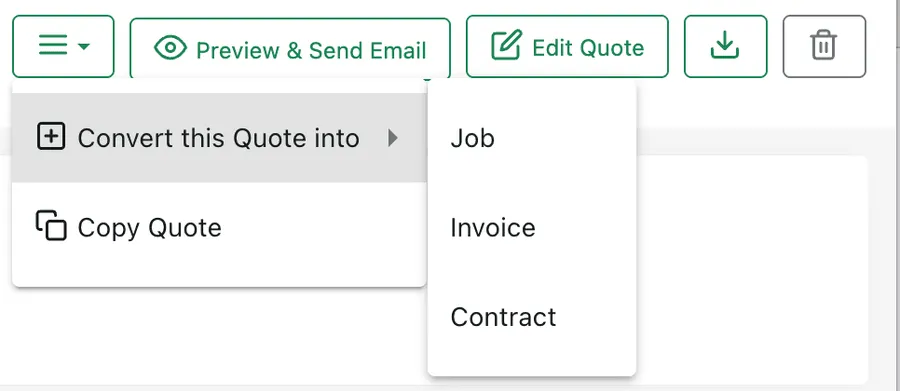
Quote page → ≡ menu
Convert this Quote into opens the three destinations. Copy Quote sits below it — see copying a quote.
The + on the timeline, at the top of the quote:
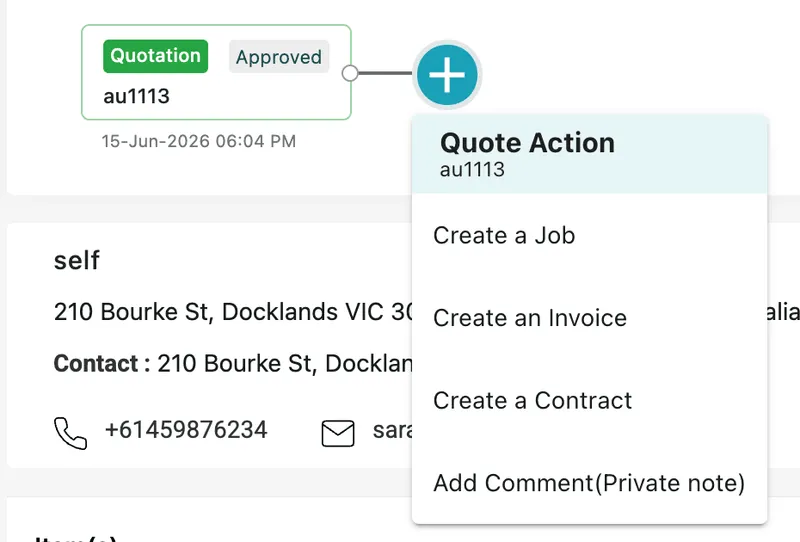
Quote page → timeline → +
This opens Quote Action, headed with the quote’s code so you can be sure which quote you are acting on. It offers the same three — Create a Job, Create an Invoice, Create a Contract — plus one the ≡ menu does not have: Add Comment (Private note).
Whichever route you take, what you create is recorded on the timeline next to the quote it came from. Months later, the job and the invoice still say which quotation they came out of.
Converting to a contract: the equipment step
Section titled “Converting to a contract: the equipment step”Converting a quote into a contract asks one thing before it builds the contract. Convert Items Into Equipment opens, listing every non-consumable item that was on the quote — the RO unit you sold, the compressor, the camera — under a line that says what will happen: Selected inventory (Non-Consumable) items will be converted into Client’s Equipment.
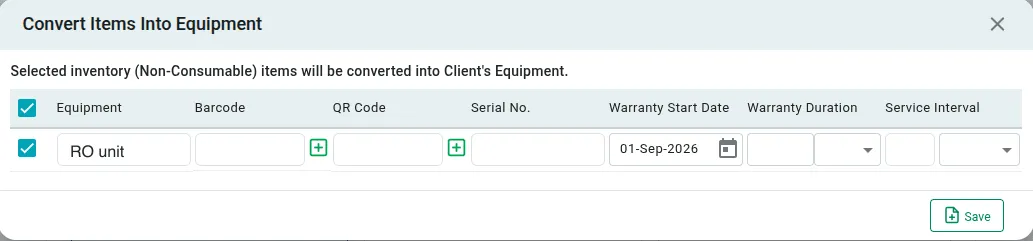
Converting a quote → Convert Items Into Equipment
Tick the ones that should become the client’s equipment and fill in what you know about each: Barcode and QR Code (the + beside either generates one), Serial No., Warranty Start Date and Warranty Duration, and the Service Interval it should be serviced on. Save creates the units and carries on into the contract.
This is the third route into equipment, alongside the invoice and the job — and on a sale that ends in a maintenance agreement it is the natural one, because the unit becomes an asset at the same moment the agreement that covers it comes into being.
The work pattern then finds them by itself. Where the package’s pattern is set to work on the client’s equipment, the units you have just created are the equipment it works on — so the visits it raises arrive with the RO already attached, without anybody linking it by hand.
The quote’s own lines
Section titled “The quote’s own lines”The package on the quote becomes the contract. The extra items and services quoted alongside it are a separate matter: they are on the quote as a sale, and the contract’s rate card is a price list for the future, so they do not walk onto it by themselves.
Fetch, in the top right of the contract’s Rate Cards section, is what brings them over — see fetching the quote’s lines. One press and the quoted items are on the card, priced as quoted and ready to adjust.
What carries across
Section titled “What carries across”You are never retyping the quote. Whatever you convert into arrives already built from it — the client and site details, and the priced lines you quoted. You check it and save.
A contract is the exception on that last point. A job or an invoice takes the quoted lines straight; a contract does not, because its rate card is a price list for future visits rather than a bill for this sale. The package becomes the contract, and the extra items and services quoted beside it stay on the quote until you press Fetch — see the quote’s own lines above.
The contract case goes further than pre-filling. If the quotation was sold as a package, the contract comes out effectively complete, because a package is a predrafted contract — the agreement, its terms and its schedule already exist as a blueprint, and quoting it and converting it is how that blueprint reaches a real client.
So building your standard offers as predrafted contracts pays off twice: you quote the package, and the contract at the far end assembles itself.
Private notes
Section titled “Private notes”Add Comment (Private note) attaches a note to the quote for your own team. It is internal — it does not go to the client, and it is not part of the quotation document. Use it for the context that never belongs in an offer: why the price was dropped, who chased the client last, what they said on the phone.
Copying a quote
Section titled “Copying a quote”Copy Quote on the ≡ menu duplicates the quotation so you can build a new one from it rather than starting from an empty form. It is the answer to quoting the same job for a different client, or requoting the same client at a new price.
What comes across is the content: the client information and the quotation itself, lines and prices included. What does not come across is the history — the copy is a new quotation, so it starts at status New, with none of the original’s status trail behind it.
Copying gives you the offer again, not the history of what the client did with it.