Quote line items
The line items are the quotation. Everything else on the form says who it is for and how long it stands; this is what you are actually offering, and what it costs.
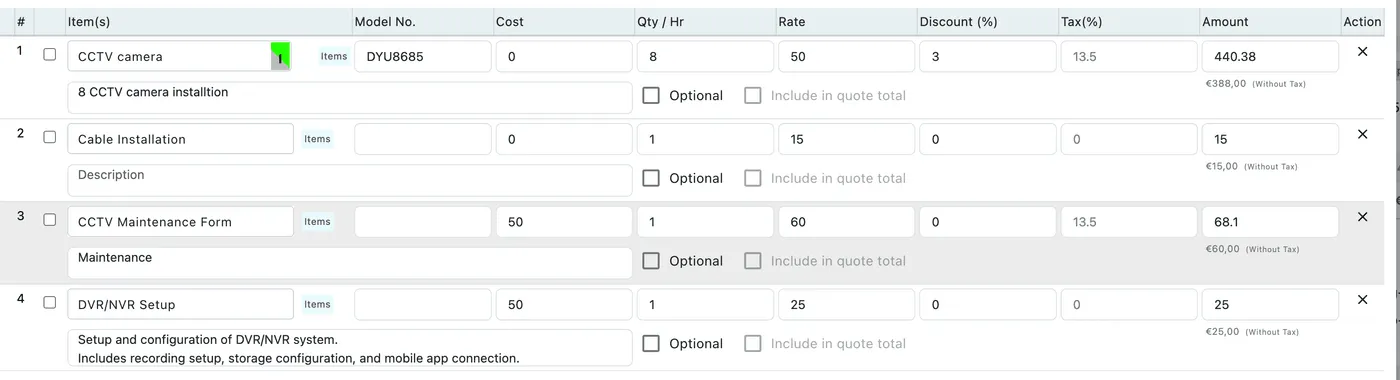
Edit Quote → item grid
Three ways to add a line
Section titled “Three ways to add a line”- Add Item — a product from your inventory, or anything you type in by hand.
- Add Job Type/Services — labour: the services you offer, at the rate you have set for them.
- Add Package — a predrafted bundle added in one go, rather than line by line. Packages come from predrafted contracts, which is how a quotation can end up selling a whole agreement. One package per quotation: a quote sells one agreement, so a second package cannot be added alongside the first. Anything extra goes on as ordinary item and service lines. A package row takes Optional and Include in quote total the same as any other line — see optional lines.
Lines of different kinds sit happily on the same quote — parts and labour together is the normal case.
What each column holds
Section titled “What each column holds”| Column | What it is |
|---|---|
| Item(s) | The line’s name. The Items button beside it picks from your inventory rather than typing free text. |
| Model No. | The manufacturer’s model or part number, for lines where the client needs to know exactly what they are getting. |
| Cost | What the line costs you. It is not charged to the client — it sits beside the rate so you can see the margin as you price. |
| Qty / Hr | How many — units for a product, hours for a service. |
| Rate | The price for one of them. |
| UOM | The unit of measure the quantity is counted in, such as metres. |
| Discount (%) | The reduction on this line, read as a percentage or a flat amount depending on the Discount on per Item setting. |
| Tax (%) | The tax rate for this line. Lines are taxed individually, so a taxable service can sit next to a zero-rated part. |
| Amount | What the line comes to, tax included, with the figure without tax shown beneath it. |
Under each row is a free-text Description, for the sentence of explanation a line sometimes needs — grade, specification, what is included.
The gear icon above the table configures which columns appear, and the × at the end of a row removes it.
Optional lines
Section titled “Optional lines”Two tickboxes under every row let you quote something without charging for it:
- Optional marks the line as a suggestion rather than part of the offer.
- Include in quote total then decides whether it counts towards the money. It only applies to optional lines — an ordinary line is always included.
A package is a line like any other here. It carries the same two tickboxes, so a whole predrafted agreement can be put in front of the client as optional and left out of the total — the client sees the package and what it costs, and takes it by ticking it before they sign.
An optional line that is not included still appears on the quote the client receives, labelled Optional (Not included in Total). Its price is visible; it simply is not part of the number being approved. That is how you put a nice-to-have in front of a client — an outdoor stand, an extended warranty — without inflating the figure they have to say yes to.
The client can add optional lines themselves
Section titled “The client can add optional lines themselves”Optional lines are not only yours to decide. When the client replies to the emailed quote, the form they land on lists the mandatory lines and the optional ones together, and they can tick an optional line to bring it into the total before they accept.
If they do, the addition comes straight back to you: Include in quote total on that row will be ticked when you next open the quote, and the total will have moved to match — with the client’s signature against that new total. See sending a quote and e-signature.
What to use optional lines for
Section titled “What to use optional lines for”Two patterns get the most out of this, and they are quite different.
Upselling — putting the extras in front of the client. You are quoting a laptop. Add an AMC and a set of headphones as optional lines. The client sees each one and its price while they are already deciding to buy, and can take either by ticking it before they sign. If they don’t, nothing is lost — the laptop quote stands on its own, and the total was never inflated by things they hadn’t agreed to.
Offering a choice — one quote instead of several. You are selling air conditioners and the client is weighing up three brands. Rather than preparing and sending three quotations, put all three on the same quote as optional lines. The client picks the one they want, includes it in the total, signs, and sends it back.
The quotation becomes a menu the client chooses from. The quote that comes back tells you which option they took, priced, approved and signed — one quotation and one signature instead of three.
Discounts
Section titled “Discounts”There are two separate discounts, and they do different jobs:
- Per line, in the Discount column. How it is read comes from Discount on per Item on the quote form — percentage or flat amount. Use it when one particular line is being sold cheap.
- Additional Discount, beneath the totals. This comes off the quote as a whole, after the lines are added up.
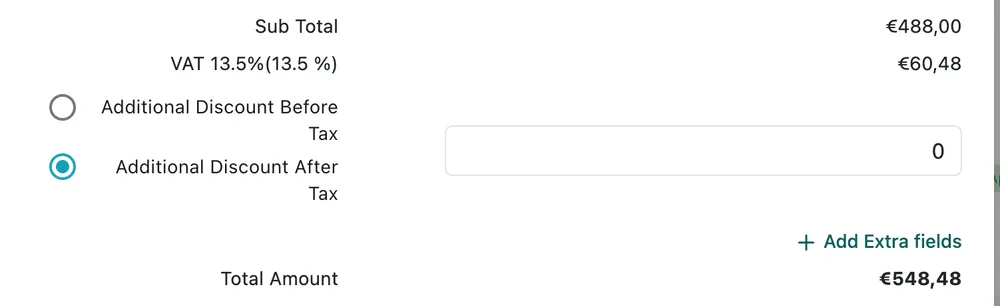
Edit Quote → totals
The additional discount is applied one of two ways, and you pick which:
- Additional Discount Before Tax — taken off the sub total, so the tax is then worked out on the reduced figure.
- Additional Discount After Tax — taken off at the end, once tax has been added.
Which you choose changes what the client pays, because a before-tax discount reduces the tax as well.
Terms & Condition
Section titled “Terms & Condition”Beneath the grid, Terms & Condition carries the conditions attached to the offer — payment terms, what the installation covers, warranty.

Edit Quote → Terms & Condition
The dropdown beside it picks a saved set of terms rather than retyping them, and the gear opens the template settings. Add Extra fields beside the totals adds anything else this quote needs recorded.
How the total is worked out
Section titled “How the total is worked out”Each line is quantity × rate, less its discount, plus its tax. The optional-but-excluded lines are left out. Worked through on a real quote:
| # | Line | Qty | Rate | Discount | Tax | In total? | Line total (ex tax) |
|---|---|---|---|---|---|---|---|
| 1 | New Installation (HVAC) | 2 | $20.00 | 0% | 10% | yes | $40.00 |
| 2 | Copper Pipe 1/2” & 1/4” Pair Set | 3 | $35.00 | 5% | — | yes | $99.75 |
| 3 | Drain Pipe | 2 | $3.00 | 0% | — | yes | $6.00 |
| 4 | Wiring | 2 | $5.00 | 0% | — | yes | $10.00 |
| 5 | Outdoor Stand | 2 | $12.00 | 0% | — | no — optional | $24.00 |
- Sub Total $155.75 — lines 1 to 4 added up. Line 2 is 3 × $35.00 = $105.00, less 5% = $99.75. Line 5’s $24.00 is quoted but excluded.
- Total tax $4.00 — 10% of line 1’s $40.00. Nothing else on this quote is taxed.
- Quotation Total $159.75 — $155.75 + $4.00.
The same three figures appear on the quotes list as Total (exc tax), Tax Amount and Total (inc tax), and on the PDF the client receives.
Notes and status
Section titled “Notes and status”Beneath the grid, Quotation Note carries any wording that belongs with the pricing rather than with a single line.
The Status dropdown in the footer sets where the quote stands, and Update saves the changes — this is where you record an approval the client gave you by phone rather than by e-signing.