Equipment remark forms
An additional form is answered once for the whole job. An equipment remark form is answered once per piece of equipment — so an engineer visiting a site with eight cameras reports on all eight separately rather than writing one summary for the lot.
Settings → Customisation → Equipment Remark Form(s).
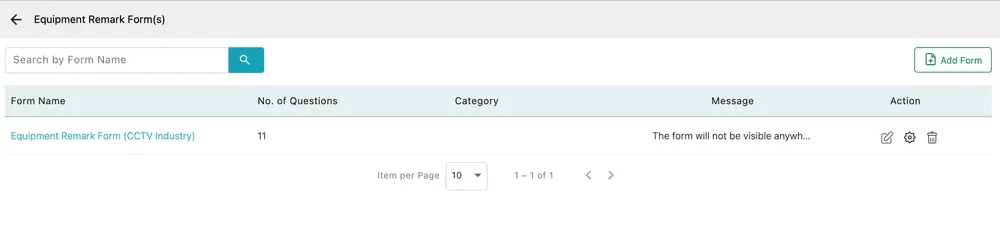
Settings → Customisation → Equipment Remark Form(s)
Add Form creates one. The row shows how many questions it has, which category it belongs to, and a message about its state.
The category is what makes it appear
Section titled “The category is what makes it appear”A remark form only shows up against equipment in the equipment category it is tied to — which is the point: a camera and a generator get asked different questions. Leave the category blank and the form exists but appears nowhere, which is what the warning on the list is telling you.
So the order is: create the equipment categories first, then build a form and assign it to one.
The questions
Section titled “The questions”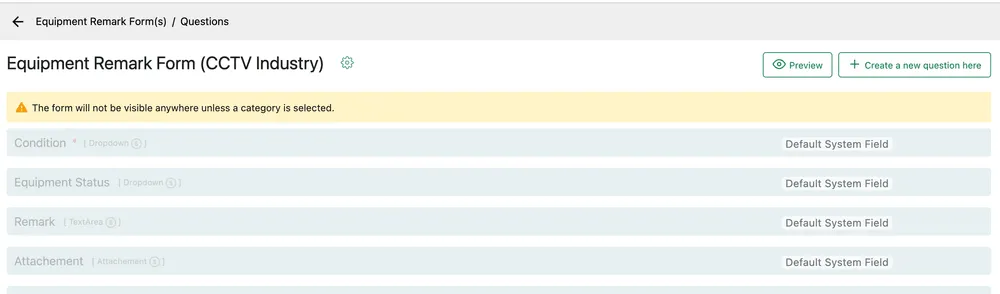
Settings → Customisation → Equipment Remark Form(s) → a form
A form ships with four Default System Fields that cannot be removed:
| Field | What it records |
|---|---|
| Condition | What state the unit was found in, from your condition list. Mandatory. |
| Equipment Status | Where the unit stands administratively. |
| Remark | The engineer’s note. |
| Attachment | A photo of what they found. |
These four are the standard equipment report, which is why they are fixed. Create a new question here adds your own on top — pressure readings, firmware versions, a serial to confirm.
Preview shows the form as the engineer sees it.
Related
Section titled “Related”- Equipment settings — the category, condition and status lists this form draws on
- Equipment in the app — where the form is answered
- Equipment service and history — where the answers end up