Invoice and accounts settings
Settings → Modules → Invoice & Accounts holds how invoices are numbered and calculated, your tax rates, the payment modes every module records a payment against, the tags an invoice can be labelled with, extra items you can add to any invoice, and the invoice template.
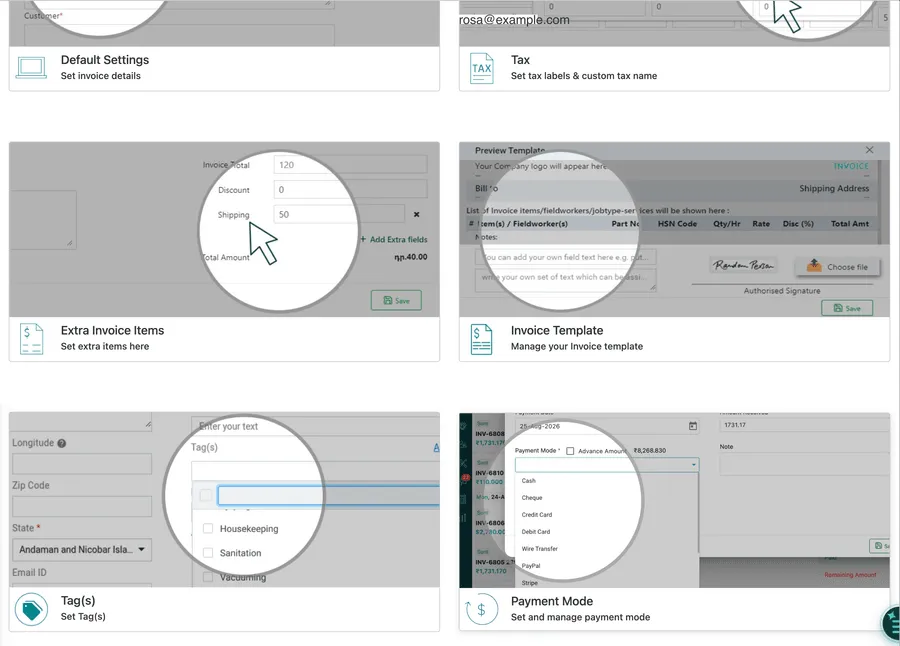
Settings → Modules → Invoice & Accounts
Default settings
Section titled “Default settings”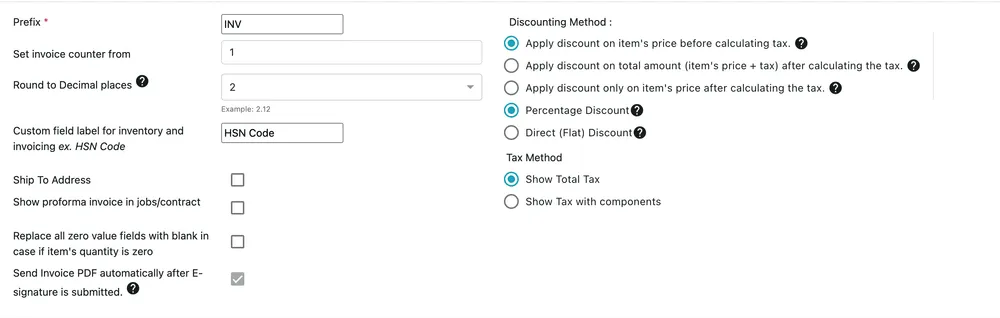
Settings → Modules → Invoice & Accounts → Default Settings
| Setting | What it does |
|---|---|
| Prefix | The letters in front of every invoice number. Required. |
| Set invoice counter from | The number the next invoice takes — set it to continue your existing sequence. |
| Round to Decimal places | How many decimals amounts are rounded to. 2 gives 2.12. |
| Custom field label for inventory and invoicing | Names the extra code column that runs through items and invoices. HSN Code in India; use whatever your trade calls its product codes. |
| Ship To Address | Adds a separate delivery address to the invoice, for when goods go somewhere other than the bill payer. |
| Show proforma invoice in jobs/contract | Offers a proforma — a pre-invoice, issued before the work is billed for real. |
| Replace all zero value fields with blank if item’s quantity is zero | Prints nothing rather than 0 on empty lines. Tidier documents. |
| Send Invoice PDF automatically after E-signature is submitted | Emails the invoice the moment the customer signs. See sending an invoice. |
Discounting method
Section titled “Discounting method”Three radios decide when a discount is taken relative to tax:
- Apply discount on item’s price before calculating tax — discount first, then tax the discounted price.
- Apply discount on total amount (item’s price + tax) after calculating the tax — tax the full price, then discount the lot.
- Apply discount only on item’s price after calculating the tax — tax is worked out on the full price and stays, and the discount comes off the price alone.
The three produce different totals on the same numbers, and which is correct is a matter of local tax law rather than preference. Set it once and leave it.
Below them, Percentage Discount or Direct (Flat) Discount decides whether a discount is read as 10 meaning ten percent or 10 meaning ten in your currency.
Tax method
Section titled “Tax method”Show Total Tax prints one tax figure. Show Tax with components breaks it into its parts — the SGST/CGST/IGST split that Indian invoices require, for instance.
Which columns an invoice shows
Section titled “Which columns an invoice shows”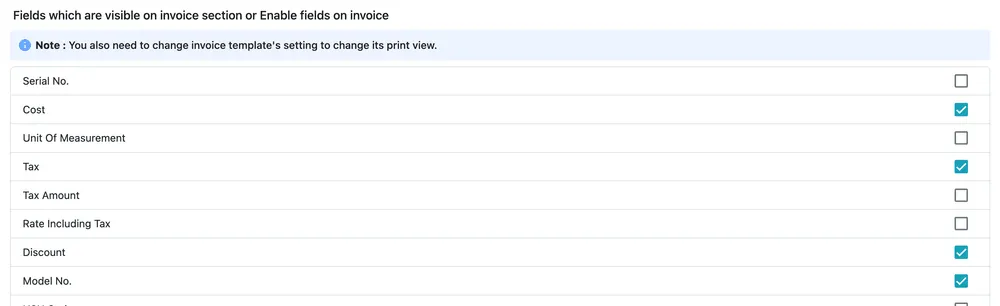
Settings → Modules → Invoice & Accounts → Default Settings
Fields which are visible on invoice section turns individual columns on and off — serial number, cost, unit of measurement, tax, tax amount, rate including tax, discount, model number, product code and the rest.
This controls what you see while working on an invoice. Changing what is printed also needs the matching setting on the invoice template, which the screen says in its own note. The two are separate on purpose: an office often wants to see cost on screen and never wants it printed.
Tax rates
Section titled “Tax rates”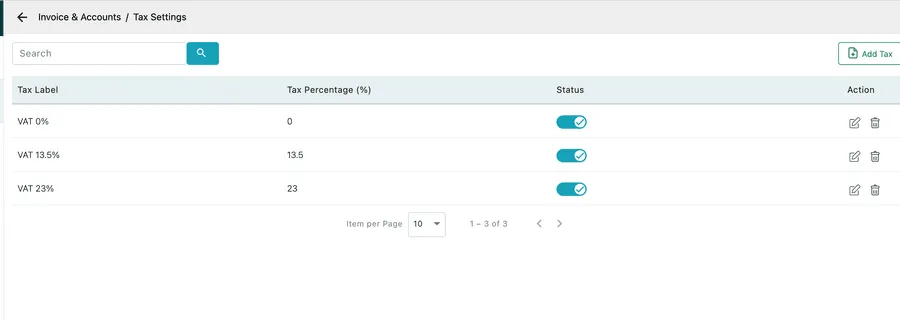
Settings → Modules → Invoice & Accounts → Tax Settings
Your tax rates, each with a Tax Label, a Tax Percentage (%) and a Status switch. Add Tax creates one.
The label is what appears on the document, so name it the way a customer expects to read it — VAT 23% rather than Standard.
Turn a rate’s Status off when it stops applying — a rate that has changed, or one for a region you no longer trade in. Existing invoices keep the rate they were raised at; it simply stops being offered on new ones.
These are the rates offered wherever tax is chosen: on invoice lines, on quotes, against a job type/service, on a labour billing rate, and against an inventory item — which is where a contract’s rate card picks its tax up from.
Tax rates are not the same as your own tax registration numbers, which live under Company.
Payment modes
Section titled “Payment modes”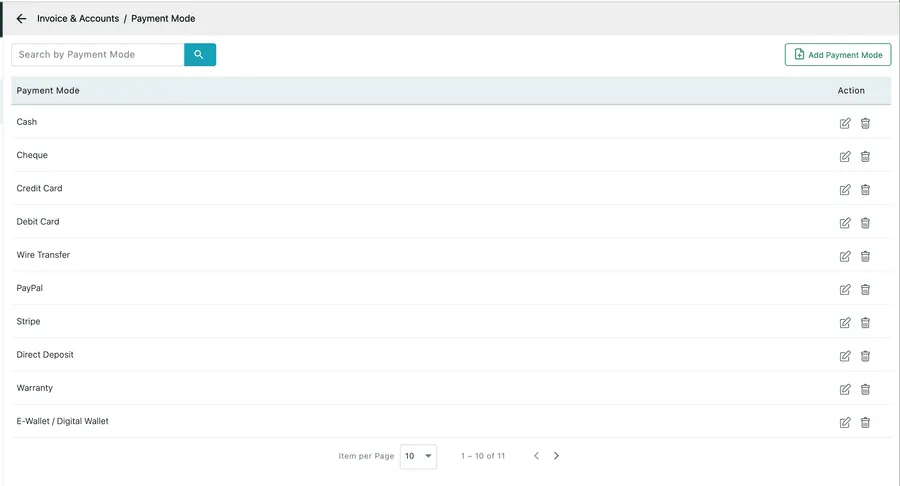
Settings → Modules → Invoice & Accounts → Payment Mode
The ways money can change hands. The list ships filled in — Cash, Cheque, Credit Card, Debit Card, Wire Transfer, PayPal, Stripe, Direct Deposit, Warranty and E-Wallet / Digital Wallet among them — and every row carries an edit and a delete, so the wording is yours to change and a mode you never take can go.
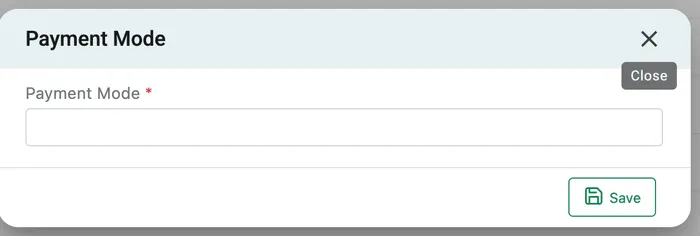
Settings → Modules → Invoice & Accounts → Payment Mode → Add Payment Mode
Add Payment Mode opens a dialog with a single required field, the name. Type it, Save, and it is offered from then on — a card the company holds, an account with a supplier, a finance arrangement.
This one list is used everywhere a payment is recorded. It is the same list you pick from when you take a payment on an invoice, an advance on a request, Mode of Payment on an equipment leasing contract, and the Payment Type on a purchase order. Add a mode here and it appears in all of them; there is no second list to keep in step.
Settings → Modules → Invoice & Accounts → Tag(s)
Labels you can put on an invoice, and nothing more than that. They carry no rules, change no figures and appear nowhere in the money — they exist so an invoice can be found again.
Build the list here, tag invoices as you raise them, and a tag becomes the shortcut to a set of invoices that have nothing else in common — a campaign, a site visit, a batch somebody has to chase. Without one you are searching on dates and client names and hoping.
The same idea as tags on a job, and worth keeping the same words on both so a search means one thing across the app.
Extra invoice items
Section titled “Extra invoice items”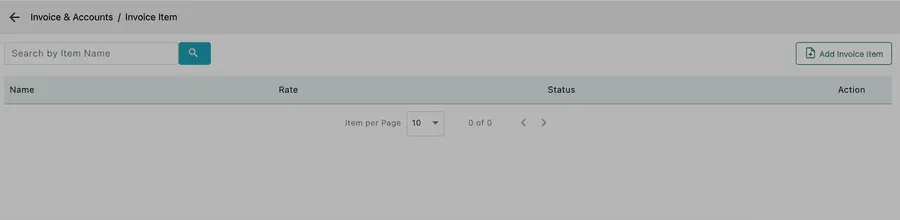
Settings → Modules → Invoice & Accounts → Invoice Item
Standing charges you add to invoices that are not stock and not labour — shipping, a call-out fee, a congestion charge. Each has a Name, a Rate and a Status, and they appear as Add Extra fields at the foot of an invoice.
Ships empty.
Related
Section titled “Related”- How invoices work
- Creating an invoice
- Invoice templates — what gets printed