Purchase orders
A purchase order is what you send a supplier to buy stock: this is what we want, this is the price we agreed, deliver it here. It is also how that stock gets into EyeOnTask — when the order arrives, receiving it is what puts the quantities onto your items.
Inventory → Purchase Order(s) on the main menu is the way in.
Purchase orders are an Advance plan feature. See plans and pricing.
The purchase order list
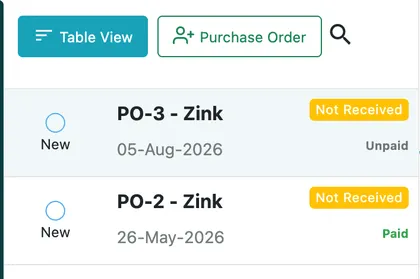
Section titled “The purchase order list”Orders run down the left of the screen, newest first, each showing its reference, its supplier, its date and its state. Clicking one opens it alongside.
Inventory → Purchase Order(s)
Above the list, Table View redraws the orders as a sortable table, Purchase Order raises a new one, and the search icon finds an existing one.
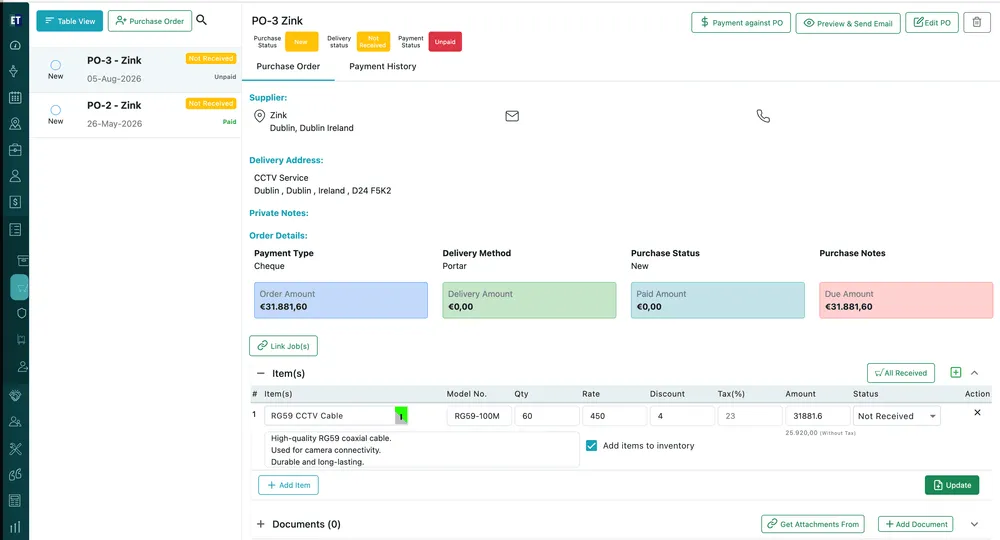
Inventory → Purchase Order(s), with an order open
Three statuses, side by side
Section titled “Three statuses, side by side”
Purchase order → statuses
An order carries three separate states, and they answer three different questions:
- Purchase Status — where the order itself stands, such as New.
- Delivery status — whether the goods have arrived: Not Received until you receive them. See receiving a purchase order.
- Payment Status — whether you have paid the supplier: Unpaid, or paid.
They move independently. An order can be delivered and still unpaid, or paid up front and still on its way.
What is on the page
Section titled “What is on the page”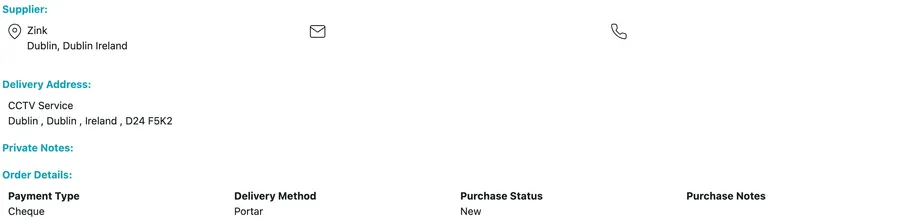
Purchase order → Order Details
Under the header sit the Supplier you are buying from, with their email and phone to hand, the Delivery Address the goods are going to, and your Private Notes.
Order Details repeats the terms you agreed: Payment Type, Delivery Method, Purchase Status and Purchase Notes. Delivery methods come from purchase order settings; payment types come from the payment modes every module shares.

Purchase order → amounts
Then the four money cards:
- Order Amount — what the order comes to.
- Delivery Amount — the value of what has actually arrived.
- Paid Amount — what you have paid the supplier so far.
- Due Amount — what is still owed.
Item(s)
Section titled “Item(s)”
Purchase order → Item(s)
The item table is the order itself: Item(s), Model No., Qty, Rate, Discount, Tax(%) and Amount, with a description under each line. Two things on it are about stock rather than money — the per-line Status, which tracks whether that line has been received, and Add items to inventory, which decides where the goods go when it is. Both are covered in receiving a purchase order.
+ Add Item adds a line and Update saves the table.
Link Job(s)
Section titled “Link Job(s)”Link Job(s) ties the order to the job or jobs it was raised for. It is worth doing at the point you raise the order, because linking is what lets you take the delivered goods straight onto the job instead of into stock.
Documents
Section titled “Documents”Add Document attaches a file to the order — the supplier’s quotation, the delivery docket, the invoice. Get Attachments From pulls in a document already held elsewhere in the system.
Paying the supplier
Section titled “Paying the supplier”Payment against PO records a payment you have made, and the Payment History tab beside the order lists what has been paid so far. Each payment moves Paid Amount up and Due Amount down, and the Payment Status follows.
Sending it to the supplier
Section titled “Sending it to the supplier”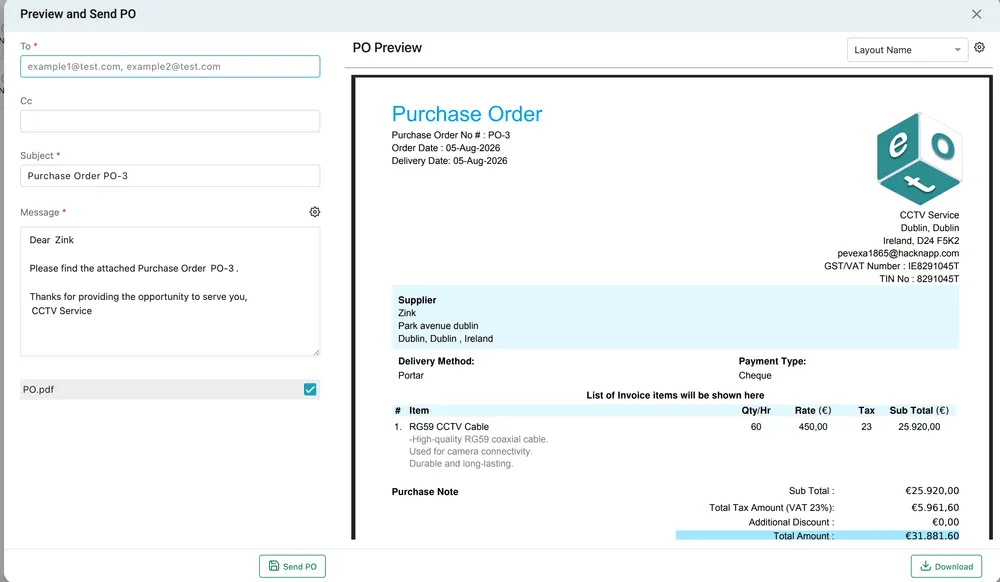
Purchase order → Preview & Send Email
Preview & Send Email opens the order as the supplier will get it: To and Cc, a Subject already reading Purchase Order PO-3, and a message you can edit, with the PO.pdf attached. The preview on the right shows the document itself — your company details, the supplier, delivery method and payment type, the items with their tax, and the totals. Layout Name picks which layout it is drawn in, Send PO sends it, and Download takes the PDF without sending.
Editing and deleting
Section titled “Editing and deleting”
Purchase order → action bar
Edit PO reopens the order’s form with everything filled in — see creating a purchase order. The bin deletes the order.
Where to go next
Section titled “Where to go next”| Page | What it covers |
|---|---|
| Creating a purchase order | The form — supplier, dates, delivery and payment terms, where it is going, and the items you are ordering |
| Receiving a purchase order | Marking items received, and choosing between putting them into stock or straight onto a job |
| Suppliers | The companies you buy from, and the orders you have placed with each |