Fieldworker mobile app permissions
A fieldworker sees what their permissions let them see. The permission list on their record decides which parts of the mobile app they get, one line at a time — so a technician who only needs today’s jobs is not handed the invoicing.
Open the person from the user list, then Fieldworker Mobile app permissions on the Overview tab.
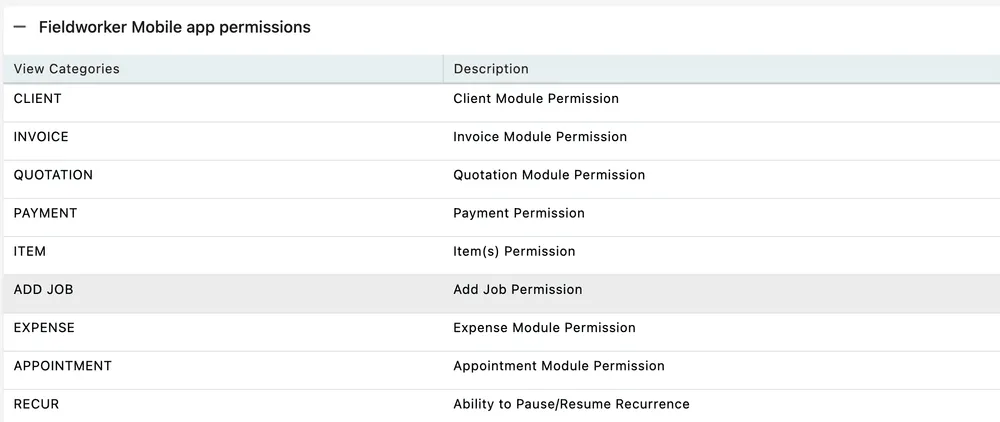
Users → a user → Overview → Fieldworker Mobile app permissions
Each row is one permission, with a plain description of what it does and a tick in the View column when the person has it. Edit, in the corner of the section, opens the ticks for changing; Update saves them.
What the permissions open up
Section titled “What the permissions open up”| Permission | What it gives them |
|---|---|
| Client | Clients on the app menu, and the client record behind a job — who they are and how to reach them. It is not tied to their work: with this permission they can look a client up whether or not they have a job on them. |
| Invoice | Invoices in the app, so work can be billed from site. See how invoices work. |
| Quotation | Quotes in the app, for pricing work in front of the customer. See how quotes work. |
| Payment | Taking payment on site. |
| Item | The items and services on a job — see adding items in the app. |
| Add Job | Creating a job from the app, for work found while they are out. |
| Expense | Logging what they spent and claiming it back — see expenses and leave in the app. |
| Appointment | Appointments as well as jobs. |
| Recur | Pausing and resuming a recurrence — see recurring jobs. |
| Job Reschedule | Moving a job to another time themselves. |
| Job Revisit/Sub Job | Raising a revisit or a sub job when one visit was not enough. |
| Custom Field | Seeing the custom fields on a job in the app. |
The list continues below these rows, and follows the same shape throughout: the category, what it means, and whether this person has it.
There is no permission here for contracts, because contracts are not part of the mobile app at all — they are made and managed in the desktop application, by an admin. What reaches the fieldworker is the work a contract raises, as ordinary jobs.
Setting permissions for everyone
Section titled “Setting permissions for everyone”The list on a person’s record is that person’s. The company-wide settings — the ones that apply to every fieldworker at once, and the finer job-level controls such as when contact details become visible or whether a client signature is required — live in Settings → Mobile App. See mobile app settings.
Set the company-wide rules there, then use this list to make one person’s access narrower or wider than the rest.