Job, appointment and audit statuses
A status is where a piece of work has got to. EyeOnTask ships with a full set, and you can add your own.
There are three separate lists — one each for jobs, appointments and audits — all under Settings → Modules → Work, and all behaving the same way.
The job status list
Section titled “The job status list”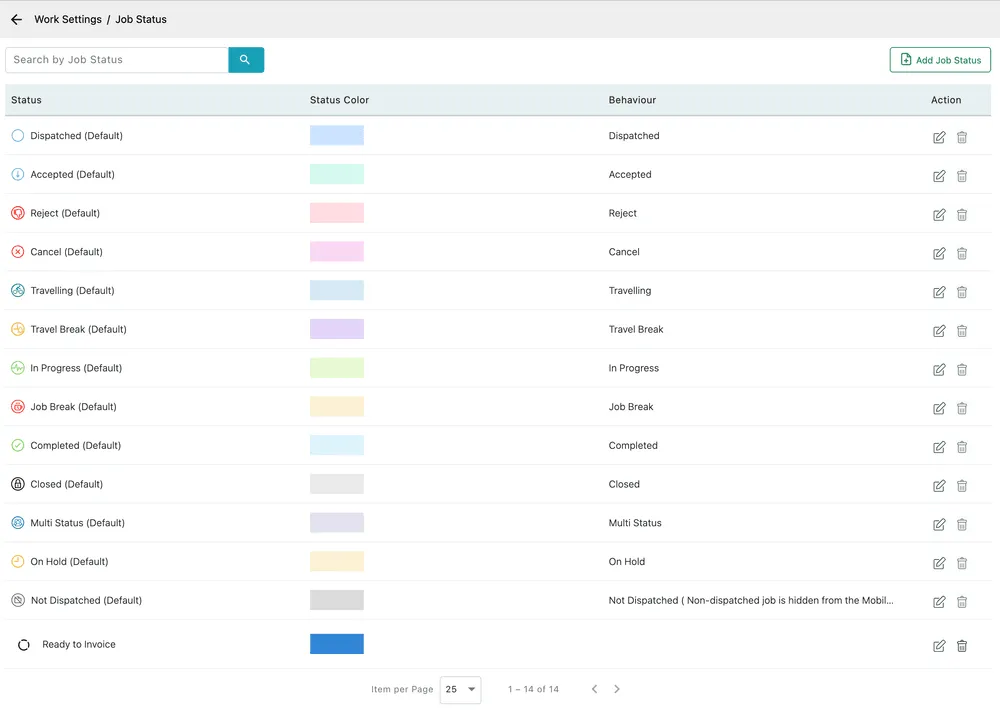
Settings → Modules → Work → Job Status
The statuses marked (Default) are the ones EyeOnTask ships with, and they map to what actually happens to a job as it runs:
| Status | Where it comes from |
|---|---|
| Not Dispatched | Written but not sent out. A non-dispatched job is hidden from the mobile app. |
| Dispatched | Sent to an engineer. |
| Accepted, Reject | Their answer, from the app. |
| Travelling, Travel Break | On the way, and stopped on the way. |
| In Progress, Job Break | On site working, and paused. |
| Completed | The work is done and the completion form is filled in. |
| Closed | Finished with — nothing further to do. |
| Cancel | Called off. |
| On Hold | Stalled, waiting on something. |
| Multi Status | A multi-day job whose days are not all at the same stage. |
Most of these are set for you as the engineer works. You rarely set them by hand.
The pencil in the Action column edits any of them, shipped ones included. You cannot rename what a default status does, but you can change its colour and — the part most people are after — whether it appears in the fieldworker app at all. See choosing which statuses the app shows.
Adding your own
Section titled “Adding your own”Add Job Status opens the dialog.
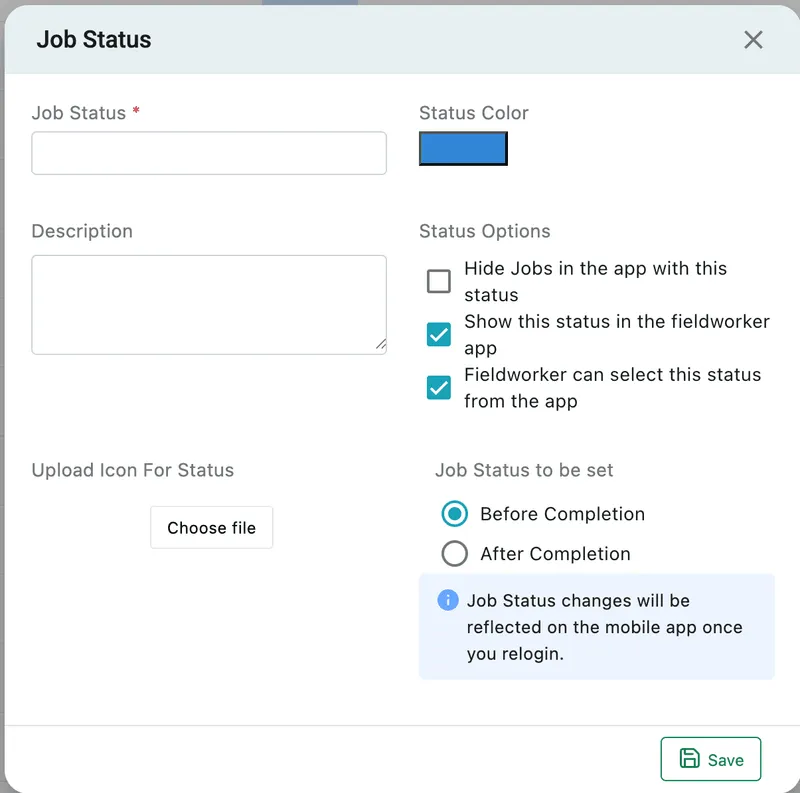
Settings → Modules → Work → Job Status → Add Job Status
| Field | What it does |
|---|---|
| Job Status | What it is called. Required. |
| Status Color | The colour it shows in on the scheduler and in the job list. Pick something that stands out from the defaults. |
| Description | What the status means, for whoever has to choose it. |
| Hide Jobs in the app with this status | Jobs at this status disappear from the fieldworker’s list. |
| Show this status in the fieldworker app | Whether the engineer sees the status at all. |
| Fieldworker can select this status from the app | Whether they can set it, or only see it. |
| Upload Icon For Status | An icon to go beside the name. |
| Job Status to be set | Whether this status belongs Before Completion or After Completion — which part of the job’s life it slots into. |
Save adds it.
Status changes reach the mobile app when the engineer next signs in, so a new status will not appear on a phone that is already logged in.
The Behaviour column
Section titled “The Behaviour column”Back on the list, Behaviour is what a status does underneath the name. A shipped status behaves as itself — Completed behaves as Completed. A status you add has no behaviour of its own; it is a label at a point in the process, which is why the Behaviour column is empty for the custom Ready to Invoice row.
That is the practical limit of custom statuses: they are excellent for telling your office where something stands, and they do not change what EyeOnTask does next.
Choosing which statuses the app shows
Section titled “Choosing which statuses the app shows”The three Status Options in that dialog are not only for statuses you add. Open any status with the pencil in the Action column — including a (Default) one — and the same three tick boxes are there:
- Show this status in the fieldworker app — untick it and the status disappears from the app. The button for it goes with it.
- Fieldworker can select this status from the app — untick it and the status still shows, but only as something the office sets. The fieldworker can see it and cannot move the job to it.
- Hide Jobs in the app with this status — jobs sitting at this status drop off the fieldworker’s list entirely.
This is how you shorten the app’s workflow to just the steps you use.
Just start and finish, with no accept and no travel
Section titled “Just start and finish, with no accept and no travel”If your engineers should open a job and start it — no accepting, no rejecting, no travel timing — untick Show this status in the fieldworker app on four statuses:
- Accepted
- Reject
- Travelling
- Travel Break
Leave In Progress, Job Break and Completed as they are. The Accept and Reject buttons stop appearing on a dispatched job, the travel steps drop out of the status list, and the first thing the fieldworker can do is start the work.
If you would rather keep the record but take the choice away, untick Fieldworker can select this status from the app instead: the office can still mark a job Accepted or Travelling, and the phone cannot.
Remember the relogin — the engineer has to sign out and back in before the buttons change on a phone that is already logged in.
Appointment status
Section titled “Appointment status”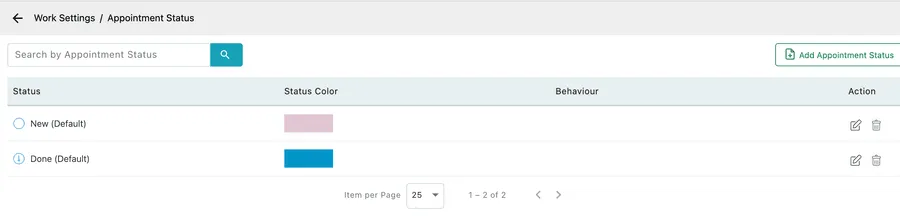
Settings → Modules → Work → Appointment Status
Appointments ship with just two — New and Done — because an appointment is a visit that either has or has not happened. Add more if your appointments have stages worth tracking.
Audit status
Section titled “Audit status”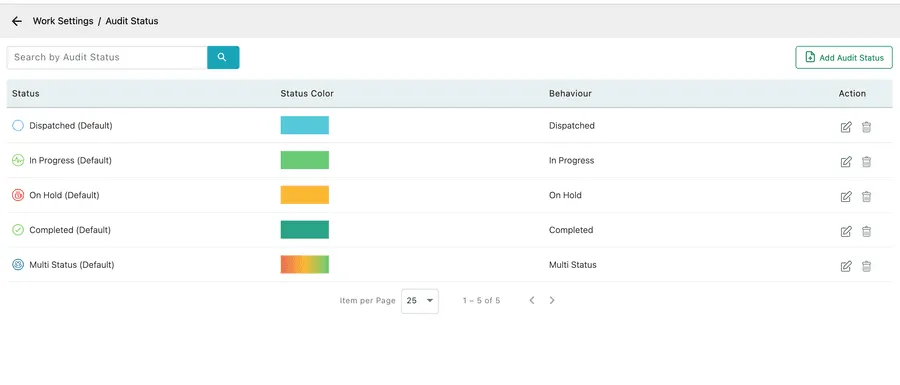
Settings → Modules → Work → Audit Status
Audits follow the same shape as jobs — dispatched, in progress, and on through completion — and have their own list so that changing one does not disturb the other.