A client's contracts
Contract History is every agreement you hold with this client — what each one is worth, what is left on it, and whether it is still running.
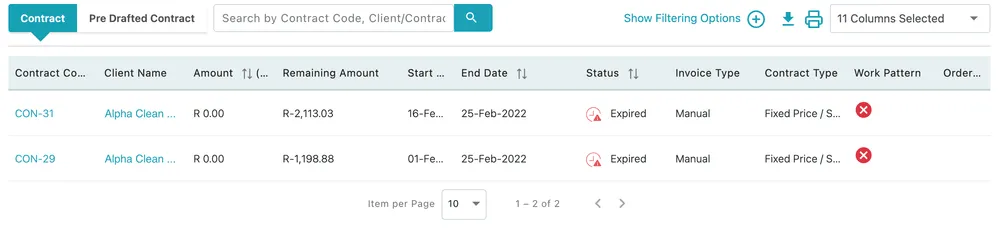
Clients → the selected client → Contract History
The two sub-tabs
Section titled “The two sub-tabs”- Contract — the live and past agreements, which is what the table shows by default.
- Pre Drafted Contract — templates prepared for this client but not yet running. See pre-drafted contracts and packages.
The columns
Section titled “The columns”| Column | What it holds |
|---|---|
| Contract Code | The agreement’s reference — click it to open the contract |
| Client Name | The client and site it covers |
| Amount | What the contract is worth |
| Remaining Amount | What is left on it |
| Start Date and End Date | The term it runs for |
| Status | Whether it is running, expired or otherwise |
| Invoice Type | Whether invoices are raised by hand or automatically |
| Contract Type | Fixed price, service, and so on |
| Work Pattern | The schedule of visits the contract commits you to |
| Order Reference | The client’s own reference, if they gave one |
The arrows beside Amount, End Date and Status sort by them. Show Filtering Options opens the filters, the download and print icons take the list out of the app, and 11 Columns Selected chooses the columns.
Reading it
Section titled “Reading it”End Date and Status are the pair worth checking. An agreement whose end date has passed shows as Expired, and an expired contract is a renewal conversation you have not had yet — the work usually carries on long after the paperwork ran out.
Remaining Amount is the other one. On a fixed-price contract it tells you how much of the agreed value you have still to deliver, which is the figure that decides whether the next job is covered or chargeable.
Invoice Type matters when a client asks why they have not been billed. A contract set to invoice manually will not raise anything on its own, however many jobs run under it.
Where to go next
Section titled “Where to go next”- How contracts work — what a contract is and how one runs
- Fixed price and service contracts — the two kinds and what each is for
- Contract work patterns — the schedule of visits an agreement commits you to
- Contract invoicing — how contract money turns into invoices
- Jobs under a contract — how work is booked against an agreement