Attachments on a job
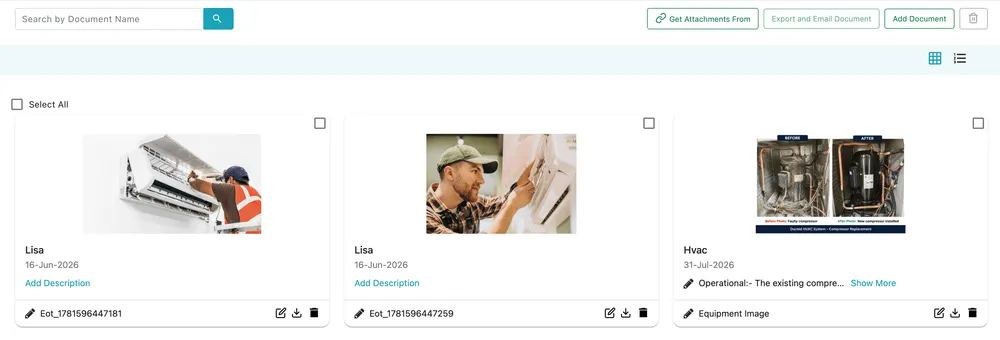
The Attachment tab holds the paperwork and photographs that belong to a job — the site plan, the client’s purchase order, the photos the fieldworker took, the before-and-after of a replaced part. The number on the tab is how many there are.
Job page → Attachment
What is already there
Section titled “What is already there”Each attachment shows as a card with its preview, who added it, when, an editable description and its file name. Photos the fieldworker took on site arrive here automatically, described with the remark they wrote — an equipment photo comes across with the note about the unit it belongs to. They are uploaded from the completion form or against a piece of equipment on the job.
The icons at the top right of the list switch between grid and list layout, and Search by Document Name finds one in a long list.
Each card has its own edit, download and delete icons. Select All and the tick boxes act on several at once, with the bin at the top removing them together.
Adding documents
Section titled “Adding documents”Add Document uploads a file from your computer.
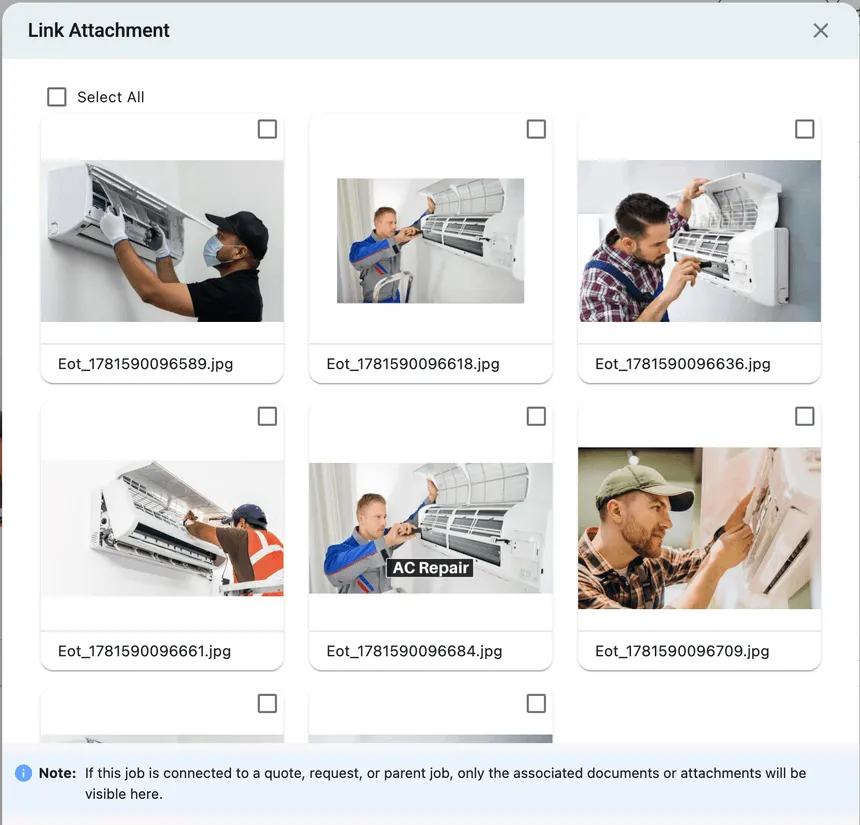
Get Attachments From is the more useful one. Most jobs did not start from nothing — they came from a quote, a request, or a parent job, and those already have files on them. Rather than downloading and re-uploading, link them.
Attachment → Get Attachments From
Tick what you want and press Link. The note at the bottom says which files you are being offered: where the job is connected to a quote, request or parent job, only the documents on those records appear. It is a shortcut between related records, not a browse of every file in the account.
Sending them out
Section titled “Sending them out”Export and Email Document sends selected attachments to someone — the client wanting the photos, a supplier needing the serial plate. Tick the documents first and the button becomes available.
To send the photos as part of the finished report rather than on their own, use the job card instead, which carries the completion photos in the document itself.