A job in the app
Opening a job gives the fieldworker everything the office decided about it, in the order they need it: where it is, who to ask for, what the work is, what to use, and what to do when it is done.
The top of the screen
Section titled “The top of the screen”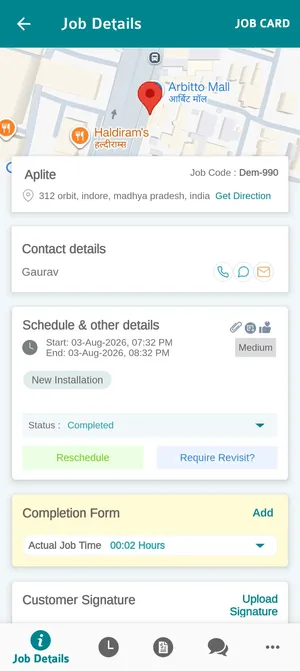
The app → a job → Job Details
The map puts the site in front of them before anything else, and Get Direction hands the address to their phone’s navigation.
Contact details names the person to ask for on arrival, with a phone, a message and an email button beside them. This is the contact set on the job in the office — see creating a job.
Schedule & other details is the work itself: the scheduled start and finish, the priority badge, and the job type as a chip. The icons in its corner are the job’s attachments, its forms and its feedback.
JOB CARD in the top right opens the client-facing document for the visit. See the job card.
Accepting the job
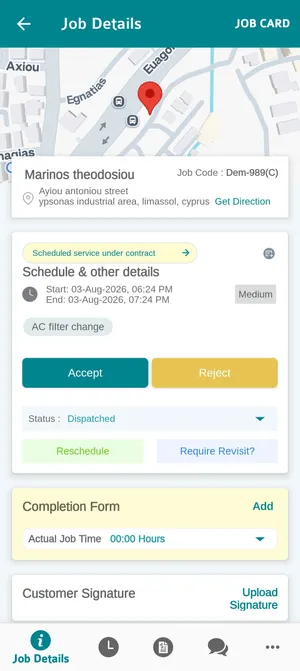
Section titled “Accepting the job”A job that has just been dispatched arrives with two buttons on it.
The app → a dispatched job
Accept tells the office the work is theirs and they intend to do it. Reject declines it, which is the cue in the office to reassign. Both show up as the job’s status the moment they are pressed — no phone call needed.
These two buttons are optional. If you do not work that way — the job is assigned, and the engineer simply does it — untick Show this status in the fieldworker app on the Accepted and Reject statuses and they stop appearing. See choosing which statuses the app shows.
The yellow Scheduled service under contract badge appears when the job was raised by a contract’s work pattern rather than booked one-off, and the arrow on it opens the contract behind the visit.
Moving the job along
Section titled “Moving the job along”Status underneath is the same list of statuses you see in the office — Travelling, In Progress, Job Break, Completed. The fieldworker moves it as the day goes, and it updates on your job list as they do. See job statuses.
Each of those changes is kept, with its time and the place it was made, in the job’s status history back in the office.
One job at a time. A fieldworker cannot have two jobs in progress at once, whatever their scheduled times say. Putting a second job In Progress puts the first one On Hold automatically — so the time a job counts is only the time that person was actually on it, and two overlapping jobs never both run the clock. Picking the first one back up resumes it.
Which of them appear here is up to you. A company that does not time travel hides Travelling and Travel Break, and the list becomes start, pause, finish. See choosing which statuses the app shows.
Two buttons sit beside it for when the visit does not go to plan:
- Reschedule moves the job to another time, for the client who is not in. This is the one part of their own schedule a fieldworker can change, and only where you have given them the Job Reschedule permission. Moving the time is all it does — the job itself, its services, its price and who it belongs to are not editable from the app.
- Require Revisit? says the work is not finishable today — a part is missing, a second pair of hands is needed — and raises the return visit rather than leaving the job half-done.
Items, tags and who is on it
Section titled “Items, tags and who is on it”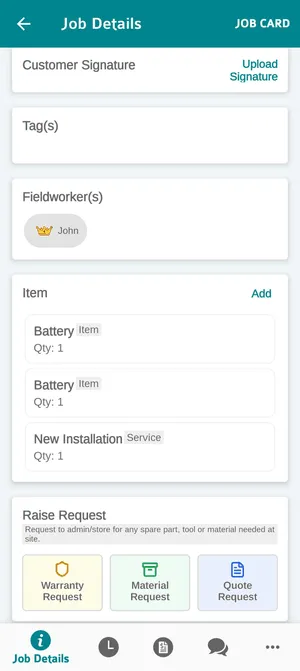
The app → a job → Job Details
Fieldworker(s) lists everyone on the job, with a crown on the team leader.
Item is what the job is being charged for — each line tagged Item or Service with its quantity. These are the lines put in the cart in the office plus anything added on site, and they are what the invoice is built from. Add puts on a new one — see adding items in the app.
Asking the office for something
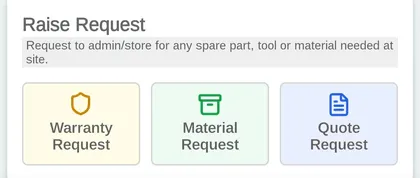
Section titled “Asking the office for something”Raise Request at the foot of the job is how the person on site asks for what they have not got, without leaving the job.
The app → a job → Raise Request
| Button | What it asks for |
|---|---|
| Warranty Request | A part has failed inside its guarantee and should be claimed against the supplier rather than bought again — see warranty claims |
| Material Request | A spare part, tool or material is needed at site. What is asked for here is what Item requested by mobile user on job pulls in when the office raises the purchase order |
| Quote Request | A price is needed for extra work found on site, so the client can approve it before it is done — see how quotes work |
Material Request is the one for a part that simply is not in the van. Warranty Request is narrower: the part is already fitted, it has failed, and it is still inside its guarantee — so the supplier replaces it rather than you buying another. A part you do not have is a Material Request even when the machine it is going into is under warranty.
The quote one matters more than it looks. The extra work is found while somebody is standing in front of it, which is the moment it is cheapest to fix and easiest to sell. A quote raised from here shows on the job’s Quotation Details as an additional quote — see how jobs work.
Equipment on the job
Section titled “Equipment on the job”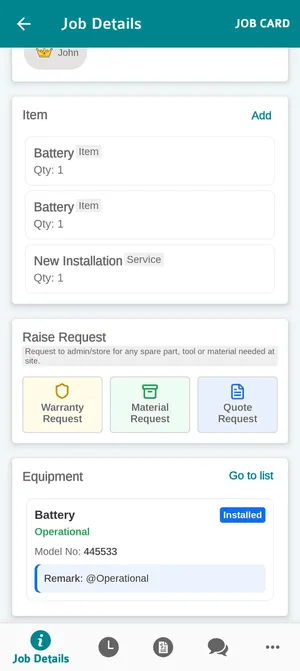
The app → a job → Equipment
If the job names equipment, each unit appears as a card with its state, its condition and the last remark left on it. Go to list opens them all. Tapping one opens what the fieldworker can do to it — see equipment in the app.
Closing it out
Section titled “Closing it out”Completion Form and Customer Signature near the top of the screen are the end of the visit. See finishing a job in the app.