Account security
Two settings under Company deal with getting into the account: one for everybody, one for you.
Two-factor authentication
Section titled “Two-factor authentication”Settings → Company → Miscellaneous settings holds a single switch.
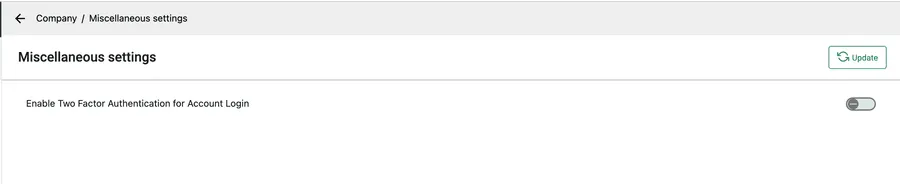
Settings → Company → Miscellaneous settings
Turn Enable Two Factor Authentication for Account Login on and press Update.
From then on, signing in takes two steps. After the password is accepted, a one-time code is sent to the registered email address for that login, and the account only opens once the code is entered. The code is short-lived, and the sign-in screen offers to resend it.
The switch is account-wide. It applies to everyone who signs in, not only to the person who turned it on.
Separately, and whether or not two-factor is on, an account locks after three consecutive wrong passwords.
One session at a time
Section titled “One session at a time”A login belongs to one device at a time. Signing in somewhere new signs that same login out everywhere else: open the account on a phone and the laptop session ends, and the other way round.
This catches admins most often, because they plan on the desktop and carry the app as well — the two cannot both be open on one login. The mobile app is no different on its own: one login cannot be in use on two phones at once.
So two people cannot work under one username and password, and one person cannot keep a laptop and a phone signed in together. Give everybody their own user — see adding a user.
Changing your password
Section titled “Changing your password”Settings → Company → Change Password changes the password of the login you are signed in as — your own. It is not where you reset somebody else’s; that happens on their user record.
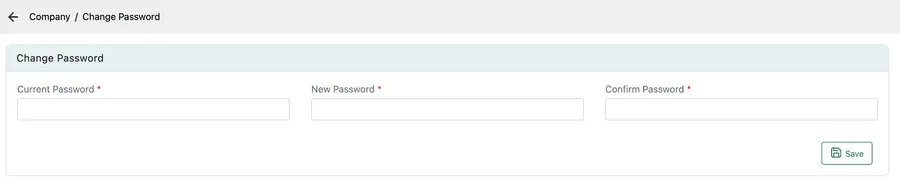
Settings → Company → Change Password
Fill in Current Password, then the new one twice, and press Save. All three are required — knowing the current password is what proves the person at the keyboard is you.