A client's equipment tab
Equipment(s) is every unit belonging to this client that you look after — the assets on their sites, not the tools your fieldworkers carry.
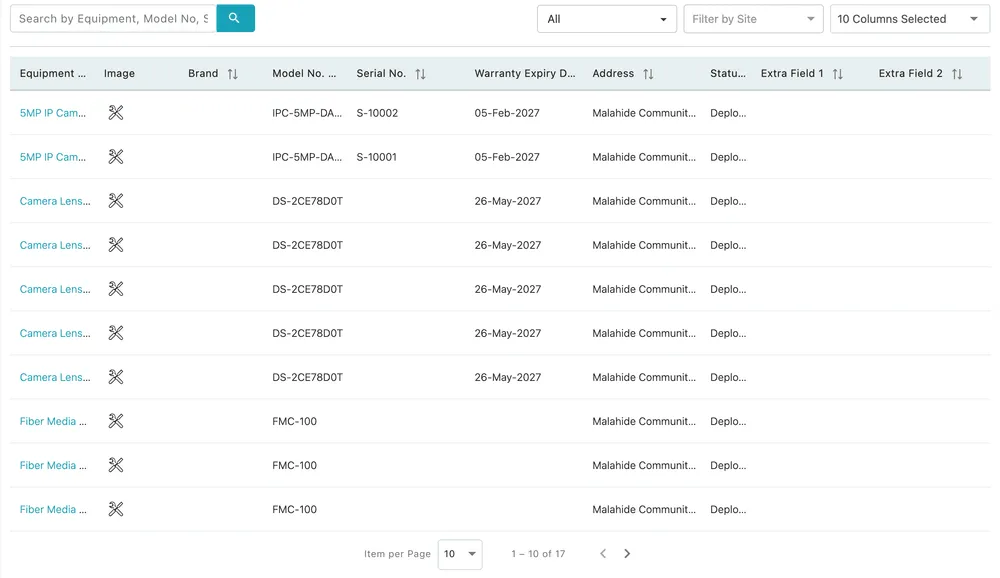
Clients → the selected client → Equipment(s)
The toolbar
Section titled “The toolbar”- Search by Equipment, Model No, Serial No finds one unit among many. On a client with a hundred identical cameras, the serial number is the only thing that tells them apart.
- The All dropdown narrows the list by status.
- Filter by Site is the one you will use most on a multi-site client — it cuts the list down to the units at one building.
- 10 Columns Selected chooses which columns are drawn.
The columns
Section titled “The columns”| Column | What it holds |
|---|---|
| Equipment Name | What the unit is — click it to open the unit |
| Image | Its photograph, if one was added |
| Brand and Model No. | What it is |
| Serial No. | Which one it is |
| Warranty Expiry Date | When the cover runs out |
| Address | The site it is installed at |
| Status | Whether it is deployed, in stock or otherwise |
| Extra Field 1 and Extra Field 2 | Anything else you record about units |
The arrows beside Brand, Model No., Serial No., Warranty Expiry Date and Address sort by them.
Warranty Expiry Date is worth sorting on before you quote a repair. A unit still under cover is a claim, not a chargeable job — see creating a warranty claim.
Where to go next
Section titled “Where to go next”Clicking a unit opens the equipment page, which is where the detail lives: service history, parts, contracts and the activity trail.
- Client’s equipment — units your clients own, the ownership line, and the trail a serviced asset builds up
- The equipment page — every section of a unit’s detail screen
- Equipment service and history — the jobs a unit has been on
- Adding equipment — putting a new unit on a client’s site