Invoice actions
Beyond sending, editing and deleting, everything an invoice can do sits behind the ≡ menu on its action bar.
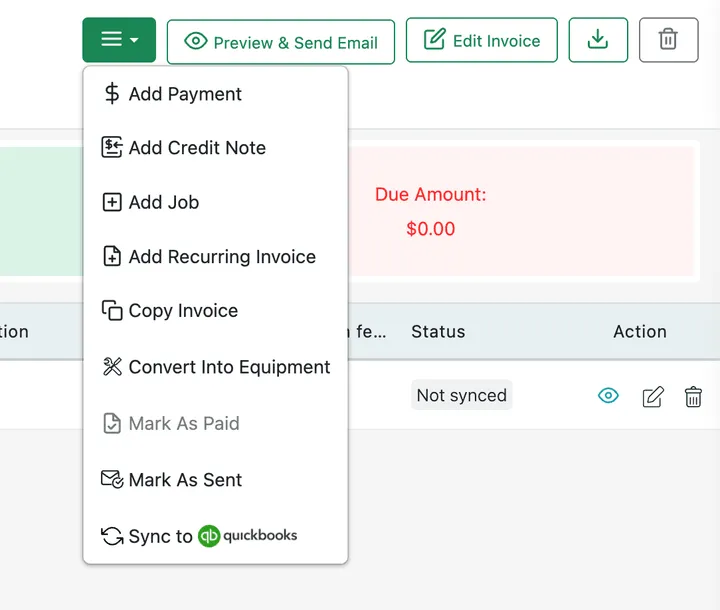
Invoice page → ≡ menu
Add Payment and Add Credit Note both deal with money, and are covered in invoice payments.
Marking status by hand
Section titled “Marking status by hand”Mark As Sent and Mark As Paid set the invoice’s state without going through the motions.
Mark As Paid is for the invoice settled outside the system — cash in hand, a transfer straight to the bank, an account squared up in person. The money never passed through EyeOnTask, but the invoice still needs to stop showing as outstanding.
It is unavailable once the invoice is already settled.
Where you can, record an actual payment instead: it keeps the amount, date, mode, reference and receipt. Mark As Paid closes the invoice but tells you nothing later about how it was settled.
Mark As Sent does the same job for an invoice you handed over in person or sent some other way.
Repeating and reusing
Section titled “Repeating and reusing”Add Recurring Invoice puts the invoice on a schedule, so it regenerates instead of being raised by hand each time. A recurring invoice is marked R, and an invoice on a schedule shows a banner saying a pattern is running, with a link through to it. The invoices it produces show Created By: System.
How recurring patterns work
Section titled “How recurring patterns work”A recurring pattern is a schedule saved as its own record, and it always produces one of two things:
- jobs, created on the schedule, or
- invoices, created on the schedule.
A pattern can be started from anywhere, and it stays attached to whatever it produces. When a contract recurs it creates a pattern too — for a job, or for an invoice where the contract invoices automatically — and shows that pattern on the contract.
To change a schedule, change the pattern itself: reach it from the invoice or job it belongs to, or through the Click here to see the recurring schedule link on the banner.
Copy Invoice
Section titled “Copy Invoice”Copy Invoice duplicates this invoice as a new one. It is the answer to the bill you send the same client every month but do not want on a schedule — no pattern, no automation, just the same invoice again when you are ready.
Creating other things from an invoice
Section titled “Creating other things from an invoice”Add Job creates a job from the invoice — the work that has been paid for, or that the bill has committed you to.
Convert Into Equipment
Section titled “Convert Into Equipment”Convert Into Equipment turns items you invoiced into the client’s equipment.
The item was your inventory. Once you sell it, the client owns it, so it stops being your stock and becomes their asset — something that can be tracked, serviced and put on a contract.
Opening it lists every non-consumable item on the invoice; consumables are excluded. Select the ones that should become client equipment and convert them.
An air conditioner you sold last year can then be the equipment on the AMC you sign this year. See equipment on a contract, and turning items into equipment for the other routes a unit can take.
Sending it to your accounts package
Section titled “Sending it to your accounts package”The sync option pushes the invoice to whichever accounting system you have connected — QuickBooks, Xero, or whatever your setup uses — so the bill raised here appears in your books without re-entry. The menu names the system you are connected to, which is why it may read Sync to QuickBooks.
The integration has to be connected first; that is set up in Settings.
Re-syncing an invoice you have changed
Section titled “Re-syncing an invoice you have changed”An invoice that has already gone across does not update itself when you change it here. Edit the line items, the labour hours or the rates, and your accounts package is still holding the version it received — so the change has to be pushed again. There are two ways, and they do the same thing:
- From the invoice. Open it, and use the sync option on its ≡ menu again. Quickest when you have just made the change and are still looking at the invoice.
- From the integration. Settings → Integrations, open QuickBooks or Xero, go to the Invoice tab, find the invoice and sync it. Better when several invoices have been edited, because they can go in one pass.
Either way the accounting side ends up with your current figures.
One thing will stop it. An invoice that has been paid, part-paid, voided or locked in your accounts package cannot be rewritten by a sync — accounting systems refuse edits to invoices with money matched against them. That comes back as “this invoice cannot be modified”, and the correction has to be made on the accounting side or handled with a credit note. See sync errors.
What syncs, and which way
Section titled “What syncs, and which way”Not everything travels in both directions:
| Record | Direction |
|---|---|
| Clients | Two-way — changes on either side reach the other |
| Invoices | One-way — raised in EyeOnTask, pushed out to your accounts package |
| Payments | Two-way — a payment recorded in either system reaches the other |
| Items and services | In only — imported from your accounts package. Yours travel out on the invoices that carry them, never on their own |
Invoices generated in EyeOnTask can be transferred to QuickBooks or Xero — but their invoices cannot be brought back into EyeOnTask.
So EyeOnTask has to be where invoices are raised. If someone bills a client directly from your accounts package, that invoice will never appear here, and the job or contract it relates to will look unbilled.
Each payment carries its own sync status in the payment history.