The fieldworker app
The office works in a browser. The person doing the work does not — they are in a van, on a roof, in somebody’s plant room. The EyeOnTask app is the same system in their pocket: the jobs they have been sent, the details of each one, and the way everything they find on site gets back to you.
Nothing in the app is separate from what you see in the office. A status they change moves on your job list. A photo they take appears on the job’s completion detail. An item they add to the job reaches the invoice. The app is not a copy of your data — it is the other end of it.
Getting the app
Section titled “Getting the app”It is on both stores, free, and free to sign in to as many times as you have users:
- Google Play for Android
- App Store for iPhone
Fieldworkers sign in with the username and password on their EyeOnTask user record. They do not create their own accounts — an admin adds them in the office first, which is what decides who they are and what they are allowed to do. See adding a user.
Admins can sign in to the app as well, so a manager who spends half the week on site has the same app in their pocket as the people they dispatch. A fieldworker has the app and nothing else.
The menu
Section titled “The menu”The three lines in the top-left corner open the menu, and it is worth reading once because it is the whole app in one list.
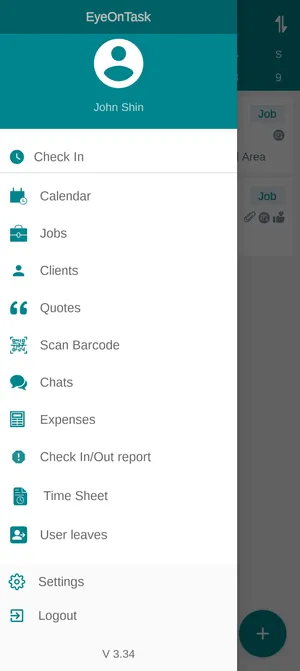
The app → menu
| Entry | What it is |
|---|---|
| Check In | Starting and ending the working day, which is what the attendance report in the office is built from |
| Calendar | Their own work, day by day — see finding your work in the app |
| Jobs | The same work as a filterable list |
| Clients | The client records they are allowed to see, with contact details and addresses. Browsing them does not depend on having a job for that client — it depends on the Client permission being granted |
| Quotes | Quotes they have raised or been given sight of — see how quotes work |
| Scan Barcode | Finding an item or a piece of equipment by scanning the code on it instead of searching for it |
| Chats | Messages with the office, including the ones attached to a particular job |
| Expenses | Money they have spent and want back — see expenses and leave in the app |
| Check In/Out report | Their own attendance, as recorded by Check In |
| Time Sheet | Hours worked |
| User leaves | Booking time off and seeing what has been agreed |
| Settings | Language and the app’s own preferences |
The version number sits under Logout — worth asking for when something on a phone does not match what this documentation describes.
Working without a signal
Section titled “Working without a signal”The app keeps working when the phone loses its connection. A fieldworker in a basement plant room or on a rural site carries on with the job in front of them — reading what they were sent, recording what they did, capturing the details of the visit — and what they enter is held on the device. When the signal comes back it syncs to the office on its own, with nothing to press.
Check In and Check Out are the exception. Attendance needs a connection at the moment it is marked, so somebody who is offline cannot start or end their day until they have one. If a site has no coverage, they check in where they do have signal.
That difference is worth telling a new fieldworker, because the two feel the same on the phone: the job carries on regardless, the day cannot start without a connection.
What syncing does when both ends have changed
Section titled “What syncing does when both ends have changed”Syncing adds what came from the phone. It does not compare the two versions and pick a winner, so if the same thing was entered in the office while the phone was offline, both end up on the record — the item added on site arrives alongside the one added at a desk, rather than replacing it or being discarded.
In practice that only bites when two people work the same job from both ends at once. While somebody is out of signal, leave their job to them: add the part, the note or the photograph on the phone or in the office, not both. If a duplicate does appear after a sync, delete the one you do not want — nothing else about the job is affected.
Keeping location reporting working
Section titled “Keeping location reporting working”A phone that stops reporting its position is almost always the phone’s doing, not the app’s: both Android and iOS shut down apps they decide are idle, and that stops the location arriving. Two things have to be granted on the device — permission to use location all the time, and permission to keep running in the background.
Do it when the phone is handed over, rather than the first time somebody vanishes from the map.
Android
Section titled “Android”In Settings → Apps → EyeOnTask (the fieldworker app):
- Permissions → Location must be Allow all the time. Set to only while using the app, the position stops the moment the engineer opens something else, which is most of the day.
- In Settings → Battery, set the app to Unrestricted, which excludes it from battery optimisation.
Then deal with the phone’s own power saving, which is a separate thing from the two settings above and is what closes the app in practice. Every Android manufacturer adds its own layer on top of stock Android — Samsung, Xiaomi, Oppo, Vivo, OnePlus, Huawei and the rest — and each names it differently, so there is no single path to give you.
What you are looking for is the same in all of them: a list that decides which apps the phone is allowed to put to sleep, and a switch that lets it sleep apps it thinks are unused. EyeOnTask has to be excluded from the first and protected from the second. On some phones there is also an auto-start or launch on boot permission, which has to be granted or the app never comes back after a restart.
On Samsung, whose power saving is keener than stock Android and will close the app even with the settings above, those are:
- Add EyeOnTask to Never sleeping apps
- Turn Put unused apps to sleep off
On another make the wording will differ — look under Battery, Power saving or Device care for whatever that phone calls sleeping apps, battery optimisation and auto-start, and make EyeOnTask the exception in each. If you cannot find it, the phone’s own support pages name it exactly; the app-side settings are only the two at the top of this list.
iPhone
Section titled “iPhone”In Settings, open EyeOnTask from the app list:
- Background App Refresh on. On recent versions of iOS this is governed by Low Power Mode instead — that has to be off, because low power mode stops background refresh across the phone.
- Settings → Privacy → Location Services on, with EyeOnTask set to Always. While Using the App is not enough for continuous tracking.
See where a fieldworker is and viewing fieldworkers on the map.
Where to go next
Section titled “Where to go next”| Page | What it covers |
|---|---|
| Finding your work in the app | The calendar and the jobs list, and the filters that cut them down |
| A job in the app | The job screen top to bottom — accepting, travelling, the client, the items, raising a request |
| Adding items in the app | Putting parts and labour on a job from site, and what the tick boxes do |
| Finishing a job in the app | The completion form, photos and the client’s signature |
| Equipment in the app | Servicing, replacing, relocating and discarding a unit on site |
| Expenses and leave in the app | Claiming money back and booking time off |
Settings behind this module
Section titled “Settings behind this module”- Mobile app settings — The company-wide controls behind everything on this page